Generating a Self-Signed Certificate for a TLS Context
You can use the device to generate a certificate for the TLS Context that's digitally signed by the device itself. This is called a Self-Signed Certificate. In effect, the device acts as a CA.
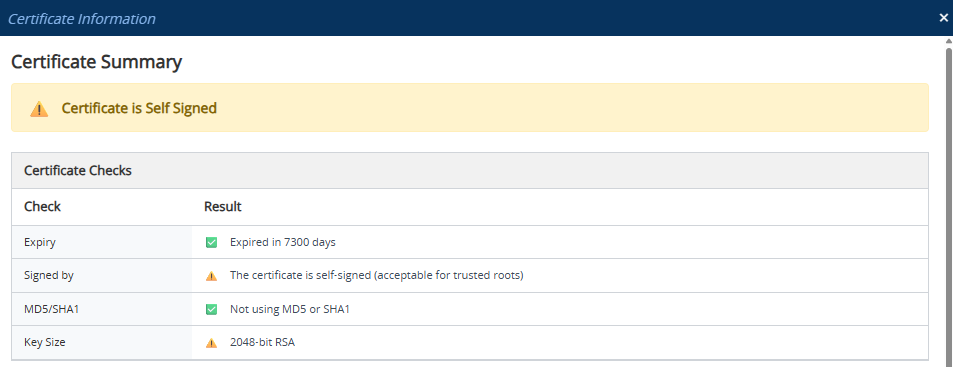
In a self-signed certificate, the Issuer field (e.g., "Issuer: CN=ACL_5967925") and the Subject field (e.g., " Subject: CN=ACL_5967925") have the same value.
When the device generates a Self-Signed Certificate it also generates a private key if the TLS Context doesn't have one. The device generates a certificate signed by itself using the private key.
|
●
|
You can generate a Self-signed Certificate for a TLS Context only if ACME-based certificate management is disabled for the TLS Context. |
|
●
|
The device is shipped with a default TLS Context (Index 0 and named "default"), which includes a self-generated random private key and a self-signed server certificate. The Common Name (CN or Subject Name) of the default certificate is ACL_nnnnnnn, where nnnnnnn is the serial number of the device. |
|
●
|
Generating a Self-Signed Certificate overwrites the TLS Context's current certificate. |
|
●
|
Generating a Self-Signed Certificate may take several minutes and is traffic affecting. |
|
➢
|
To generate a Self-Signed Certificate for a TLS Context: |
|
1.
|
Make sure that you have a unique DNS name for the device (e.g., dns_name.corp.customer.com). The name is used to access the device and therefore, must be listed in the server certificate. |
|
3.
|
Select the TLS Context. |
|
4.
|
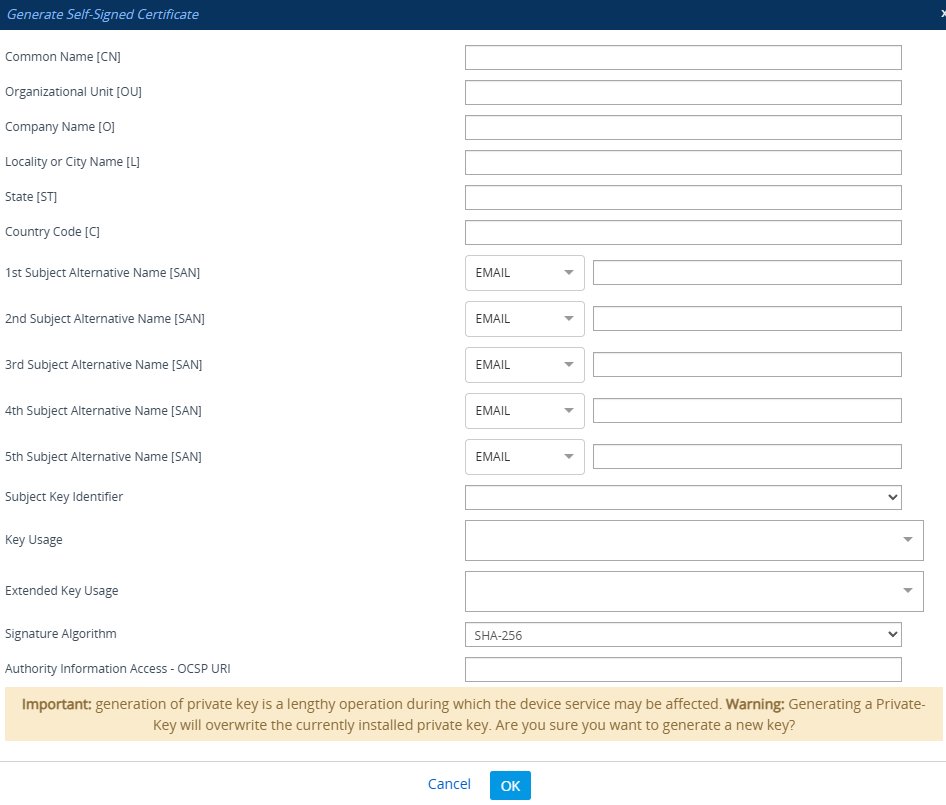
Click Action, and then from the drop-down menu, choose Generate Self-Signed Certificate; the following dialog box appears: |
|
5.
|
In the 'Common Name [CN]' field, enter the fully-qualified DNS name (FQDN) as the certificate subject. Alternatively (or in addition), if you want to generate a self-signed SAN certificate with multiple subject alternate names, then from the 'Subject Alternative Name [SAN]' drop-down listS, select the type of SAN (EMAIL, DNS, URI, or IP), and then enter the corresponding value. You can configure multiple SANs, using the 1st to 5th 'Subject Alternative Name [SAN]' fields. |
For a description of the other optional parameters such as 'Subject Key Identifier', 'Key Usage', and 'Extended Key Usage', see Generating a CSR.
|
6.
|
Click OK; the device generates a new Self-Signed Certificate. |
|
7.
|
Close your current web session with the device and open a new browser session with the device. |
|
8.
|
Save the configuration. |
If you view the certificate information of the TLS Context (see Viewing Certificate Information), it indicates that it's a self-signed certificate, as shown in the following example: