Viewing SIP Flow Diagrams
You can view the SIP call flow of SIP sessions (calls) included in your syslog. The SIP flow displays the SIP session in SIP ladder diagram format. This is useful for analyzing the SIP messages of calls.
SIP flow currently supports the following call flows: Mediant SBCs, Mediant Gateways (analog and digital), SmartTAP 360° and IP Phones.
|
➢
|
To analyze calls using SIP flow: |
|
1.
|
On the toolbar, click the SIP Flow Diagram  icon (or from the Tools menu, choose SIP Flow Diagram); the SIP Flow Diagram window appears, as shown in the following example: icon (or from the Tools menu, choose SIP Flow Diagram); the SIP Flow Diagram window appears, as shown in the following example: |
If you have multiple window tabs, you can view SIP call flow diagrams of all the tabs, by clicking the SIP Flow Diagram for All Tabs  icon.
icon.
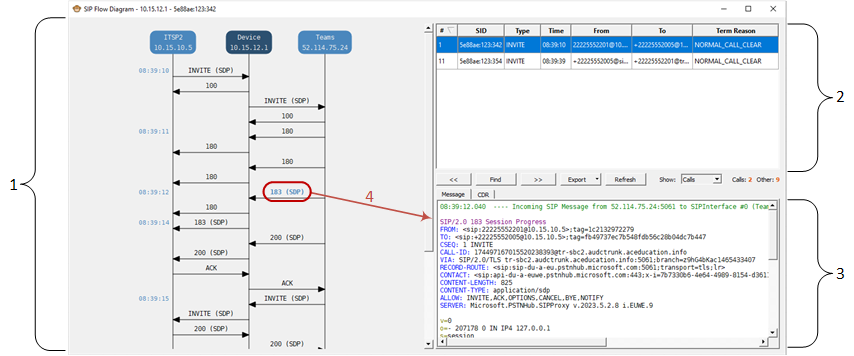
Legend:
|
●
|
#2: Session pane, listing all the SIP sessions in the syslog (e.g., INVITE, OPTIONS, and REGSITER messages). |
|
●
|
#3: Message details pane with the Message tab selected by default, displaying the content of the selected SIP request or response in the SIP Call flow diagram. It also displays the CDR of the SIP session if you select the CDR tab. |
|
●
|
#4: Selected SIP response (e.g., "183 (SDP)") in the SIP Call Flow diagram, whose content is displayed in the Message details pane. |
|
2.
|
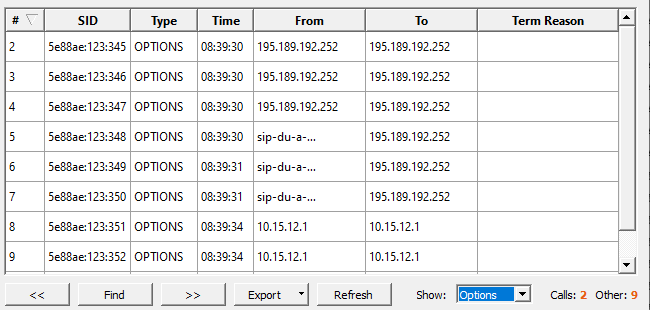
In the Session pane (#2 in figure), select the SIP session type whose SIP flow you want to view. The Session pane provides the following tools: |
|
●
|
Filter by SIP Message Type: From the 'Show' drop-down list, select the SIP message type, for example, Options, as shown below: |
|
●
|
Refresh List of Sessions: Click Refresh. Refreshing the list is important if Syslog Viewer is still receiving syslog messages from the device. |
|
●
|
Export Sessions: From the 'Export' drop-down list, select the following: |
|
◆
|
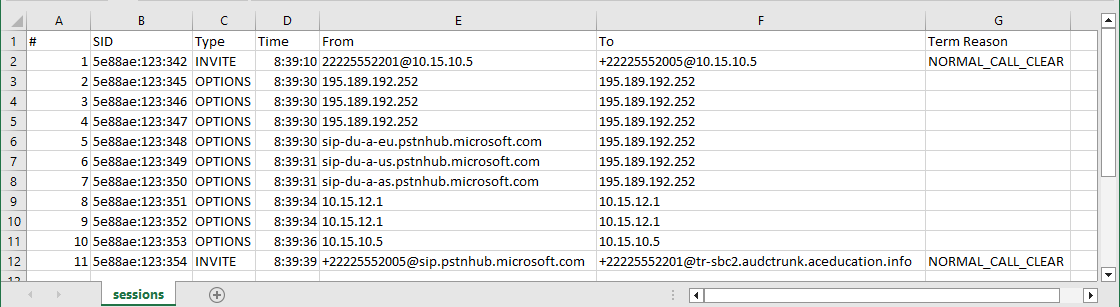
Export sessions - downloads the list of sessions to a .csv file (in CSV format). |
|
◆
|
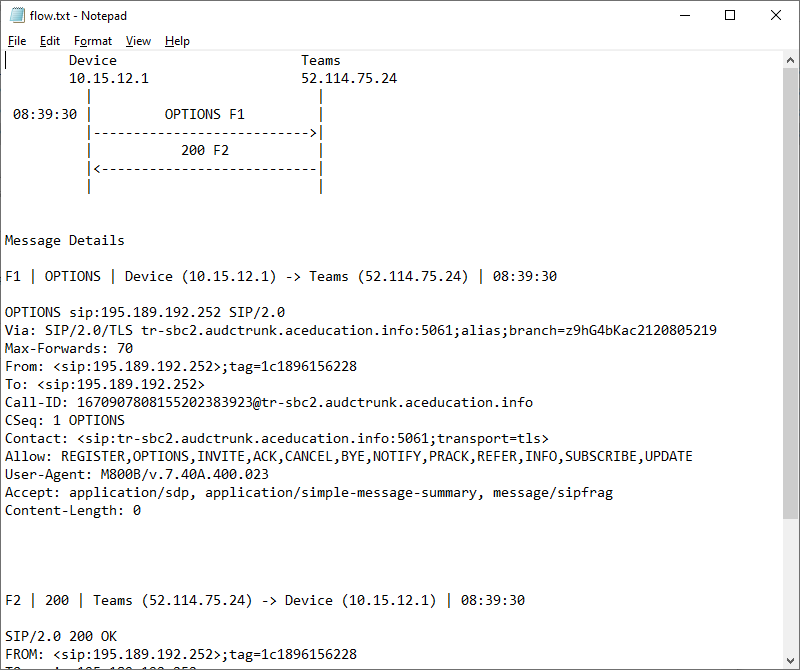
Export flow diagram as TXT – downloads the SIP call flow of the selected session in text format (.txt file). The file includes the SIP call flow and the details of the entire message. |
|
◆
|
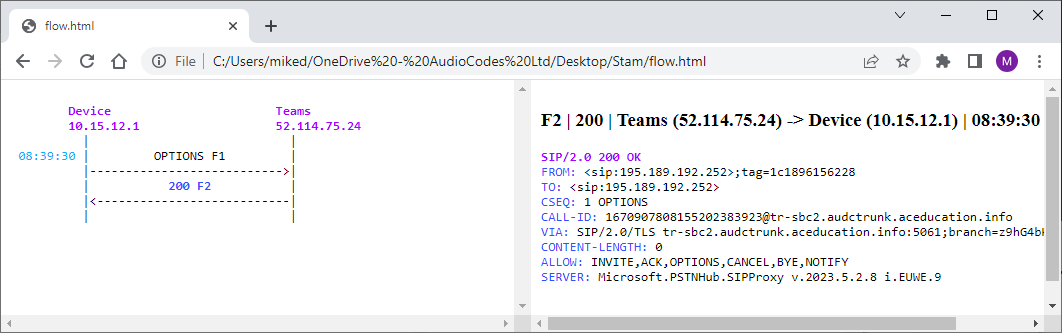
Export flow diagram as HTML – downloads the SIP call flow of the selected session in HTML format (.html file). The file includes the SIP call flow and the details of the entire message. In the left pane, click a SIP request or response in the call flow to view its details in the right pane. |
|
●
|
Search for SIP Sessions:
|
|
i.
|
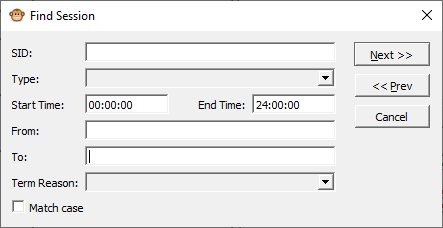
Click Find; the following dialog box appears: |
|
ii.
|
Fill in the desired search parameters: |
|
◆
|
'SID': Search for a specific Session ID. |
|
◆
|
'Type': Search for sessions of a specific SIP message request or response. The list only displays SIP message types that are available in the syslog. |
|
◆
|
'Start Time' and 'End Time': Search for sessions within a specific time range. |
|
◆
|
'From': Search for sessions with a specific SIP From header value. |
|
◆
|
'To': Search for sessions with a specific SIP To header value. |
|
◆
|
'Term Reason': Search for sessions with a specific call termination reason. |
|
i.
|
Click Next or Prev to find sessions based on your search criteria. |
|
3.
|
In the SIP Flow diagram (#1 in figure), select the SIP request or response message of whose content you want to view. If you return to the Syslog Viewer's main window, your cursor is automatically located on the line in the syslog that corresponds to the selected SIP message. |
|
4.
|
In the Message details pane (#3 in figure), click the Message tab (default); the content of the message that you selected in Step 3 is displayed. |
|
5.
|
To view the CDR of the currently selected SIP session, in the Message details pane, click the CDR tab: |
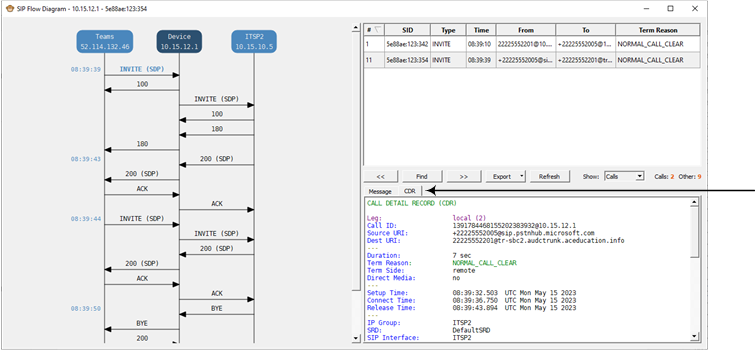
The CDR tab appears only if parsing of CDR records is enabled (default). To disable CDR parsing, click the Options  icon, clear the 'Parse CDR records' check box, and then click OK.