Export an Interaction to Excel
You can export a Voice or Screen Sharing interaction to an Excel file.
| ➢ | To export a call: |
| 1. | In the Interactions page, select the check box adjacent to the call that you wish to download, then click Action > Export to Excel. |
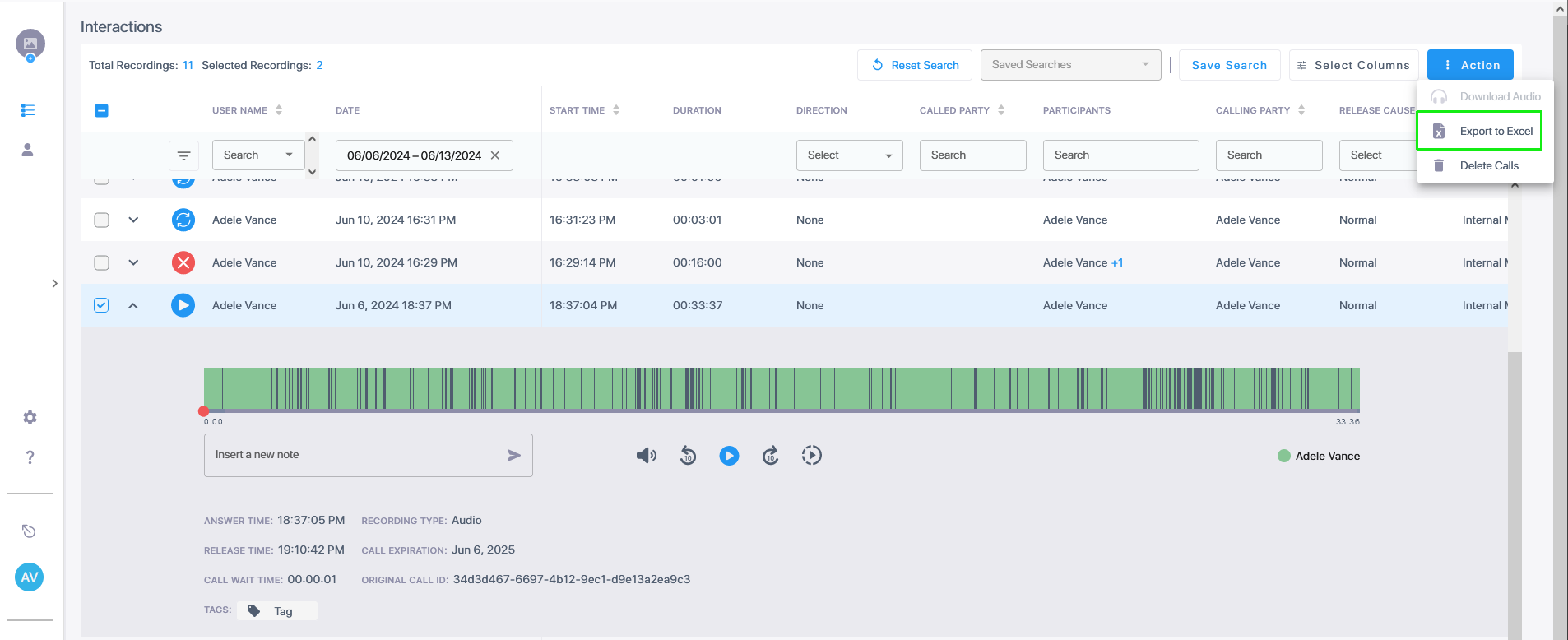
| 2. | In the dialog, optionally select Include media file names and click Export. A .cvs file is downloaded. |
The following table describes the fields in the exported file.
|
Field |
Description |
||||||||||||||||||
|---|---|---|---|---|---|---|---|---|---|---|---|---|---|---|---|---|---|---|---|
|
Call Id |
Unique call id |
||||||||||||||||||
|
Target Display Name |
The M365 username of the targeted user. |
||||||||||||||||||
|
Target Upn |
The M365 username of the targeted user. |
||||||||||||||||||
|
OnBehalfOf |
The name of the party for whom the call was made. |
||||||||||||||||||
|
TransferredBy |
The name of the party who transferred the call. |
||||||||||||||||||
|
TransferredTo |
The name of the party to whom the call was transferred. |
||||||||||||||||||
|
Called Party |
The M365 user receiving the call. |
||||||||||||||||||
|
Calling Party |
The M365 user initiating the call. |
||||||||||||||||||
|
Answered By |
The party who answered the call. |
||||||||||||||||||
|
Meeting Organizer |
The party who organized the meeting. |
||||||||||||||||||
|
Answered time |
The time that the call was answered. |
||||||||||||||||||
|
Start Time |
The time when voice recording commenced. |
||||||||||||||||||
|
Release Time |
The time the call was released. |
||||||||||||||||||
|
SipCallId |
The SIP CallId passed in the SIP Header. |
||||||||||||||||||
|
SysCallId |
Indicates the ID used to identify the call (also known as 'Original Call ID'). This value may be either the original call id or scenario id (Teams). For example, when recording a Teams call between user A and B the id of the call between A and B is displayed. This ID is also displayed in the Teams CDR. |
||||||||||||||||||
|
Call Direction |
Incoming or Outgoing |
||||||||||||||||||
|
Call Type |
Indicates the type of the call. For a list of possible values see Interactions. |
||||||||||||||||||
|
Release Cause |
Indicates the reason why a call is disconnected. For a list of possible values see Release Cause. |
||||||||||||||||||
|
Notes |
Option to add notes to the Interaction record (see Add a Note to an Interaction). |
||||||||||||||||||
|
Participants |
The names of the call participants. |
||||||||||||||||||
|
Media Audio Status |
One of the following values:
|
||||||||||||||||||
|
Expiration |
Indicates the date that the call recording is purged as defined in the Recording profile. |
||||||||||||||||||
|
Queue ID / Name |
Teams Queue Call Instance ID or name when configured in the Recording profile. |
||||||||||||||||||
|
Double Recording Type |
Indicates whether Essentials (Single Recording Audio License) or Pro (Double Recording Audio &Redundancy license) is configured for the service. |
||||||||||||||||||
|
Paired Call |
Indicates whether Geographical Redundancy Storage is enabled in a paired region for data disaster recovery (enabled by default when a Pro License is configured for the service). |
||||||||||||||||||
|
Tags |
Names of any tags assigned to the calls. |
||||||||||||||||||
|
Call Link |
Opens a summary of the call details with the Call Id in the URL . For example https://stngqa.ai-logix.net/ui/interactions/666ed2822a44e64a82cda302
|
