Manage a Transcription
For interactions of users or devices for which the transcription feature is applicable, you can view or start the transcription of their recordings. The transcription may be automatic or manual, depending on the transcription type.
|
●
|
To manage transcriptions, you must have the relevant permissions in your Access Profile. |
|
●
|
The transcription type depends on the associated analytics profile (see Analytics Profiles). |
|
➢
|
To manage the transcription of an interaction: |
|
1.
|
In the Icon pane, click  to open the Interactions page. to open the Interactions page. |
|
2.
|
Locate and click the down arrow adjacent to the requested interaction. |
|
3.
|
Click the Transcript tab. |
|
●
|
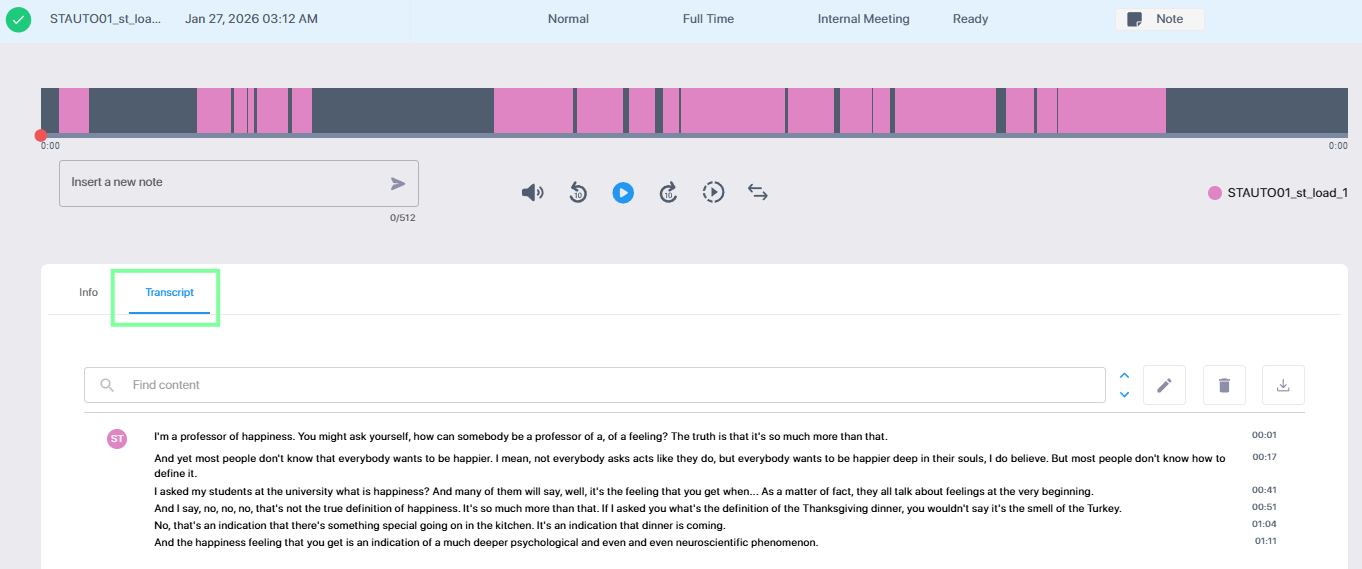
If the transcription exists, the tab displays it. |
|
●
|
If the transcription does not exist, select an available language if applicable, and click Transcribe to generate a transcription. |
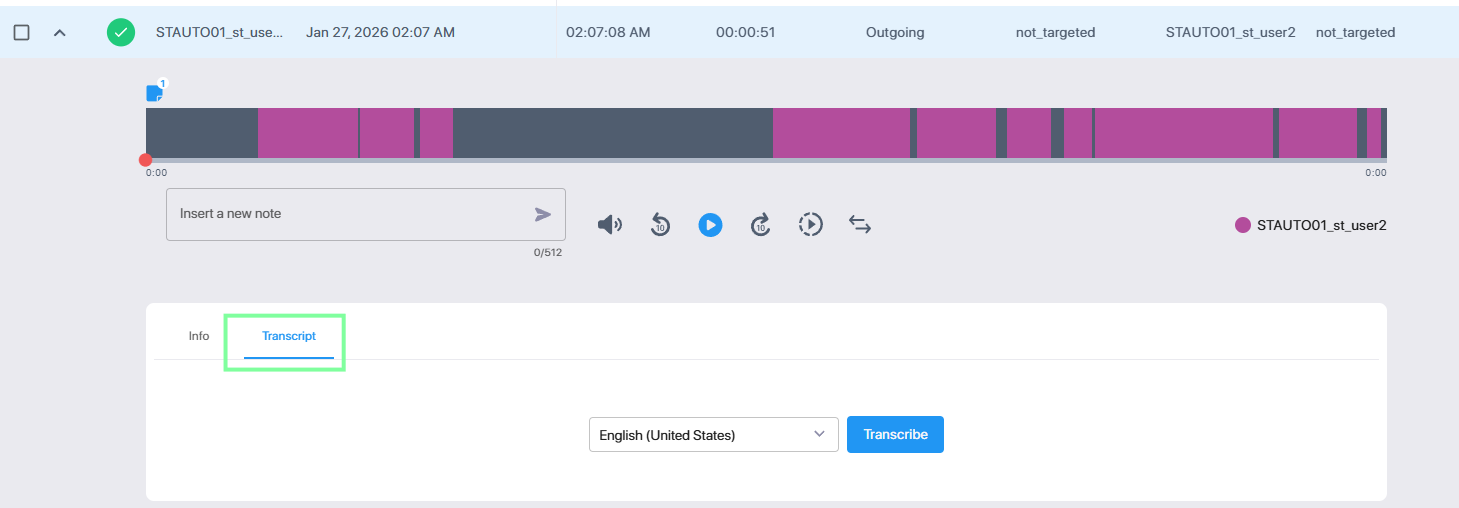
The languages available depend on the relevant analytics profile of the recorded device:
|
●
|
Automatic transcription – primary language only, as specified in the analytics profile. You cannot select the language. |
|
●
|
Manual transcription – the languages listed in the profile. |
To ensure consistency, the language cannot be changed once the call has begun, even if it is transferred or becomes a group call.
|
4.
|
Review the transcription. You can: |
|
●
|
Click anywhere in the transcription text to play the media where you clicked. |
|
➢
|
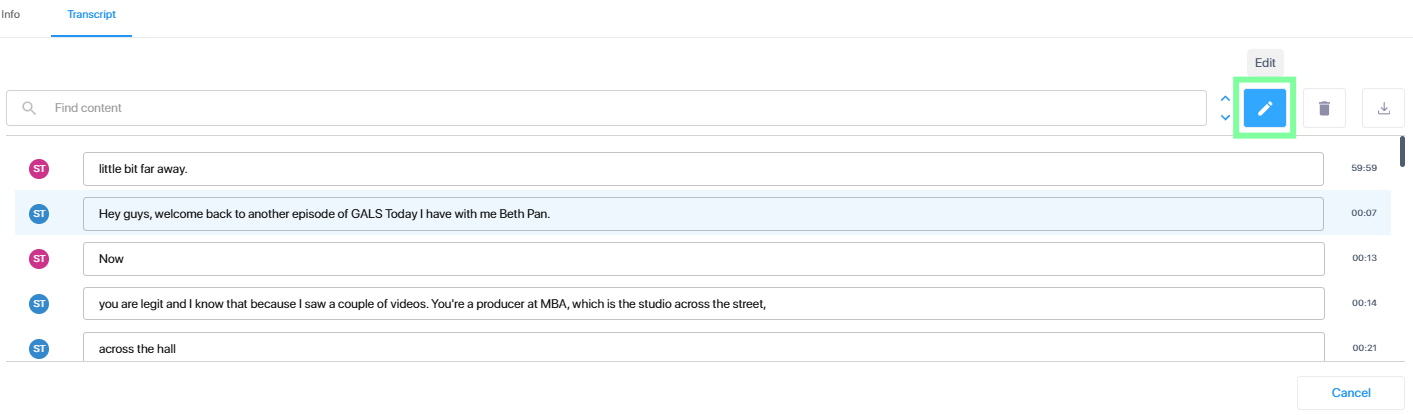
Edit the transcription text |
|
2.
|
Edit the text as required. |
|
3.
|
If the speakers are displayed, you can click the avatar to change the speaker. |
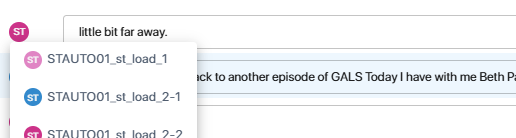
The change is instantly reflected in the progress bar's coloring and speaker assignment.
|
4.
|
To stop editing, click the Edit icon again or click Cancel. |
|
➢
|
Search and replace text |
|
1.
|
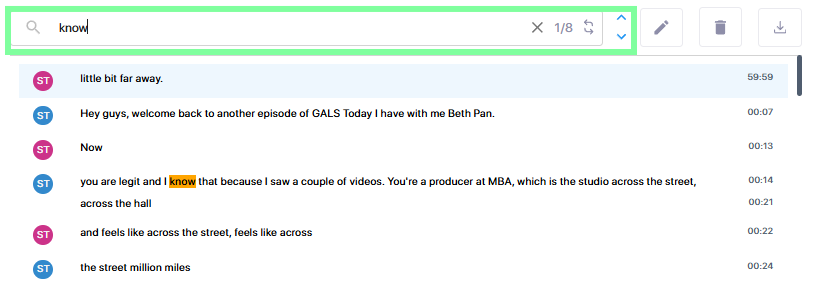
In the 'Find content' search box, enter the text to be searched. The search is not case-sensitive. |
|
2.
|
Use the Up and Down arrows to move between the occurrences of the searched text. |
|
3.
|
Click the Replace icon  to open the Replace tools. to open the Replace tools. |

|
4.
|
Enter the replace text and click Replace to replace the current occurrence of the search text, or Replace All to replace all occurrences. |
|
5.
|
To stop search / replace, click the X icon in the search box. |
|
➢
|
Delete the transcription |
|
■
|
Click the Delete icon. The transcription is deleted. |
The language dropbox and Transcribe button are displayed, enabling you to instantly create a new transcription in place of the one you deleted.
|
➢
|
Download the transcription |
|
■
|
Click the Download icon, then click Download as VTT. The transcription file is saved to your Downloads folder. |