Modify a Recording Profile
This option lets you modify existing recording profiles. For example, you may add a new site location and wish to associate the new user groups for this location to a recording profile and to configure the Blob storage location.
When modifying a recording profile, running the Microsoft Configuration script to synchronize with your M365 tenant platform is according to the following:
|
●
|
Recording profile that was instant message recording only and now changed to call recording only requires running the script. |
|
●
|
Recording profile that was instant message recording only and changed to instant message recording with call recording requires running the script. |
|
●
|
Recording profile that was call recording only and changed to call recording and instant message recording doesn't require re-running the script. |
|
●
|
Recording profile that was call recording only and changed to instant message recording only requires running the script to disable it. |
|
1.
|
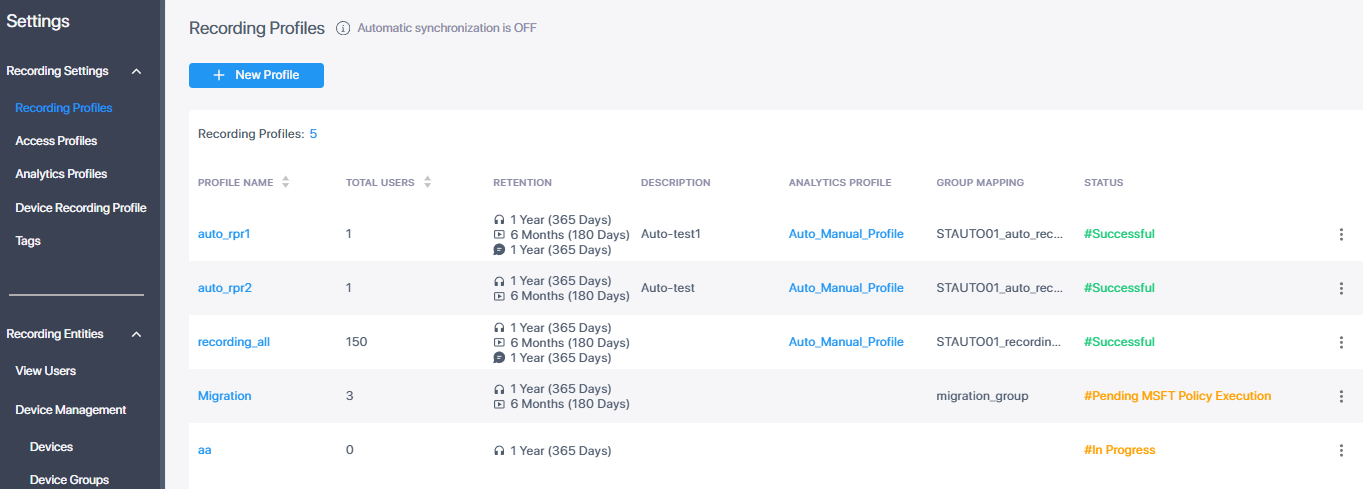
In the Icon pane, click  , and then in the Navigation pane, select Recording Settings > Recording Profiles. , and then in the Navigation pane, select Recording Settings > Recording Profiles. |
|
2.
|
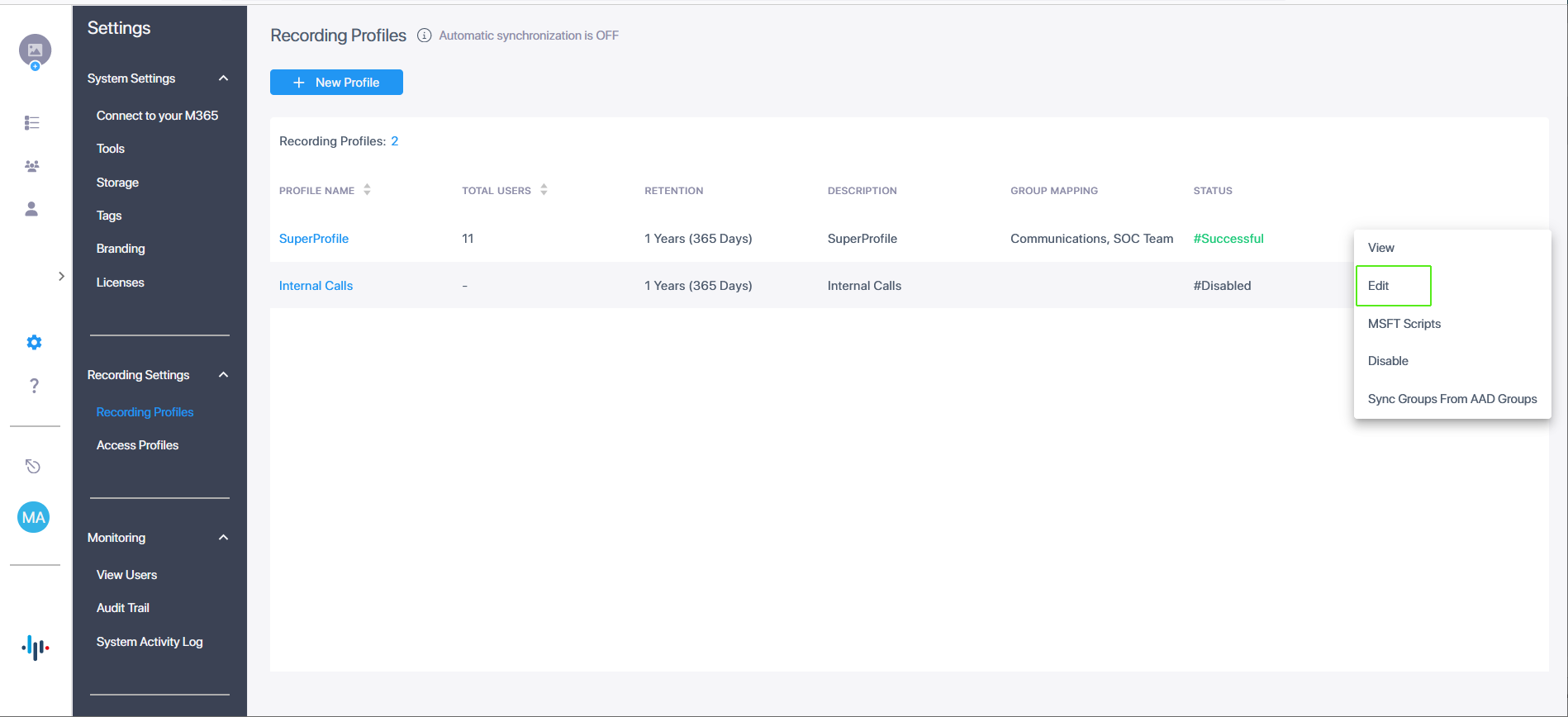
Click the dots adjacent to the profile that you wish to edit (see above), and then from the drop-down list, choose Edit (see below). |
|
4.
|
Click Next to configure additional groups. |
|
●
|
Users can only be mapped to one Recording Profile and belong to one mapped group. |
|
●
|
At least one group must exist in the Recording Profile. |
|
5.
|
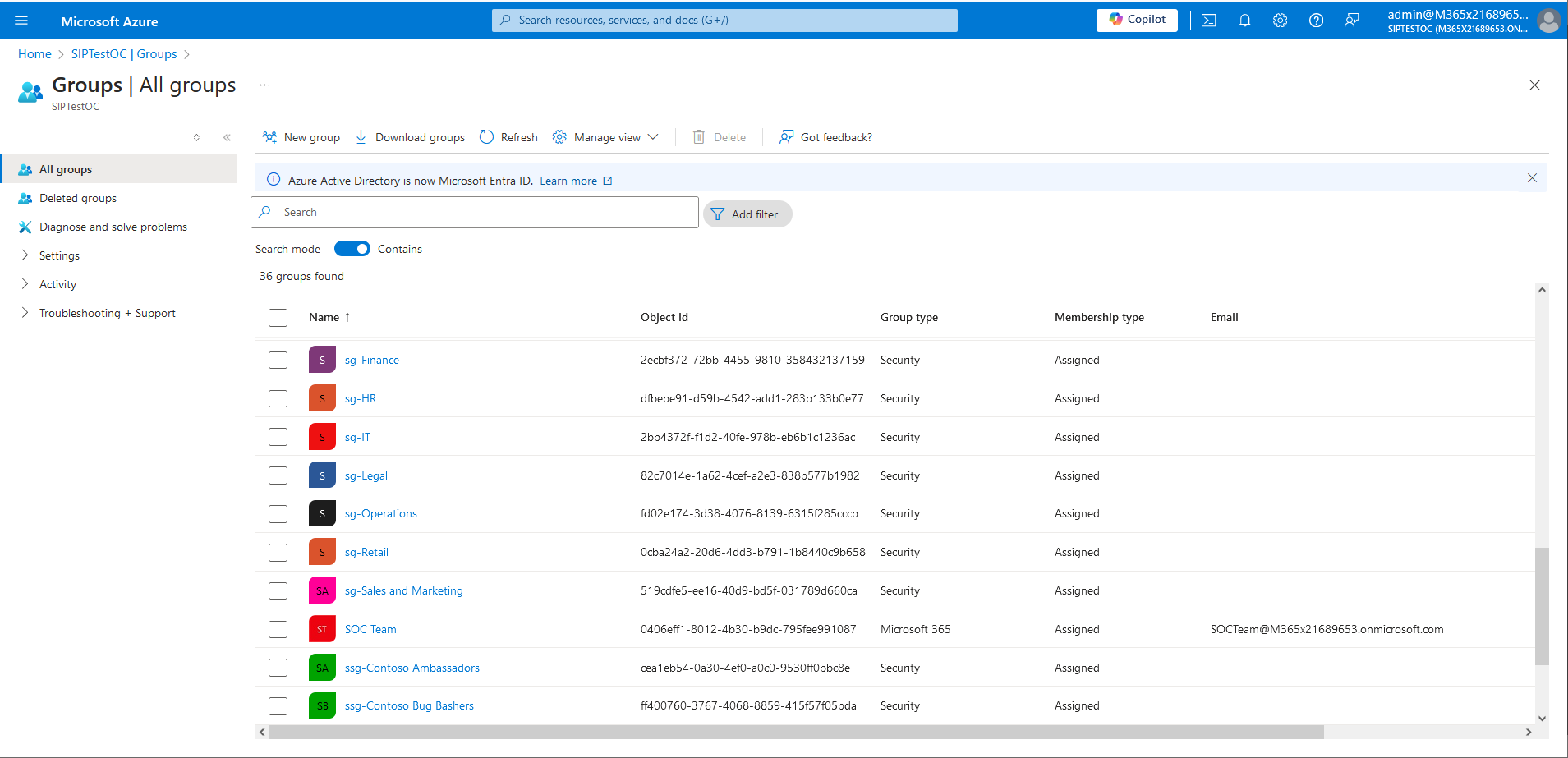
Add additional groups as required (login to your Azure portal to verify the groups and their respective members). |
|
6.
|
Open the Azure portal of your customer tenant to verify which groups you wish to add. |
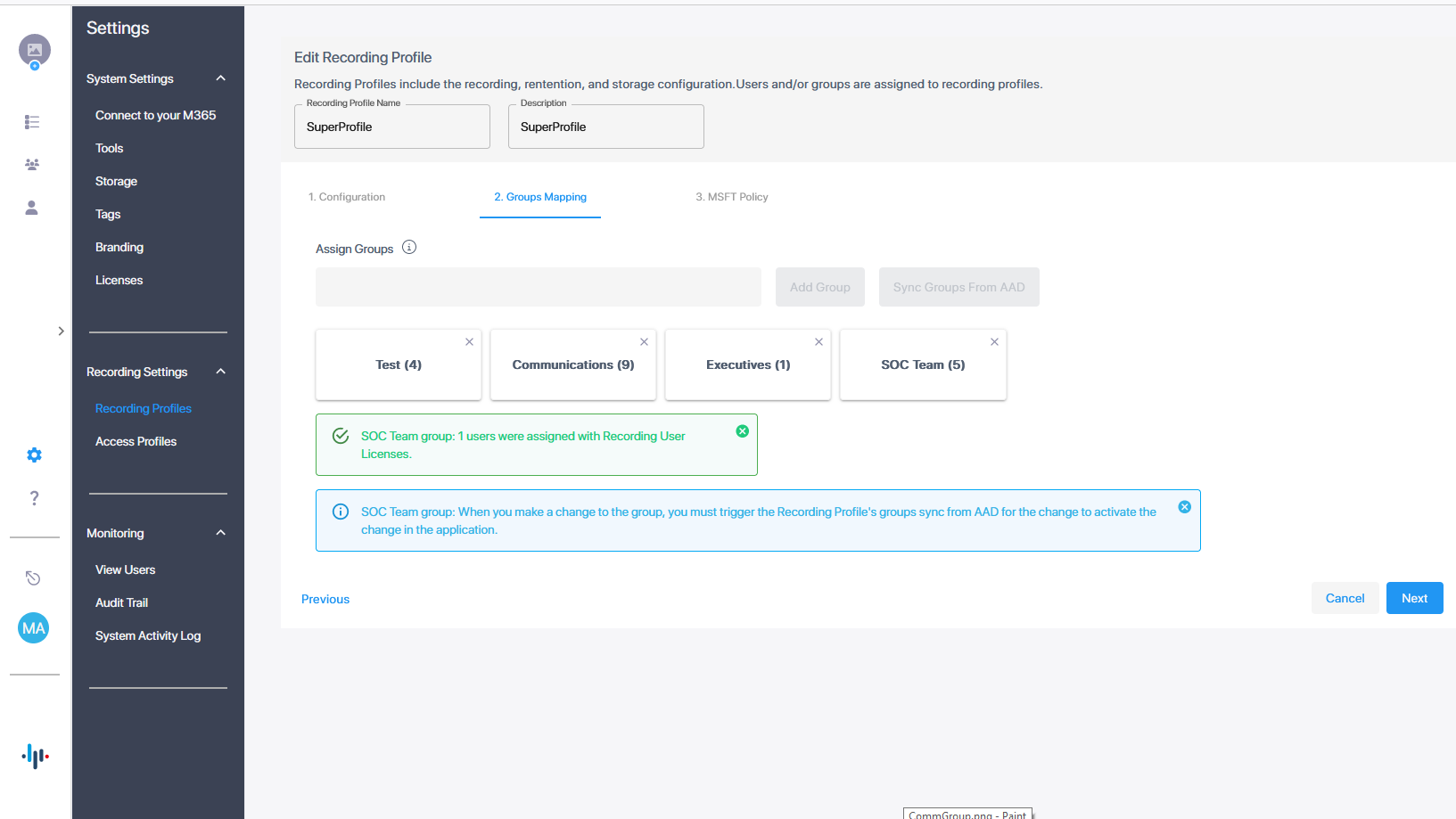
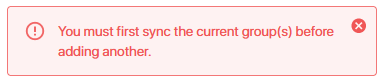
The following message is displayed if you have not yet synced groups with your M365 platform.
|
7.
|
Perform the Sync; a confirmation message is displayed. |

|
8.
|
Click Next to continue. |
|
9.
|
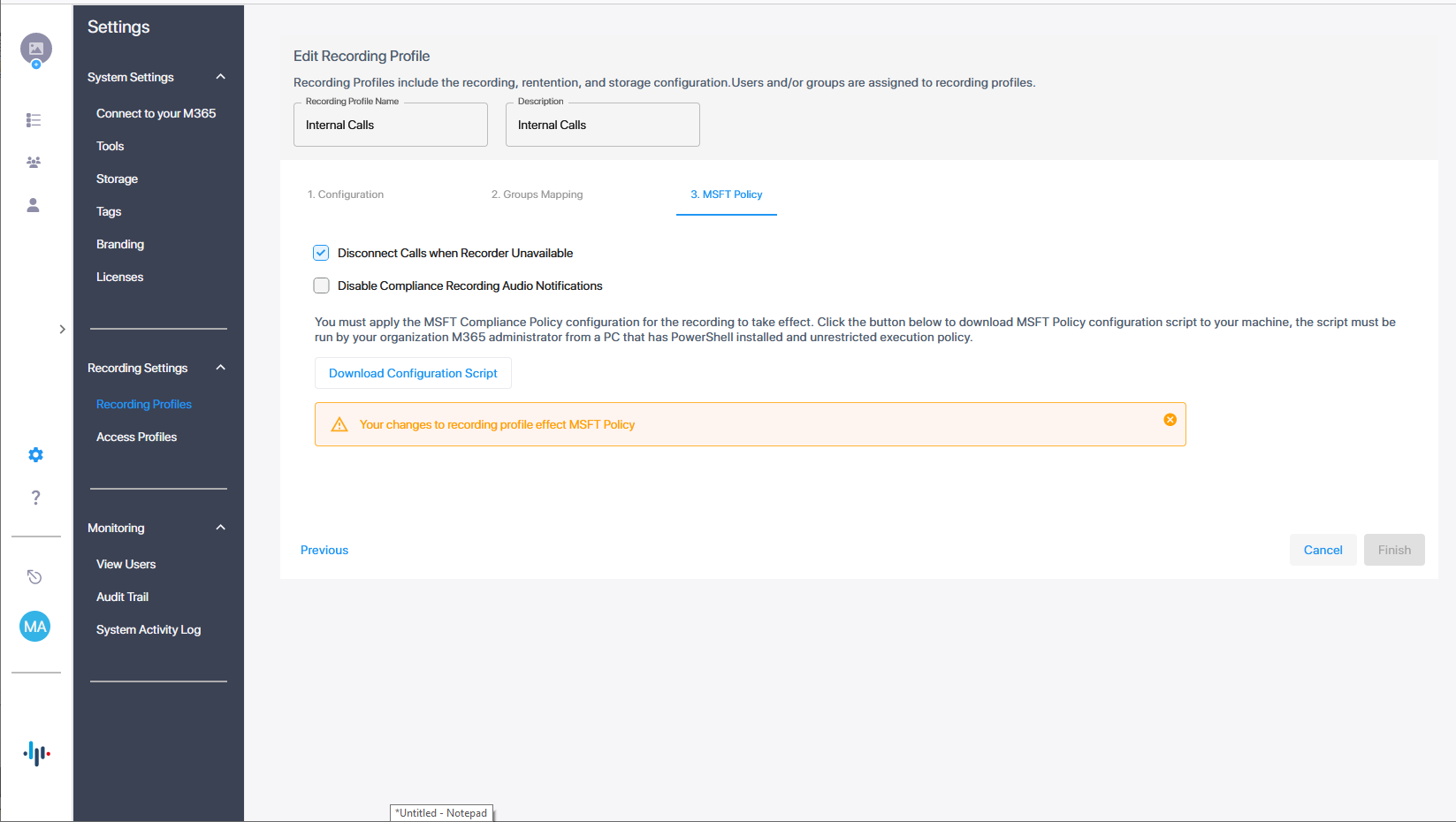
Configure the following Microsoft Teams Calling Policies: |
|
●
|
Disconnect Calls when Recorder Unavailable: Calls are disconnected when recording functionality is not available. |
|
●
|
Disable Compliance Recording Audio Notifications: Disable Microsoft Teams Recording notifications. |
If you only update Configuration and not Group Mapping and MSFT Policy, then you do not need to download and run the Microsoft Configuration script.