Enabling MFA for User Login
You can enable multi-factor authentication (MFA) to add an extra layer of security to your Live Platform user sign-in process. After entering your Live Platform credentials, you're prompted to provide a verification code as a second step.
Live Platform supports the following MFA methods for providing a verification code:
|
■
|
Email - a verification code is sent to your registered email address. |
|
■
|
Authenticator app (e.g., Microsoft Authenticator) - a verification code is generated by your authenticator app after you scan a QR code. |
|
●
|
After enabling MFA, the next time you sign in to Live Platform, you're prompted to setup the MFA method. |
|
●
|
You can always change the MFA method during sign-in, by clicking the Change MFA Method link in the Login with your local account dialog box. |
|
➢
|
To enable MFA per user: |
|
2.
|
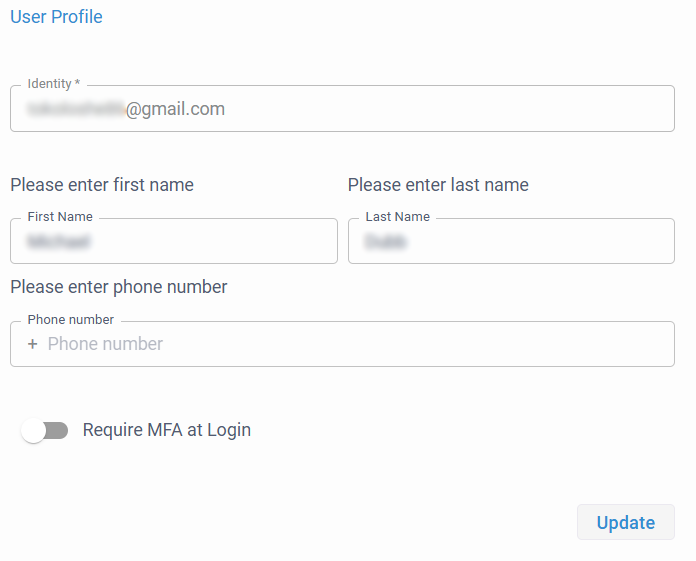
Click your profile icon located in the top-right corner, and then from the drop-down menu, choose Edit User; the User Profile page appears: |
|
3.
|
Click the Require MFA at Login toggle switch to turn it on. |
|
4.
|
Click Update; a success confirmation message is displayed. |
|
5.
|
Close the browser page. |