Operator Connect Number Management
This section describes how to manage numbers that have been assigned to customers.
To monitor all your number management actions, see Synchronizing Operator Connect Jobs.
| ➢ | To manage customer numbers: |
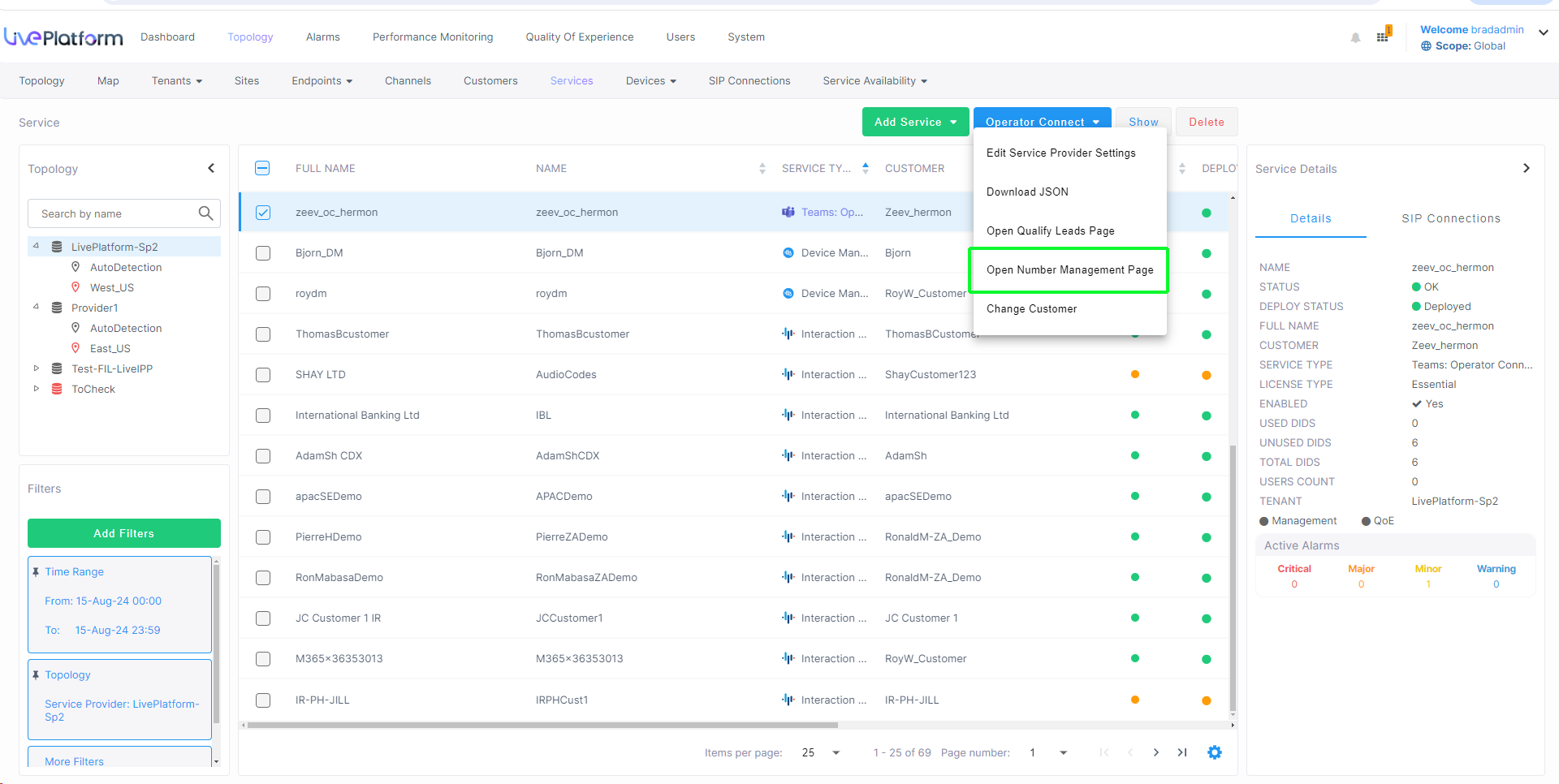
| 1. | In the Services page, from the Operator Connect drop-down, choose Open Number Management Page. |
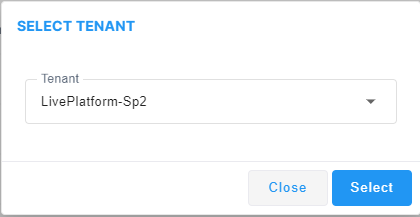
| 2. | Select the Service Provider operator. |
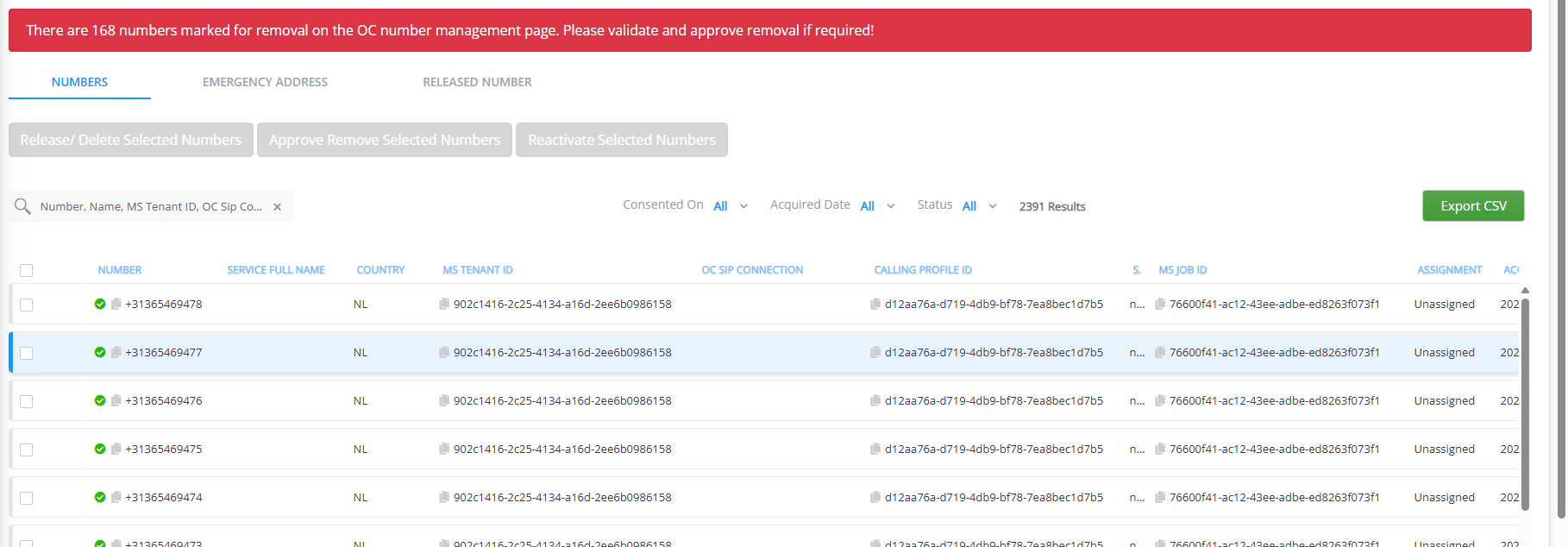
The OC Number Management page lists all the managed phone numbers:
|
Action |
Description |
||||||||||||||||||
|---|---|---|---|---|---|---|---|---|---|---|---|---|---|---|---|---|---|---|---|
|
Number |
Phone number |
||||||||||||||||||
|
Service Full Name |
The name of the customer tenant. |
||||||||||||||||||
|
Country |
Country name abbreviation |
||||||||||||||||||
|
MS Tenant ID |
Tenant ID of the operator. |
||||||||||||||||||
|
Emergency Address |
Operators’ address in the event of an emergency. |
||||||||||||||||||
|
OC SIP Connection |
The OC SIP Connection that is attached to a specific Calling Profile. This parameter is only displayed for services with IP Group-based SIP Connections (see Create OC Essential Service with an SBC IP Group-based SIP Connection). |
||||||||||||||||||
|
Calling Profile ID |
The Calling Profile ID that is configured for the OC SIP Connection. |
||||||||||||||||||
|
Source |
|
||||||||||||||||||
|
MS Job ID |
Job ID |
||||||||||||||||||
|
Assignment |
The number assignment type configured in the Teams admin center:
|
||||||||||||||||||
|
Acquired Date |
Date when the phone number was acquired by the system. |
||||||||||||||||||
|
Display Number Details |
|

| 3. | Select the Emergency Address tab to view the list of emergency numbers. |
| 4. | Select the Released Number tab to view released numbers. |
The following table describes the actions that you can do on the OC Number Management page.
|
Action |
Description |
||||||||||||||||||
|---|---|---|---|---|---|---|---|---|---|---|---|---|---|---|---|---|---|---|---|
|
Status filter |
Filters the list of numbers by:
|
||||||||||||||||||
|
Right-click shortcut menu on row |
|
||||||||||||||||||
|
Refresh From Microsoft button |
Synchronizes the listing with the O365 Azure Active Directory. |
||||||||||||||||||
|
Release / Delete Selected Numbers button |
Releases (deletes) selected numbers (see Release Numbers). |
||||||||||||||||||
|
Approve Remove Selected Numbers button |
Approves the removal of numbers that were deleted by Microsoft Teams admin center (see Approve Number Deletion by Microsoft Teams Admin Center). |
||||||||||||||||||
|
Reactivate Selected Numbers button |
Reactivates the numbers that were deleted by Microsoft Teams admin center (see Reject Number Deletion by Microsoft Teams Admin Center). |
||||||||||||||||||
|
Export CSV button |
Downloads (exports) numbers to a CSV file (see Exporting Phone Numbers). |
||||||||||||||||||
|
Import Numbers button |
Imports a list of numbers from a CSV file (see Import Numbers). |
 Number is active and synchronized with Microsoft Teams admin center.
 "Release Requested") Numbers that you have deleted directly in
  "Marked for Removal") Numbers that have been deleted by Teams admin center and your approval is required for deletion.
 "Ready for Removal") Numbers that have been removed by Teams admin center and approved for deletion by