Assigning a Meeting Insights License to Users
The License Management page in Meeting Insights enables enterprise administrators to assign Meeting Insights licenses to groups of users managed in your organization’s Microsoft Entra ID.
Licenses are allocated per user. When a license is assigned to a group, one license is consumed for each user in that group, deducted from the total number of licenses your organization has purchased.
When selecting a group from Entra ID, you must also associate the group with a User Profile. User Profiles are defined in User Profiles and determine how Meeting Insights is configured for those users.
|
➢
|
To assign a license to group: |
|
1.
|
In the Admin Settings menu pane, click License Management; the License Management page appears. |
|
2.
|
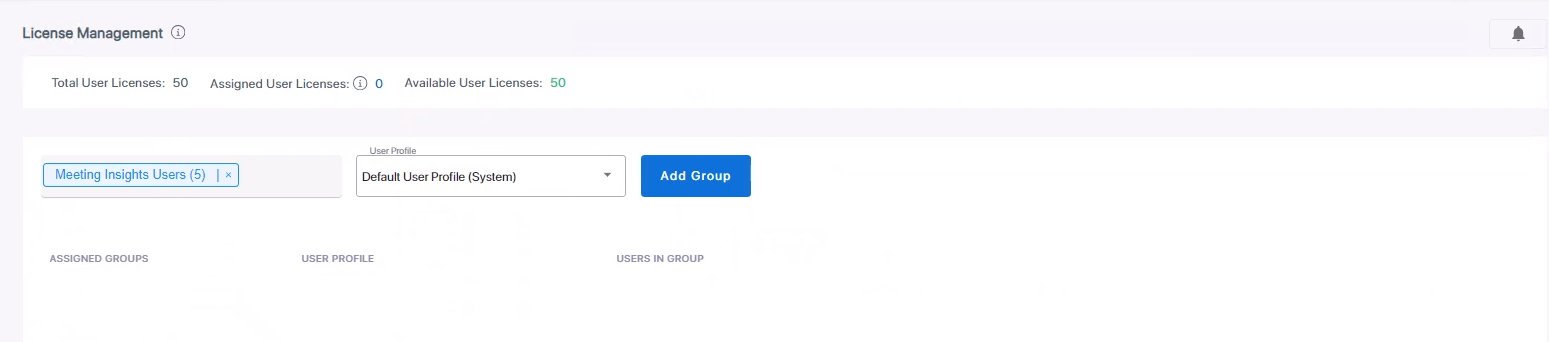
In the 'Search for a group in Entra ID' field, start typing the first letters of the name of the group you defined in Microsoft Entra ID (see Defining a Group of Users in Microsoft Entra ID) and then select it (e.g., Meeting Insights Users (5)): |
|
3.
|
Leave the 'User Profile' field at its default (i.e., Default User Profile (System)), permitting users to access Meeting Insights and to record meetings. [See more information about User Profiles here]. |
|
4.
|
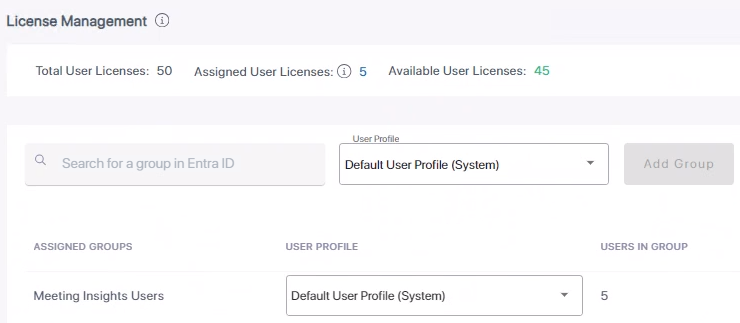
Click Add Group, and then click Sync and Apply; a Meeting Insights license is assigned to the group; the users in the group can go ahead and use the app. |
|
5.
|
View the license assignment displayed uppermost in the License Management page. In the example shown in the preceding figure: |
|
●
|
Total User Licenses: 50 |
|
●
|
Assigned User Licenses: 5 |
|
●
|
Available User Licenses: 45 |
|
6.
|
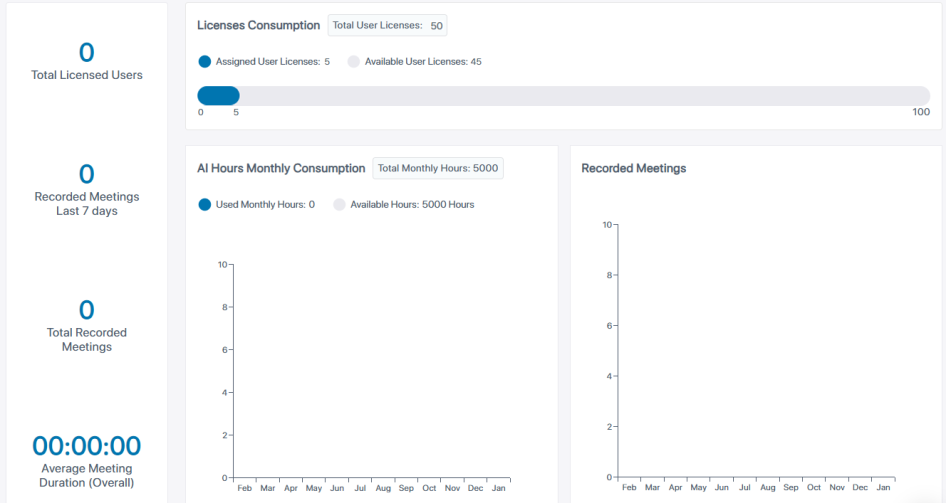
[Optionally] View this information as well as usage on the Dashboard (Licenses Consumption) page. |
In the following example, a license to a group of five Meeting Insights users was assigned, 0 meetings were recorded in the last 7 days and 0 meetings were held in total.