Making a Recap from a Highlight
You can create a recap item from the transcription of a highlight.
|
●
|
The Owner of the meeting recording can add all recap types; participants can add only notes. |
|
●
|
Only one summary can be added to the meeting recording. If you already have a summary, it will be replaced by the new summary. |
|
●
|
Action items, decisions and the summary are always public and therefore, visible to everyone that has access to the meeting recording. By default, your notes are private. |
|
➢
|
To make a recap from a highlight: |
|
1.
|
In the Navigation pane, click  All meetings. |
|
2.
|
Click the name of the meeting recording that you want; the Player page appears. |
|
3.
|
Select the Highlights tab; the list of highlights are displayed. |
|
4.
|
Click the icon corresponding to the highlight you want, and then from the drop-down menu, choose the desired recap (e.g., Note) under the Convert to group: |
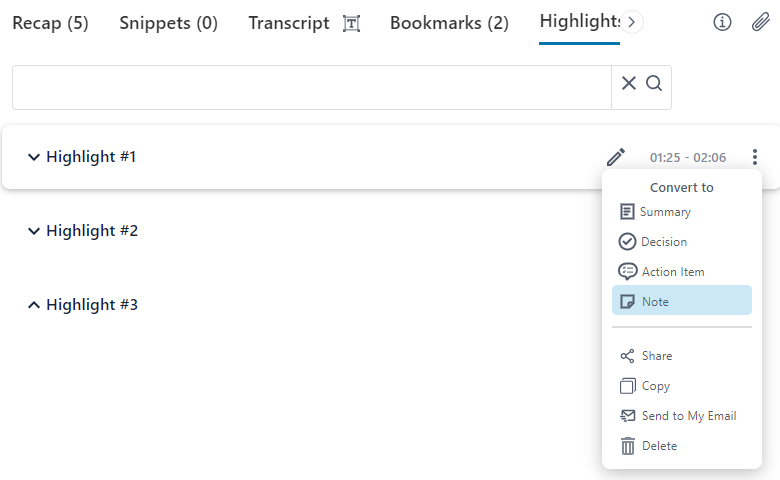
A dialog box relating to the chosen recap type appears, displaying the transcription of the highlight.
|
5.
|
Define the recap item as desired (including modifying the text), and then click Create; your recap item is added. |