Generating a CSR
To request a digitally signed certificate from your CA, you first configure the CSR fields that identify your organization and the TLS Context, and then generate the request. The device uses these fields to build the CSR and sign it with the TLS Context's private key.
|
➢
|
To configure and generate a CSR for a TLS Context: |
|
2.
|
Select the TLS Context. |
|
3.
|
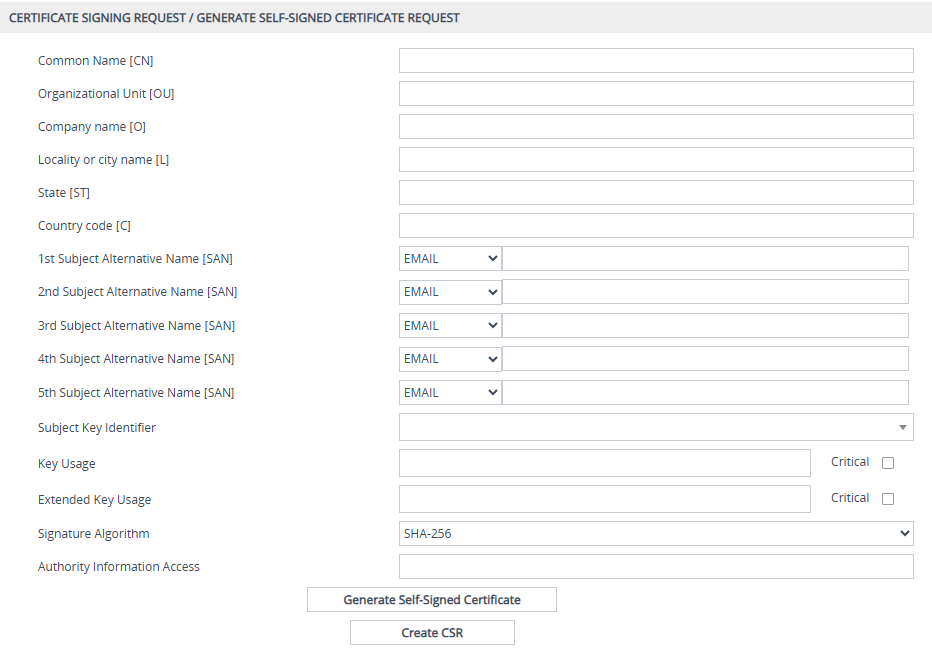
Click Action, and then from the drop-down menu, choose Generate CSR; the Generate CSR dialog box appears: |
|
4.
|
Configure the Distinguished Name (DN) fields, which identify your organization: |
|
a.
|
In the 'Common Name [CN]' field, enter the common name. If you leave this field empty, the device generates the CSR with the default CN CN=ACL_<device's 6-digit serial number>. |
|
b.
|
In the 'Organizational Unit [OU]' field, enter the relevant section of your organization. |
|
c.
|
In the 'Company name [O]' field, enter your organization's legal name. |
|
d.
|
In the 'Locality or city name [L]' field, enter the city where your organization is located. |
|
e.
|
In the '
State [ST]' field, enter the state or province where your organization is located. |
|
f.
|
In the 'Country code [C]' field, enter the two-letter ISO abbreviation for your country. |
|
5.
|
(Optional) If you want the certificate to cover multiple names, configure one or more SANs: |
|
a.
|
From the 'Subject Alternative Name [SAN]' drop-down list, select the SAN type (e-mail address, DNS hostname, URI, or IP address). |
|
b.
|
Enter the corresponding value. |
You can configure up to five SANs, using the 'Subject Alternative Name [SAN]' fields 1 through 5.
|
6.
|
From the 'Subject Key Identifier' drop-down list, configure the Subject Key Identifier (SKI) X.509 field: |
|
●
|
User-defined hex value (maximum 128 characters without the 0x prefix, for example, 00D06F00D4D06746). |
|
●
|
hash-SHA1: Sets the SKI to the 160-bit SHA-1 digest of the public key. |
|
●
|
hash-SHA1-60lsb: Sets the SKI to 0100 followed by the least significant 60-bit SHA-1 digest of the public key. |
|
7.
|
From the 'Key Usage' drop-down list, select the key usage X.509 field values: |
|
●
|
Digital Signature: The certificate can be used to apply a digital signature. |
|
●
|
Non Repudiation: The certificate can be used to sign data as above, but the certificate's public key may be used to provide non-repudiation services, preventing the signing entity from falsely denying some action. |
|
●
|
Key Encipherment: The certificate can be used by the subject to encrypt a symmetric key which is then transferred to the target, decrypted, and subsequently used to encrypt and decrypt data sent between the two entities. |
|
●
|
Data Encipherment: The certificate can be used by the subject to encrypt and decrypt actual application data. |
|
●
|
Key Agreement: The certificate's subject can use a key agreement protocol such as Diffie-Hellman to establish a symmetric key with a target that may then be used to encrypt and decrypt data sent between the two entities. |
|
●
|
Key Certificate Sign: The certificate's subject can use public key for verifying Digital Signature on public key certificates. |
|
●
|
Certificate Revocation List Sign: The certificate's subject can use public key for verifying signatures on Certificate Revocation List lists (e.g., CRLs). |
|
●
|
Encipher Only: The certificate's subject can use a public key only for enciphering data while performing key agreement. |
|
●
|
Decipher Only: The certificate's subject can use a public key only for deciphering data while performing key agreement. |
To make a selected key usage mandatory, select Critical.
|
8.
|
From the 'Extended Key Usage' drop-down list, select the extended key usage X.509 field values: |
To make a selected extended key usage mandatory, select Critical.
|
9.
|
From the 'Signature Algorithm' drop-down list, select the hash function algorithm to sign the certificate: |
|
10.
|
In the 'Authority Information Access - OCSP URI' field, configure the Authority Information Access (AIA) extension field with the URL of the server where the client can check the validity of the device's certificate during TLS handshake. For example, the AIA extension can contain one of the following: |
|
●
|
A CA Issuers URL pointing to the issuing CA’s certificate, allowing clients to download and validate the full certificate chain. This can be used if the client doesn’t have the intermediate or root CA certificate in its trusted store. |
|
●
|
An OCSP Responder URL, allowing the client to verify if the certificate is still valid or has been revoked. |
|
11.
|
Click OK to generate the CSR; the device generates the CSR. |