Add a Device Recording Profile
| ➢ | Do the following: |
| 1. | In the Icon pane, click  , and then in the Navigation pane, select Recording Settings > Device Recording Profile. , and then in the Navigation pane, select Recording Settings > Device Recording Profile. |
| 2. | Click the Create Profile button  . . |
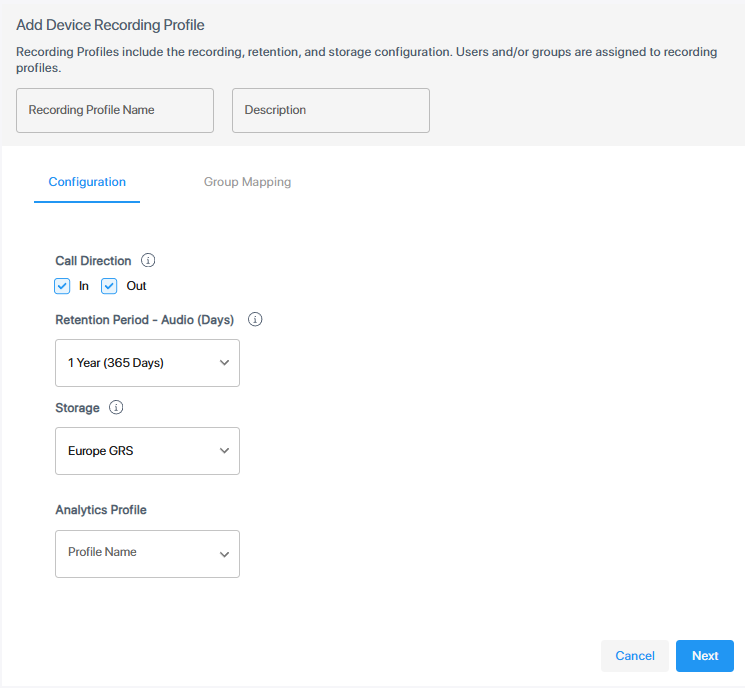
| 3. | Configure parameters according to the table below, then click Next. |
|
Field |
Description |
||||||
|---|---|---|---|---|---|---|---|
| Recording Profile Name* | Enter a unique name for the profile. | ||||||
| Description | Enter a description of the profile. | ||||||
|
Call Direction |
Select either or both of the following:
|
||||||
|
Retention Period - Audio (Days)* |
Select the retention time, in days, for calls associated with the profile. Default: One year. |
||||||
|
Storage* |
Select the Azure Blob Storage account. |
||||||
|
Analytics Profile |
Select an analytics profile with the required transcription settings. If none is selected, SIP sessions related to the device recording profile will not be transcribed. |
| 4. | Under Group Mapping, click in the 'Assign Groups' field to search and select a device group, then click Add Group. |
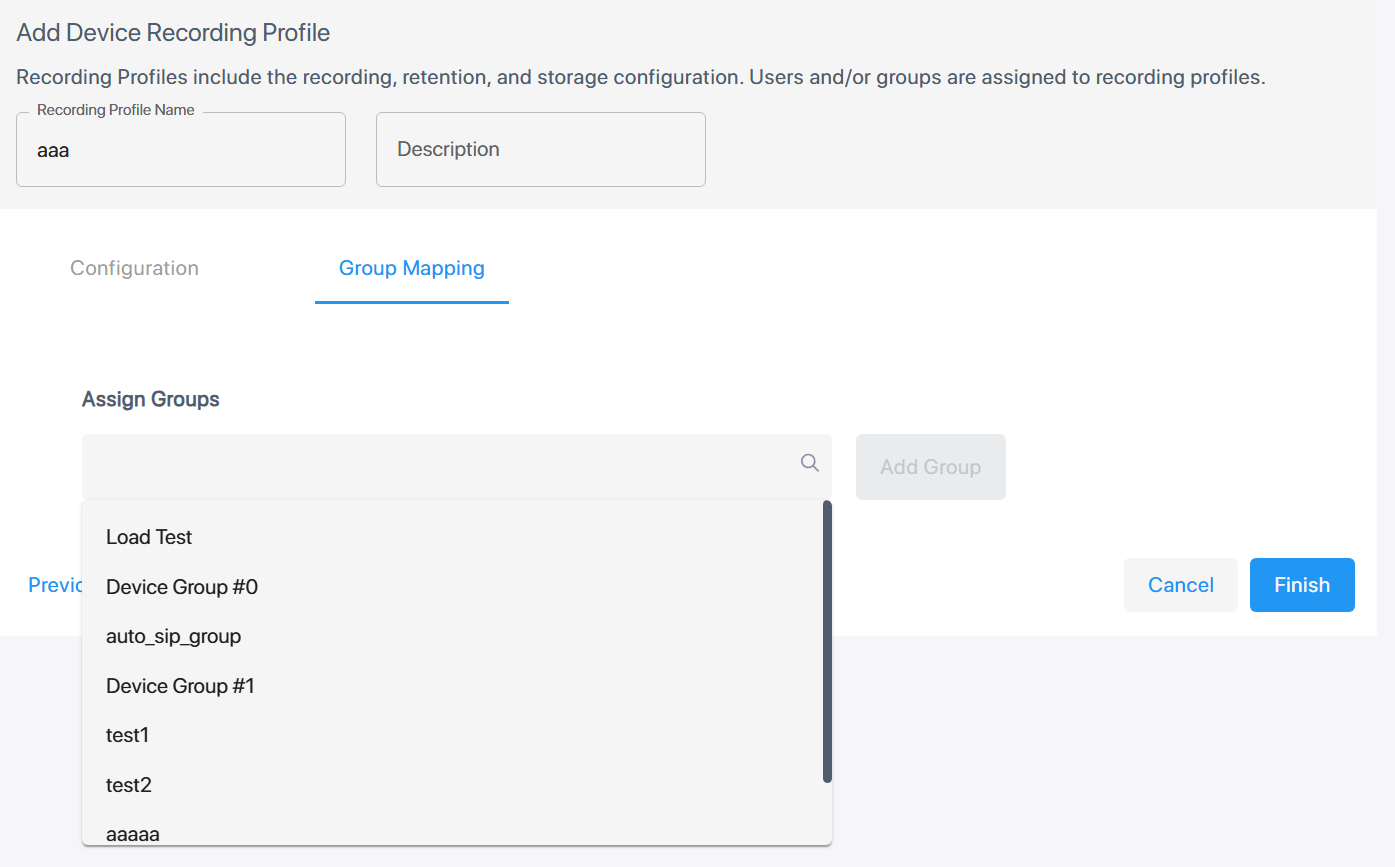
You cannot assign a device group that already has been assigned to another profile. If you try, an error message is displayed, and the group is not added.
| 5. | Repeat the above step to assign additional groups, as needed. |
| 6. | Click Finish. The profile is added to the list. |