Set up Your AudioCodes SBC for SIPREC
This section describes how to set up your AudioCodesSession Border Controller for SIPREC, thereby enabling it to communicate with the Interaction Insights SIP Recording Server (SRS).
|
5.
|
For setting up double recording (for geo-redundancy, only applicable for Pro licenses): |
|
a.
|
Configure the second SRC on your SBC (see the above steps). |
Verify SIPREC License on SBC
SIPREC functionality is a licensed feature. Therefore, prior to configuring the SBC for SIPREC, make sure that its license key contains the SIPREC license feature.
|
➢
|
To verify SIPREC license on SBC: |
|
1.
|
Access the SBC's Web interface. |
|
2.
|
Open the License Key page (Setup menu > Administration tab > License folder > License Key). |
|
3.
|
Verify that the license key includes the "SIPREC Sessions" license and that it displays the correct number of licensed SIPREC sessions, as shown in the example below: |
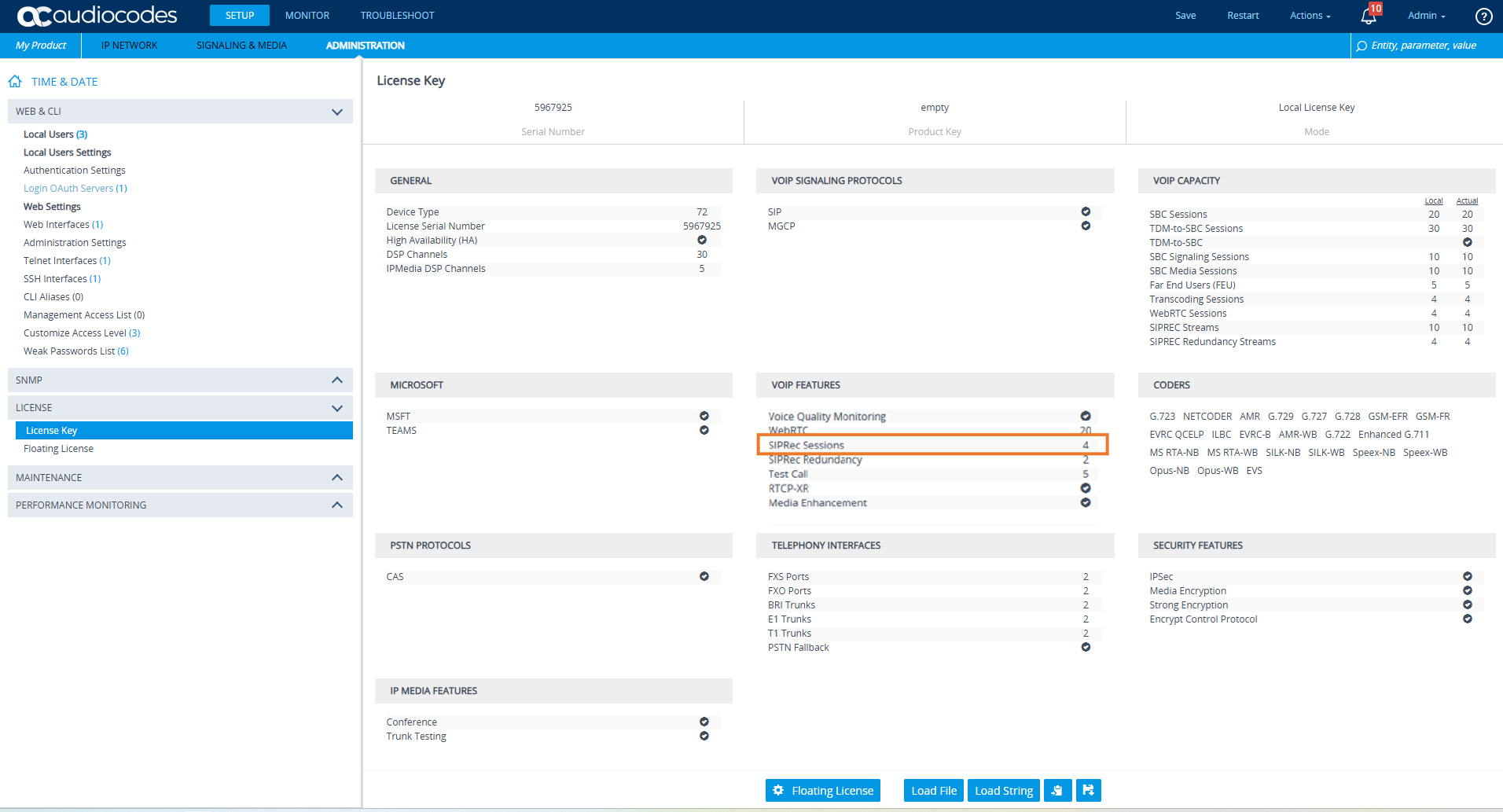
Your SBC license must contain at least the number of concurrent sessions licensed in your Interaction Insights tenant.
Set up TLS and SRTP Contexts
Generate a TLS context and an SRTP context to secure the communication of signaling and media between the SBC and the SRS. For instructions, refer to your SBC User Manual.
While configuring:
|
●
|
Load a matching certificate to the SBC that is signed by the same Trusted Root CA as the SRS. |
|
●
|
Configure a matching port on both the SBC and the SRS for securing TLS communication. |
Configure SRS on SBC
The SRS must be configured on the SBC as a SIPREC IP group so that the SBC can send SIPREC messages (call recordings) to the SRS server.
The following procedure describes how to configure the SRS on the SBC including:
|
1.
|
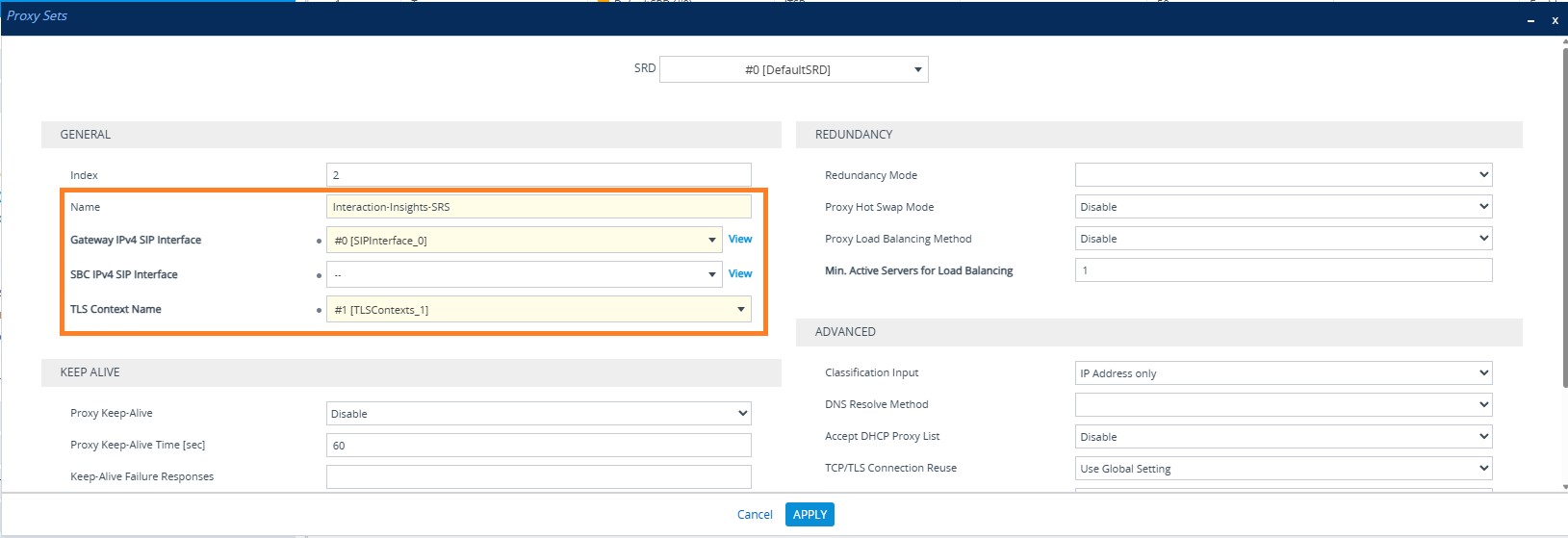
Configure the address of the SRS, which is represented by the SBC as a Proxy Set configuration entity: |
|
a.
|
Open the Proxy Sets table (Setup menu > Signaling & Media tab > Core Entities folder > Proxy Sets). |
|
b.
|
Click New, and then configure a Proxy Set as follows: |
|
❖
|
Enter a Name for the Proxy Set to identify the Sip Recording application. |
|
❖
|
Assign a SIP Interface for SBC |
|
2.
|
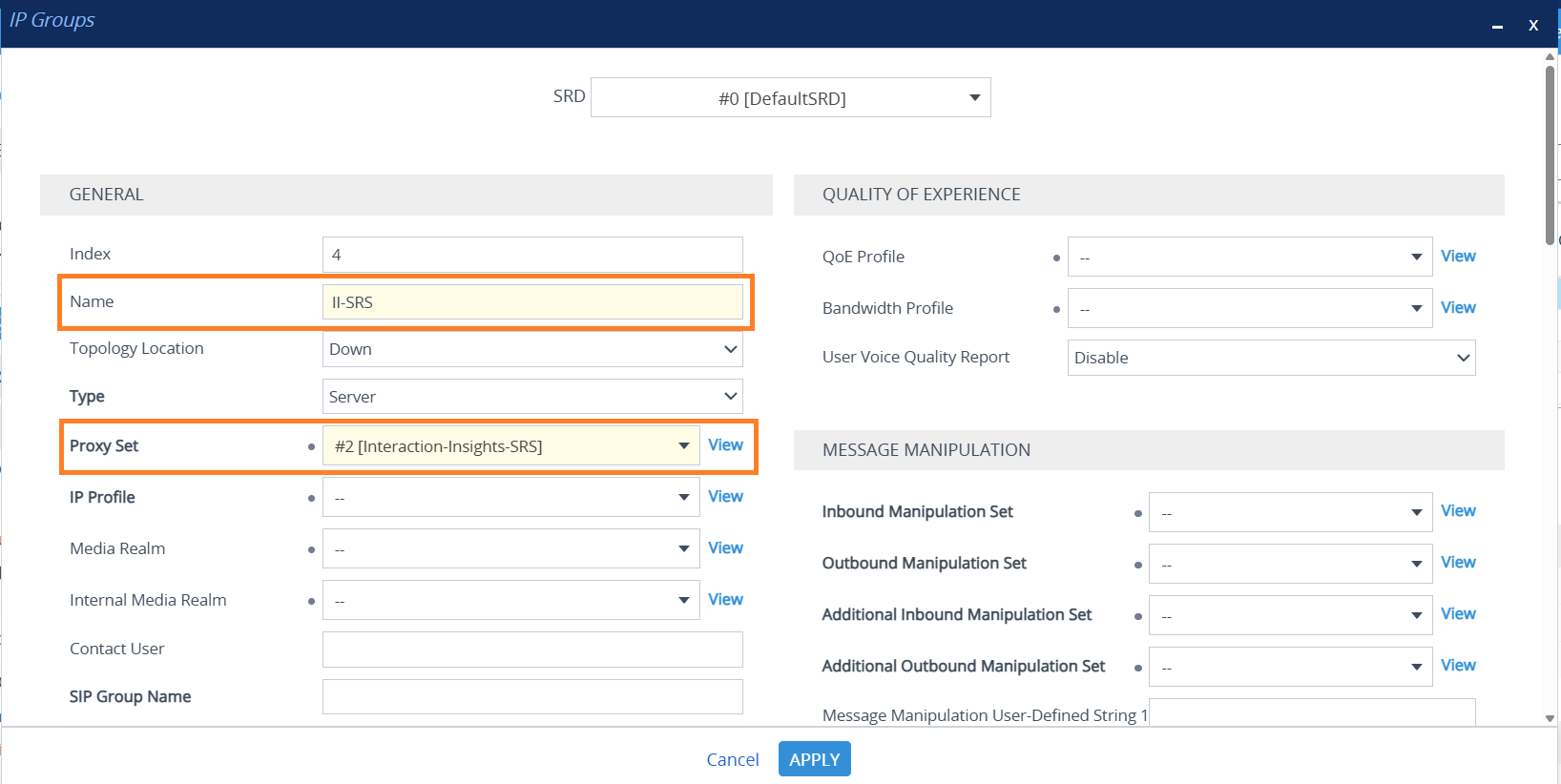
Configure the SRS entity, which is represented by the SBC as an IP Group configuration entity. The address of the IP Group is determined by the Proxy Set that you configured in the previous step. |
|
a.
|
Open the IP Groups table (Setup menu > Signaling & Media tab > Core Entities folder > IP Groups). |
|
b.
|
Click New, enter a Name for the IP Group and assign it the Proxy Set. |
Configure SIPREC Rules
Prior to configuring SIPREC rules, your Interaction Insights tenant must have been configured on Azure. Check with your Live Platform Administrator.
A SIPREC rule defines the following:
|
■
|
IP Groups whose calls you want to record: |
|
●
|
'Recorded IP Group' defines the SBC leg interfacing with the IP Group that you want to record |
|
●
|
'Peer IP Group' defines the other IP Group(s) with which the 'Recorded IP Group' is making or receiving calls |
|
■
|
Calling party that you want to record ('Caller'): |
|
●
|
Recorded Party records only calls made by the 'Recorded IP Group' (i.e., outgoing calls) |
|
●
|
Peer Party records only calls made by the 'Peer IP Group' (i.e., incoming calls) |
|
●
|
Both – records calls made by both parties |
|
■
|
SRS to where the SBC sends the recorded packets |
Make sure that the calling party definition match the Call Direction definition of the related Device Recording Profile or Profiles (see Device Recording Profiles). If they differ, requested calls may not be recorded.
Create as many SIPREC rules as needed to cover all requested recording scenarios.
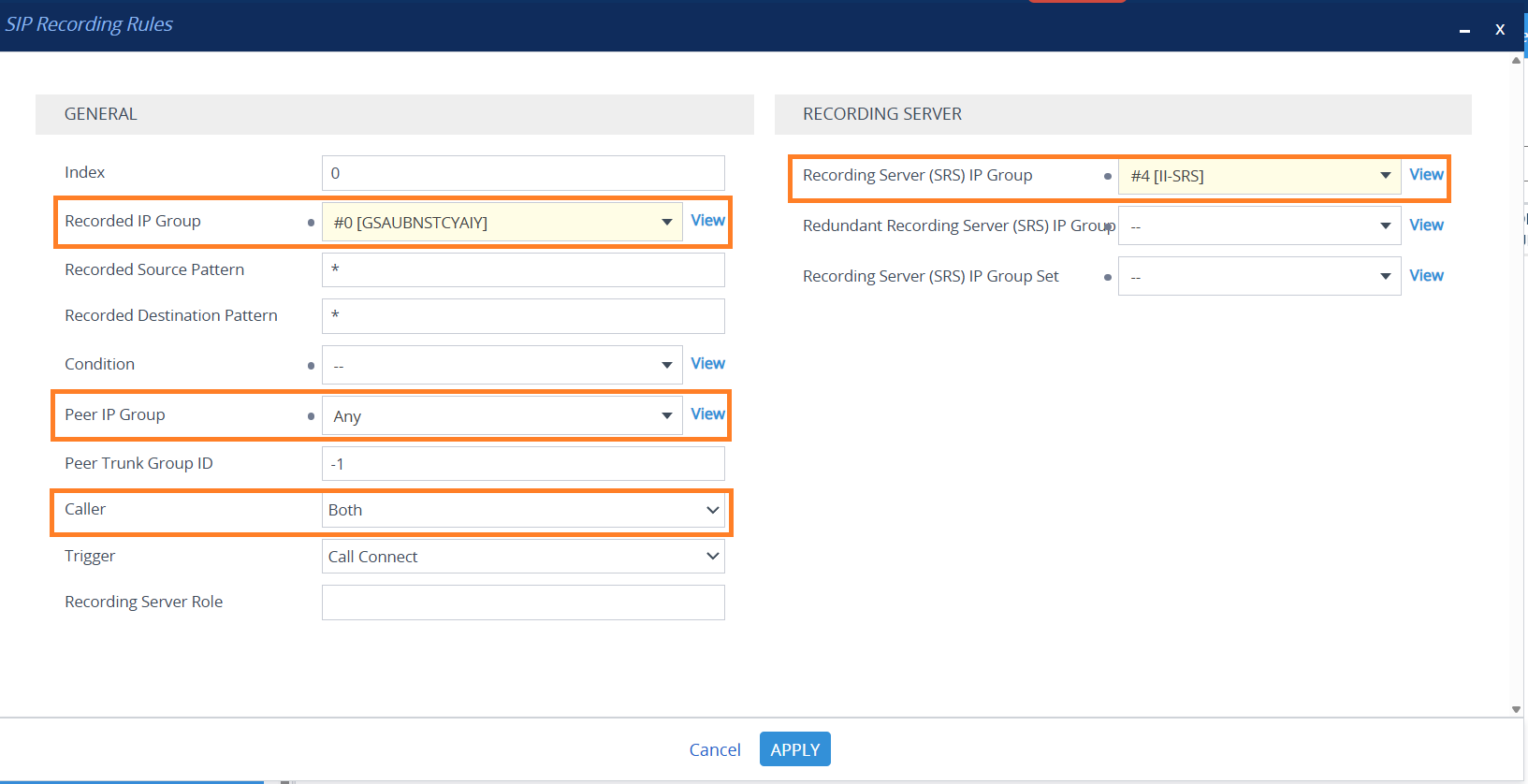
The following example describes how to configure a SIPREC rule to record all calls made or received by the IP Group entity called "GSAUBNSTCYAIY", and send the recordings to the SRS.
|
1.
|
Open the SIP Recording Rules table (Setup menu > Signaling & Media tab > SIP Recording folder > SIP Recording Rules). |
|
2.
|
Click New, then configure the rule: |
|
●
|
Recorded IP Group – select the relevant IP Group entity. |
|
●
|
Peer IP Group – set to Any (default). |
|
●
|
Caller – set to Both (default). |
|
●
|
Recording Server (SRS) IP Group – select the IP group created above. |