Capture Screens from a Device
The Device Manager enables administrators to capture and download the current state of the Device's Web UI for FAE troubleshooting. The feature enables capturing the device's main screen as well as the device’s Expansion Module (sidecar) in the case of phone models with a sidecar. The captures can be taken from the Device Status page or from the Monitor page and then once uploaded to Device Manager can be downloaded in .jpg format to your PC. The implementation of this AudioCodes Android Device Utility feature removes the need to install unofficial third- party applications on employee PCs, and thereby possibly compromising network security.
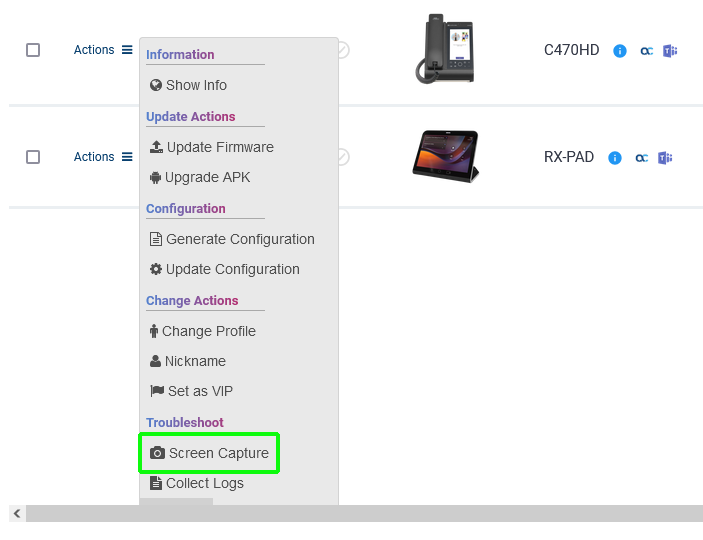
| ➢ | To collect screen captures via the Actions menu: |
| 1. | Click the Monitor tab. |
| 2. | In the Devices Status page, right-click the Actions menu adjacent to the relevant device and then choose Screen Capture. |
The following information message is displayed at the top of the screen.

| 3. | When the screenshot is ready, the Devices Status page displays  |
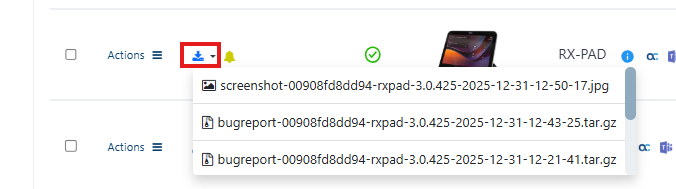
| 4. | Click the icon and select the relevant file to download it. |
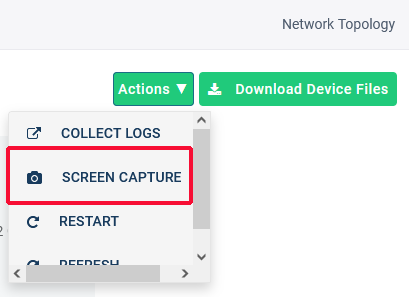
Alternatively, you can take and download screen captures from the device's Device Information page using Actions > Screen capture and Download Device Files.