Managing Custom Templates for AI-powered Summaries
Custom templates are tailored to the specific needs of a specific organization. Custom templates are especially useful for organizations requiring their meeting summaries to adhere to a specific format. For example, the organization may want the summary to be categorized using specific terms such as 'Meeting Agenda', 'Main Concerns', and 'Wishful Goal'. When enabled, Meeting Insights users can select these templates to generate AI-powered summaries.
When you upload a template (JSON file format), you can assign it to a sector, which is a logical group that helps users find related templates. Sector names are user-defined. For example, you might group templates for the sales team under "Sales", and templates for human resources under "HR". You need to enable a template for it to be available to your tenant.
The Custom Templates menu (below) is available in the Tenant Management portal only if it has been enabled in Live Platform for the Channel or Service Provider to which the customer belongs.
|
➢
|
To manage custom templates: |
|
1.
|
Open the Meeting Insights service's Tenant Management portal. |
|
2.
|
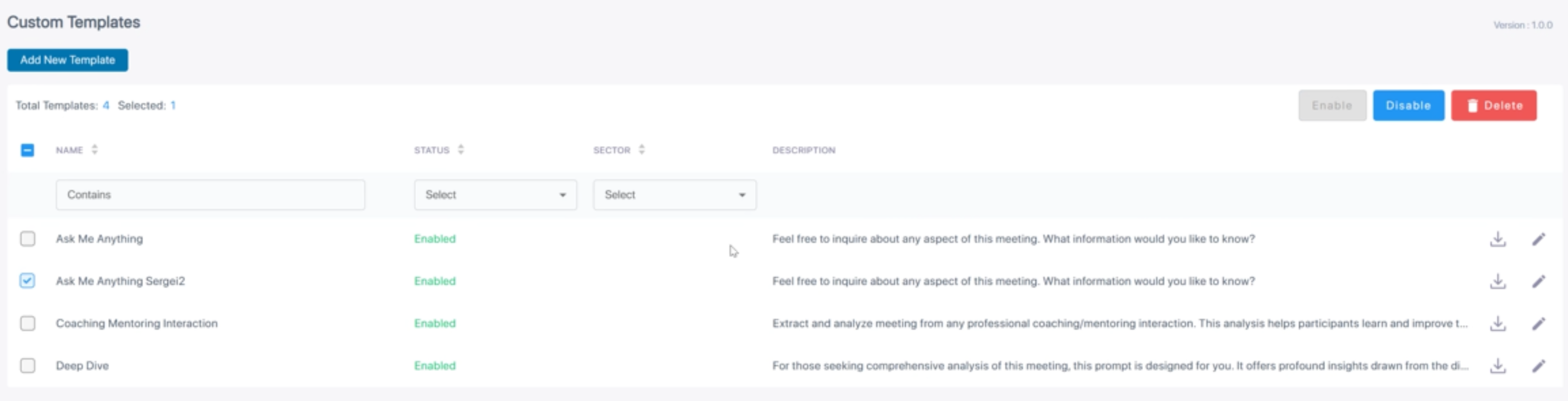
In the navigation pane, under AI Settings, select Custom Templates; the Custom Templates page appears, listing the available custom templates (example): |
|
3.
|
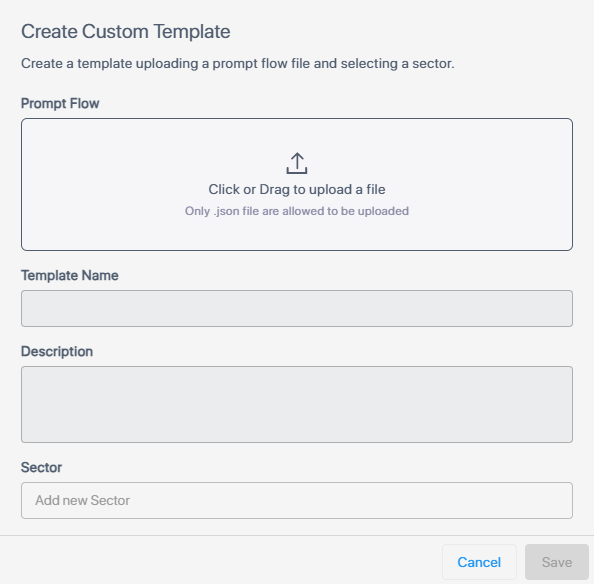
Click Add New Template; the following dialog box appears: |
|
4.
|
Under Prompt Flow, drag the template file (JSON format) into the box, or click the box and browse to and select the file; the file is uploaded and the following fields are automatically populated (and can be modified): |
|
●
|
Template Name: Name of the template (e.g., Municipal Committee), which is obtained from the "name" field in the uploaded JSON file. |
|
●
|
Description: Description of the template, which is obtained from the "description" field in the uploaded JSON file. |
|
5.
|
(Optional) From the 'Sector' drop-down list, type the sector for which the template is applicable (e.g., Sales). This can be used for template classification and filtering. |
|
7.
|
To enable templates for the tenant, select the templates from the list, and then click Enable. |