Suspend a Meeting Insights Tenant
You can temporarily suspend the Meeting Insights service for a tenant. This is useful, for example, in scenarios when a tenant is on a trial contract or when you are terminating an existing contract.
While suspended:
|
■
|
The tenant and its users cannot access the Meeting Insights web management interface. |
|
■
|
Meetings are no longer recorded (i.e., Meeting Insights bot Mia doesn't join meetings). |
At any point during the suspension period, you can reactivate the Meeting Insights service. Once reactivated, the tenant and its users regain full access to Meeting Insights, including all previously recorded meetings and data, and new meetings are recorded by Mia.
|
1.
|
Open the Meeting Insights service's Tenant Management portal. |
|
2.
|
Click the Tenant Management heading located at the top of the navigation pane; the list of tenants is displayed. |
|
3.
|
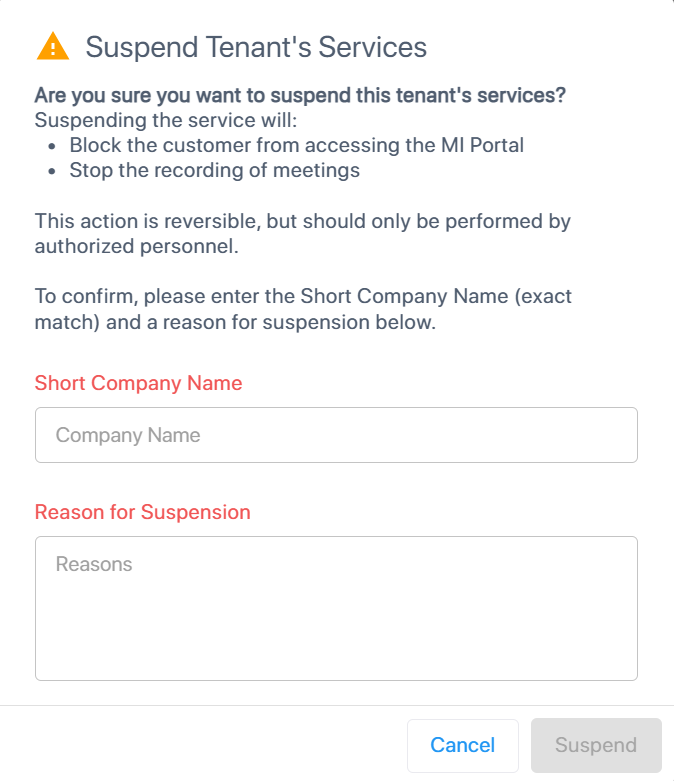
Click the ellipsis (...) button of the tenant you want to suspend, and then from the drop-down menu, choose Suspend; a confirmation dialog box appears: |
|
4.
|
In the 'Short Company Name' field, type the exact short name of the tenant to confirm that you're suspending the correct company. The short name is displayed in the tenants list 'Short Name' column. |
|
5.
|
In the 'Reason for Suspension' field, type the reason for suspending the tenant. |
|
6.
|
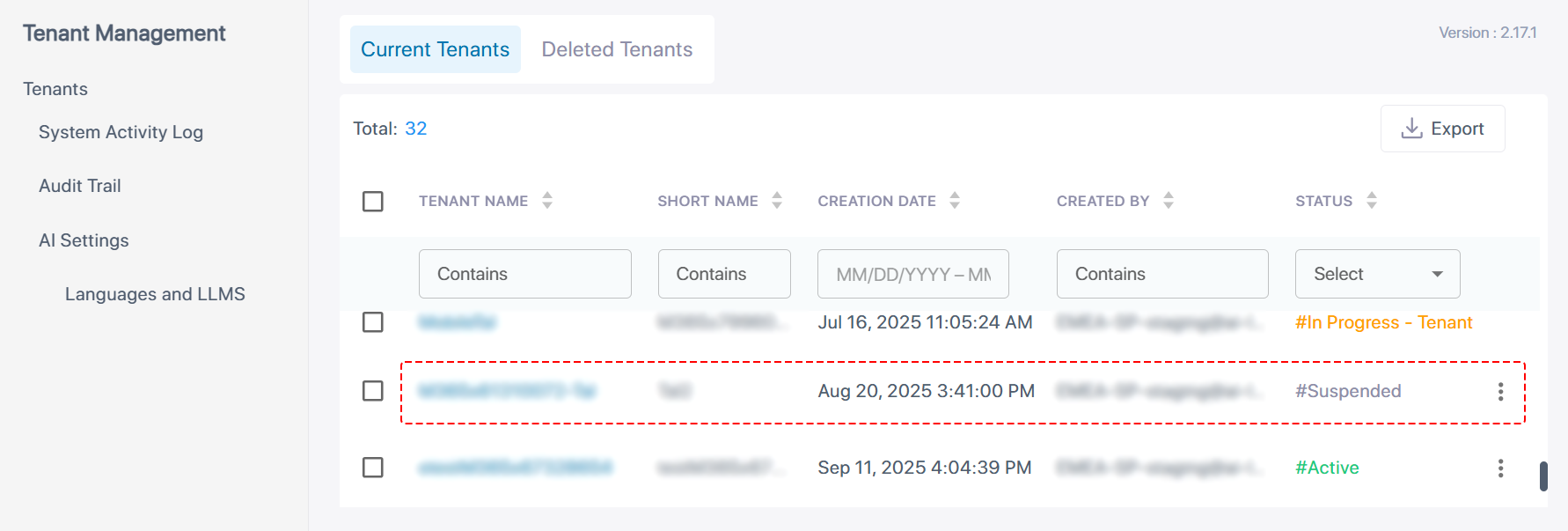
Click Suspend; the tenant is suspended and can no longer use Meeting Insights. The tenant's 'Status' column displays "Suspended", as shown in the following example: |