|
Callers
|
Enter the name of a caller (or the names of callers) whose calls you want to display in the page. The filter is case sensitive.
|
|
Callees
|
Enter the name of a called party (or the names of called parties) whose calls you want to display in the page. The filter is case sensitive.
|
|
First Answered Callee
|
Enter the name of a IVR User agent who is the first to answer the call and then click out; the string is added. You can add multiple strings. This filter can be used for scenarios where a call may be routed between multiple agents as part of Hunt groups or call queues (for Call
Center scenarios).
When an IVR agent forwards a call to another agent, Live Platform tracks both the extension of the
forwarded number and the number of the IVR agent who transfers the call. For example, if Call
Agent A with extension '4444' first answers the call, and forwards the call to extension '5555',
then both numbers are reported to Live Platform. The 'Last Answered Number' is '5555' and the 'First
Answered Callee' number is '4444'.
The equivalent label for this column in the downloaded Calls list CSV file is 'Original Callee URI'.
|
|
Caller Connection Types
|
One of the following call types: audio, video or screen sharing.
|
|
Call ID
|
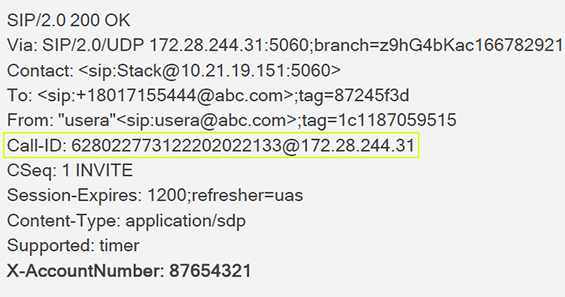
Use this filter to track calls in (for example)
protocol verification scenarios. The network
operator obtains the Call ID from the SBC SIP Header file .
The Calls List page is filtered to display
all calls with the queried call ID.
|
|
Correlation ID
|
To filter according to Correlation ID:
|
1.
|
In the Calls List page, click the GSID of a unified call: |
|
2.
|
View the call displayed in the page together with the call with which it is unified. View also the Correlation ID displayed under the filter. |
|
|
Caller Connection Types
|
Click the drop-down arrow and select the type to filter by:
|
|
Callee Connection Types
|
Click the drop-down arrow and select the type to filter by:
|
|
Media Types
|
From the drop-down list, select the media type to display on the page (or enter a search string). Select one of the following: Application Sharing (a Teams media type), Audio, Audio V150 MSRP (Message Session Relay Protocol), Voice, Image, Data, Audio Video, Chat, Data, Image, MSRP, Screen Sharing, Text, Unknown, Video or All (and then optionally remove unwanted media types). By default, all media types are selected.
|
|
Call Types
|
From the drop-down list, select the call type to display on the page, or enter a search string. Select one of the following: Endpoint, GW (Gateway), HTTP, IP2IP SBC, Skype, Skype Conference, Teams, Teams Group Call, Test SBC or or All (and then optionally remove unwanted call types).
Skype Conference can be of media type 'Audio Video' or 'Chat'. The conference participant's name is shown in the ‘Caller’ column. To retrieve conference calls information, Live Platform uses the Microsoft Teams Conference Session Details View Monitoring Server report. For example, from the 'Media Type' drop-down choose Chat; the Media Type column then displays only MS Teams conferences whose Media Type is Chat.
|
|
AC Termination Reason
|
Enter the reason why the call was terminated. Some termination reasons are:
|
■
|
Access Info Subs Class Incons |
|
■
|
Access Information Discarded |
|
■
|
Bc Not Presently Available |
|
■
|
Call Having Call Id Cleared |
|
■
|
Channel Type Not Implemented |
|
■
|
Identified Channel Not Exist |
|
■
|
Incompatible Destination |
Some MS Teams Termination Reasons are:
|
■
|
OK. Indicates the request was successful. |
|
■
|
Accepted. Indicates that the request has been accepted for processing, but the processing has not been completed. |
|
|
Teams Termination Reason
|
Some MS Teams Termination Reasons are:
|
■
|
OK. Indicates the request was successful. |
|
■
|
Accepted. Indicates that the request has been accepted for processing, but the processing has not been completed. |
|
|
Filtered Calls
|
|
■
|
All service provider calls - filters list by all calls handled by the Service Provider's devices, including calls associated with Live Platform services |
|
■
|
Only services level calls - filters list by calls associated with Live Platform services. |
|
|
Comparison
|
Configure Call Duration by entering the call duration time in seconds and then choosing one of the following operands:
|