Enabling Automatic Triggering of AI
You can enable Meeting Insights to automatically generate AI-powered insights for meeting recordings of users belonging to a specific User Profile. When enabled, the user is not prompted at the beginning of the meeting to select the language.
|
●
|
If your application excludes ‘Automatic AI Triggering’ and you would like to include the feature, contact your Service Provider. |
|
●
|
AI generation takes place when the meeting ends and may take time (up to half of the meeting’s duration). |
|
●
|
For users configured with ‘Automatic Publish’, Meeting Recap with generated insights is automatically sent out to internal participants of the meeting when generation finishes. |
|
➢
|
To enable automatic AI-pwered insights: |
|
1.
|
In the Admin Settings menu pane, expand User Settings, and then click User Profiles; the User Profile page appears. |
|
2.
|
Select a User Profile; the Edit User Profile page appears. |
|
3.
|
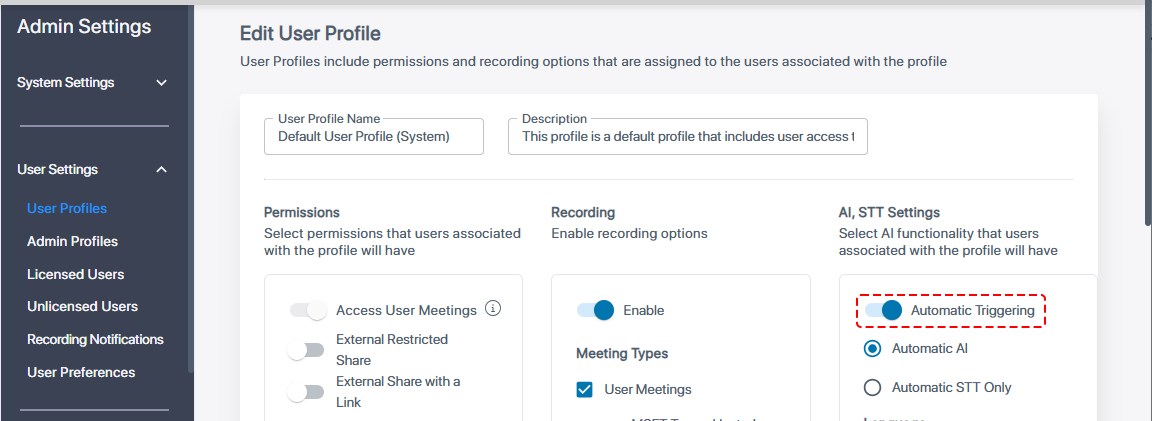
Under the AI, STT Settings group, click the Automatic Triggering toggle switch to turn it on: |
|
4.
|
Choose one of the following: |
|
●
|
Automatic AI: (Default) Automatically triggers AI to generate a transcription and insights. |
|
●
|
Automatic STT Only: Automatically triggers AI to generate a transcription only. |
|
5.
|
Under Language, do one of the following: |
|
●
|
Automatic Language Detection and Preferred Dialect: (Default) Enables Meeting Insights to automatically detect the primary language spoken in the meeting for generating the AI-powered transcription and insights. If a language has multiple dialects, Meeting Insights lets you select the preferred dialect to use for the speech-to-text service. Selecting a dialect can improve the accuracy of the transcription, allowing the speech-to-text service to correctly identify and recognize the spoken words. |
|
i.
|
Select the 'Automatic Language Detection' check box. |
|
ii.
|
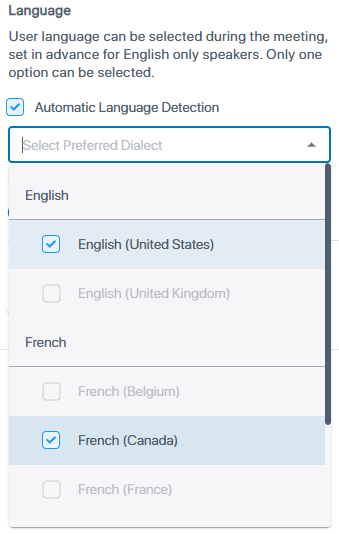
From the 'Select Preferred Dialect' drop-down list, select a preferred dialect per language. |
|
●
|
You can select only one dialect per language. For example, if the list contains multiple dialects for English and French, you can select only one dialect for each of them, as shown in the following example: |
|
●
|
Default Meeting Language: You can set the default language of meetings for the AI-powered transcription and insights. |
|
i.
|
Clear the 'Automatic Language Detection' check box (if selected). |
|
ii.
|
From the drop-down list, select a specific language, or select Select Language During Meeting to prompt the user to select the language during the meeting. |
|
6.
|
Under Insights, select the insights you want automatically generated by AI, by clicking the corresponding check boxes: |
|
●
|
Summary (select any of the following): |
AI-powered insights is generated automatically only if you selected the Automatic AI option (see Step 4).
|
7.
|
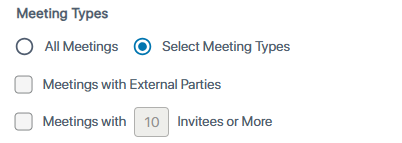
Under Meeting Types, select to automatically trigger AI on all meetings or specific meeting types: |
|
●
|
All Meetings: Triggers AI on all meetings. |
|
●
|
Select Meeting Types: Triggers AI on specific types of meetings: |
|
❖
|
Meetings with External Parties: Triggers AI only for meetings with external invitees. |
|
❖
|
Meetings with <number> Invitees or More: Triggers AI only for meetings with a specified number of invitees or more. |