Enabling and Configuring AI-Powered Transcriptions
You can enable Meeting Insights to use AI to create a transcription of the meeting recording.
|
●
|
The AI-powered transcription feature is enabled by default. |
|
➢
|
To configure AI-powered transcription: |
|
1.
|
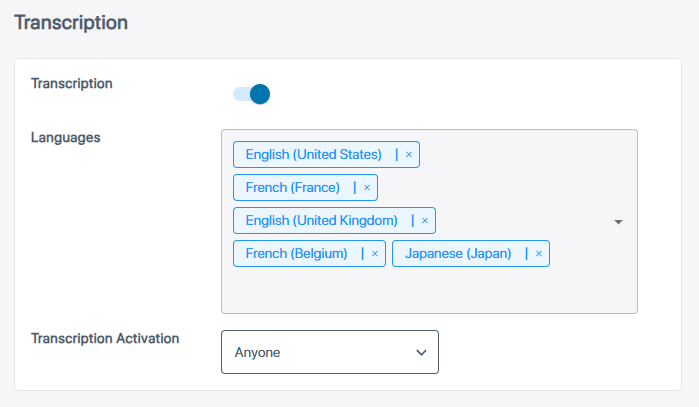
In the Admin Settings menu pane, expand AI Settings, and then click Transcription; the Transcription page appears: |
|
2.
|
Click the Transcription toggle button to turn on the AI-powered transcription feature. |
|
a.
|
In the 'Languages' pane, click the down-pointing arrow  ; a drop-down list appears, displaying languages and dialects. ; a drop-down list appears, displaying languages and dialects. |
|
b.
|
Select the languages and dialects you want; the selected languages and dialects are added to the 'Languages' pane. |
|
c.
|
To remove a language or dialect, in the 'Languages' pane, click the  icon of the language or dialect you want removed. icon of the language or dialect you want removed. |
|
4.
|
Configure who can trigger AI-powered transcriptions of meeting recordings: |
|
a.
|
From the ‘Transcription Activation’ drop-down list, select one of the following: |
|
❖
|
Meeting Owner: Only the owner or a user with edit permissions can activate AI-powered transcriptions. |
|
❖
|
Anyone: Anyone with access to the meeting recording can activate AI-powered transcriptions. |