Enabling Template-based AI-Powered Summaries
You can enable AI-generated summaries to conform to a layout templates. Templates allow meeting summaries to adhere to a specific format. For example, the organization may want the summary to be categorized using specific terms such as 'Meeting Agenda', 'Main Concerns', and 'Wishful Goal'.
Owners of meeting recordings that are enabled to use templates can run AI-powered summaries based on multiple templates. In other words, the Owner can generate multiple summaries of the same meeting recording, where each is based on a different template.
Additionally, templates may include user-input fields where the user provides additional information before generating the summary. These fields and their user provided text are added as sections (headings) to the AI-powered summary. The fields may be mandatory ('required') or optional.
Meeting Insights provides the following types of templates:
|
➢
|
To enable template-based AI-powered summaries: |
|
1.
|
In the Admin Settings menu pane, expand User Settings, and then click User Profiles. |
|
2.
|
Click New Profile to add a new User Profile, or select an existing User Profile. |
|
3.
|
Under AI, STT Settings, click the Enable AI Templates toggle button to turn on templates for AI-generated summaries. |
|
4.
|
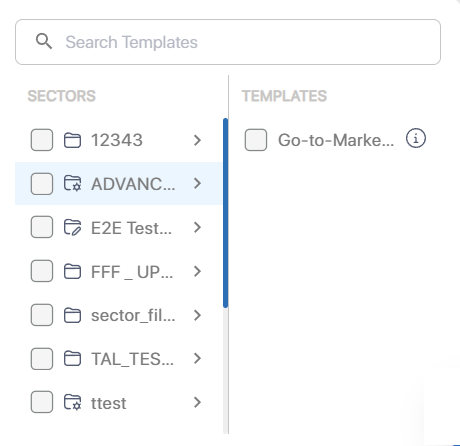
Click the 'Select Templates' field; a drop-down box appears, listing sectors and their templates: |
|
5.
|
Under the Sectors pane, select the check box of the sector that you want, and then under the Templates pane, select the check boxes of the templates you want. To view a pop-up description of the template, hover your mouse of the template's information  icon. icon. |
The folder of the section indicates the type of template:
|
●
|
 (Limited) Template Library that includes a collection of generic templates for organizational departments or groups. The templates follow a consistent structure with predefined subjects and bulleted summaries under each subject. (Limited) Template Library that includes a collection of generic templates for organizational departments or groups. The templates follow a consistent structure with predefined subjects and bulleted summaries under each subject. |
|
●
|
 (Custom) Templates that are built specifically for your organization, tailored to unique workflows, requirements, and use cases. (Custom) Templates that are built specifically for your organization, tailored to unique workflows, requirements, and use cases. |
|
●
|
 (Advanced) Enhanced Template Library with advanced capabilities, such as customizable inputs, dynamic fields, and industry-specific templates designed for specialized use cases. (Advanced) Enhanced Template Library with advanced capabilities, such as customizable inputs, dynamic fields, and industry-specific templates designed for specialized use cases. |
|
6.
|
If you want to select templates of additional sectors, repeat the previous step. |
|
7.
|
Close the box, by clicking anywhere outside the box; the 'Select Templates' field now displays "Templates" followed by the number of selected templates. |