Adding Interaction Insights to Teams Client
The Tools page enables the admin to add the Application Insights app to Teams users’ Teams clients.
|
●
|
Optionally, admin can manually add the app to the Teams store without needing to grant permissions, as described below. |
|
➢
|
To add the Interaction Insights app: |
|
1.
|
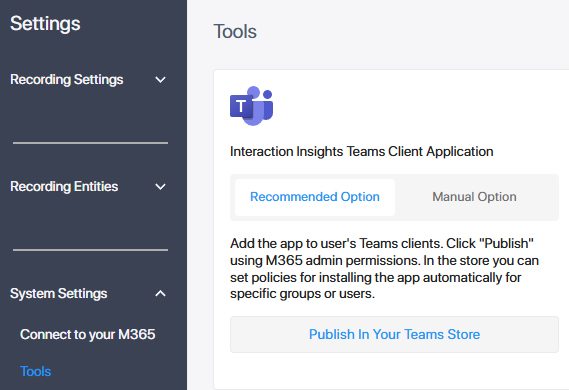
In the Icon pane, click  , and then in the Navigation pane, select System Settings > Tools. , and then in the Navigation pane, select System Settings > Tools. |
|
2.
|
Do either of the following: |
|
●
|
To add the app using M365 admin permissions, click Recommended Option and then click Publish in your Teams Store. |
You are prompted to sign in with your Global Admin account and consent to the needed permissions. After consenting, the app is automatically added. For details, see Publish Teams Client App in Teams Store (Optional).
|
●
|
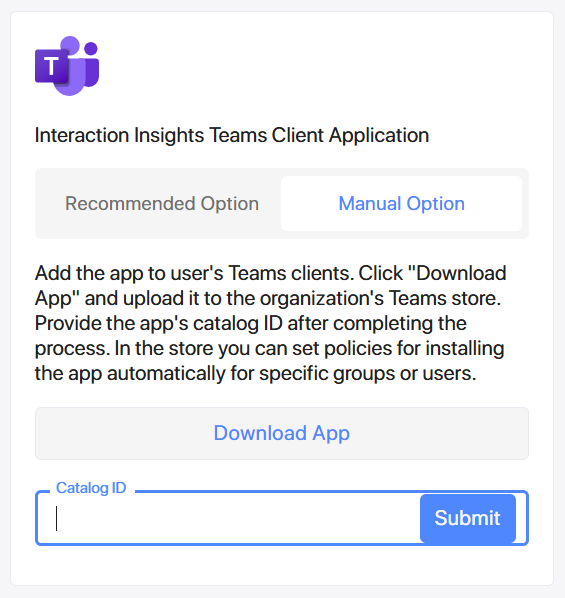
To manually add the app to the Teams client (if for example it has been customized for your organization and you harbor concerns about Application Insights requesting permissions for Teams app publishing), click Manual option and continue with the following steps. |
|
3.
|
Download the app package. |
|
4.
|
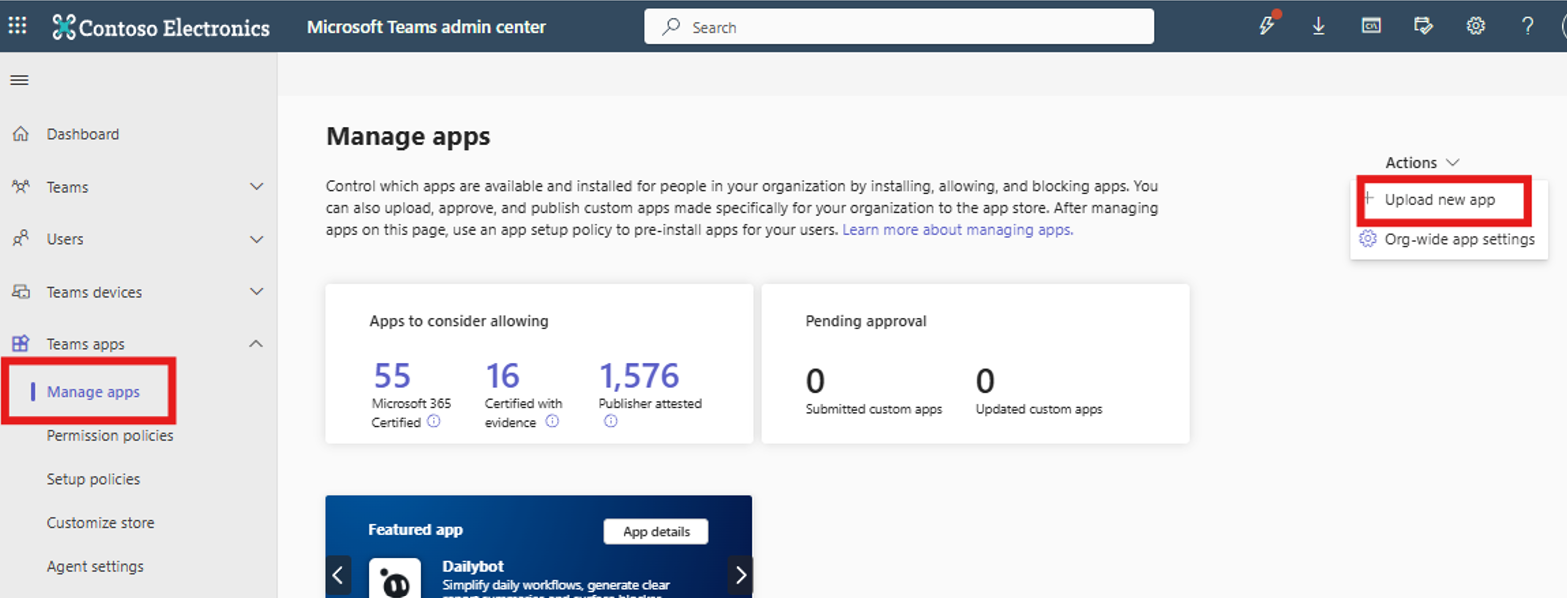
Add it manually to the Teams store: In Teams admin center, open the 'Manage apps' page and upload it as shown in the figure below: |
|
5.
|
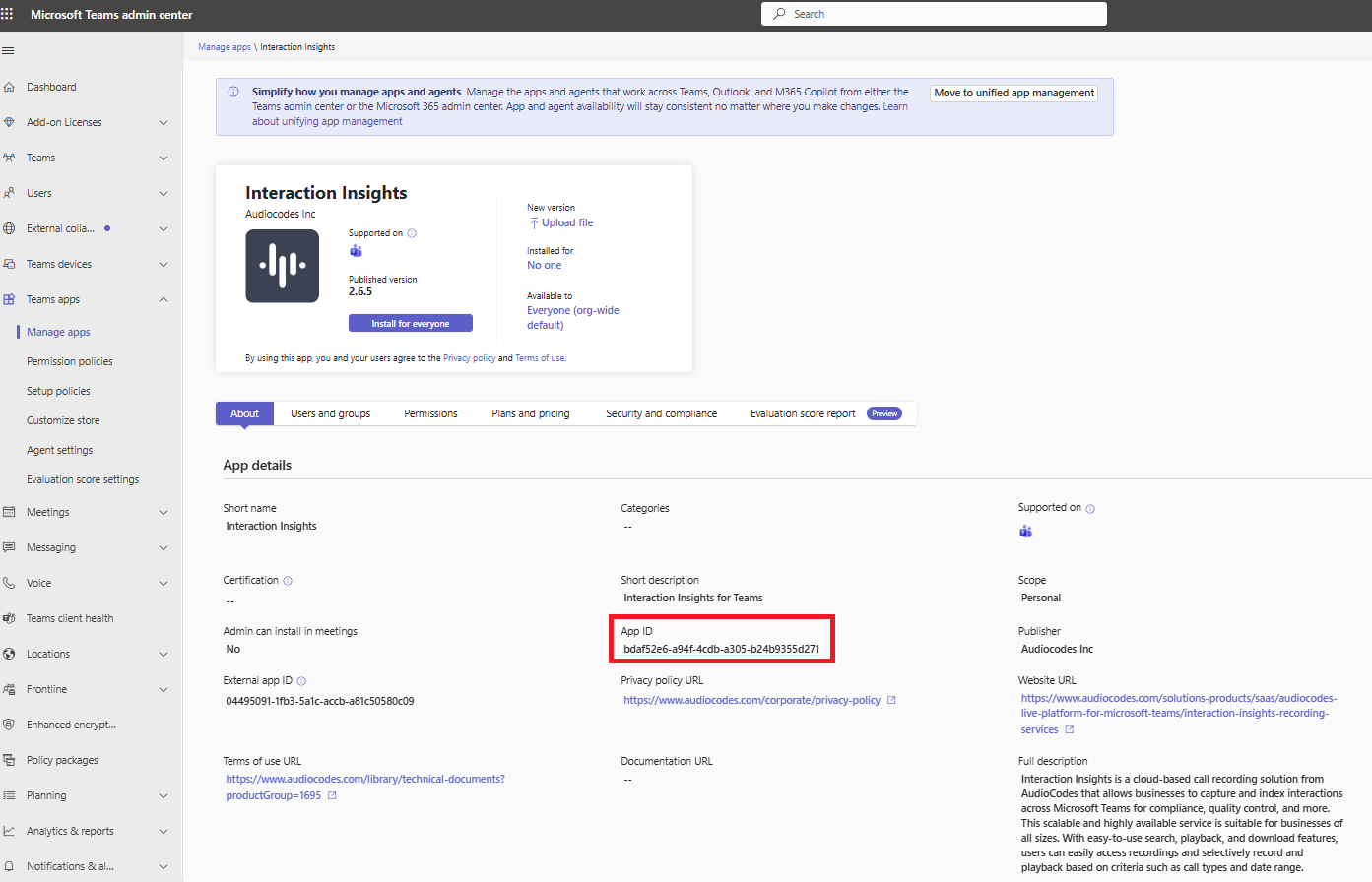
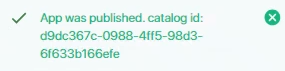
Locate the Catalog ID that is generated and allocated to the app: |
|
6.
|
In Application Insights, enter it in the 'Catalog ID' field and then click Submit. |
Once you have published, open the Teams client for any of your tenant users and install the app in the Web client (see Add and Pin Live Platform Teams App).