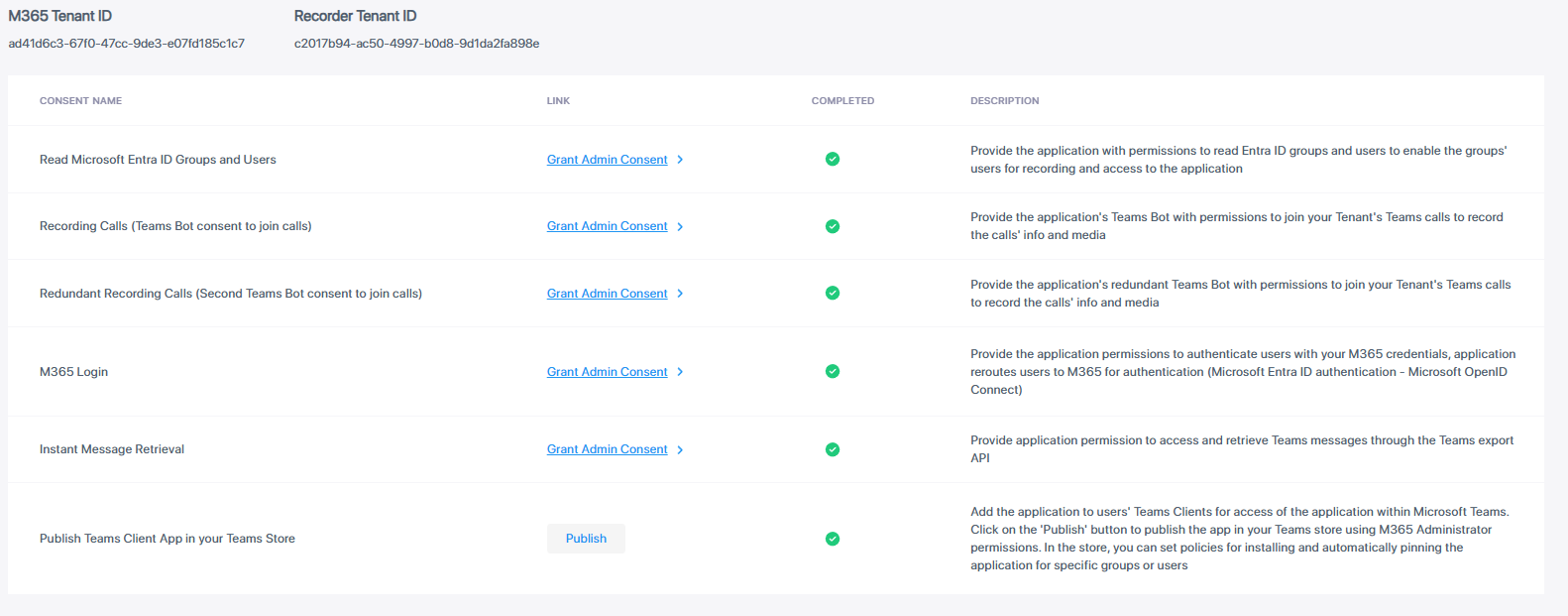
Publish Teams Client App in Teams Store (Optional)
You can add your Live Platform application to Teams Clients for access of the application within Microsoft Teams. Click the publish button to access the app within your Teams store using M365 Administrator permissions. In the store, you can set policies for installing and automatically pinning the application for specific groups or users.
|
●
|
Publishing the app makes it available for users in the tenant organization within Teams store. Each user needs to add the application from their Teams admin center in order to access it from Teams. |
|
●
|
The screen captures in this section are from a tenant with a Pro license. (In tenants with an Essential license, the Redundant Recording Calls consent is missing.) |
You publish with the following Microsoft Graph permissions:
|
■
|
AppCatalog.Submit – submit application packages to the catalog and cancel pending submissions (Delegated) |
|
■
|
User.Read – sign in and read user profile (Delegated). |
|
➢
|
To add the app to the users' Teams Clients: |
|
1.
|
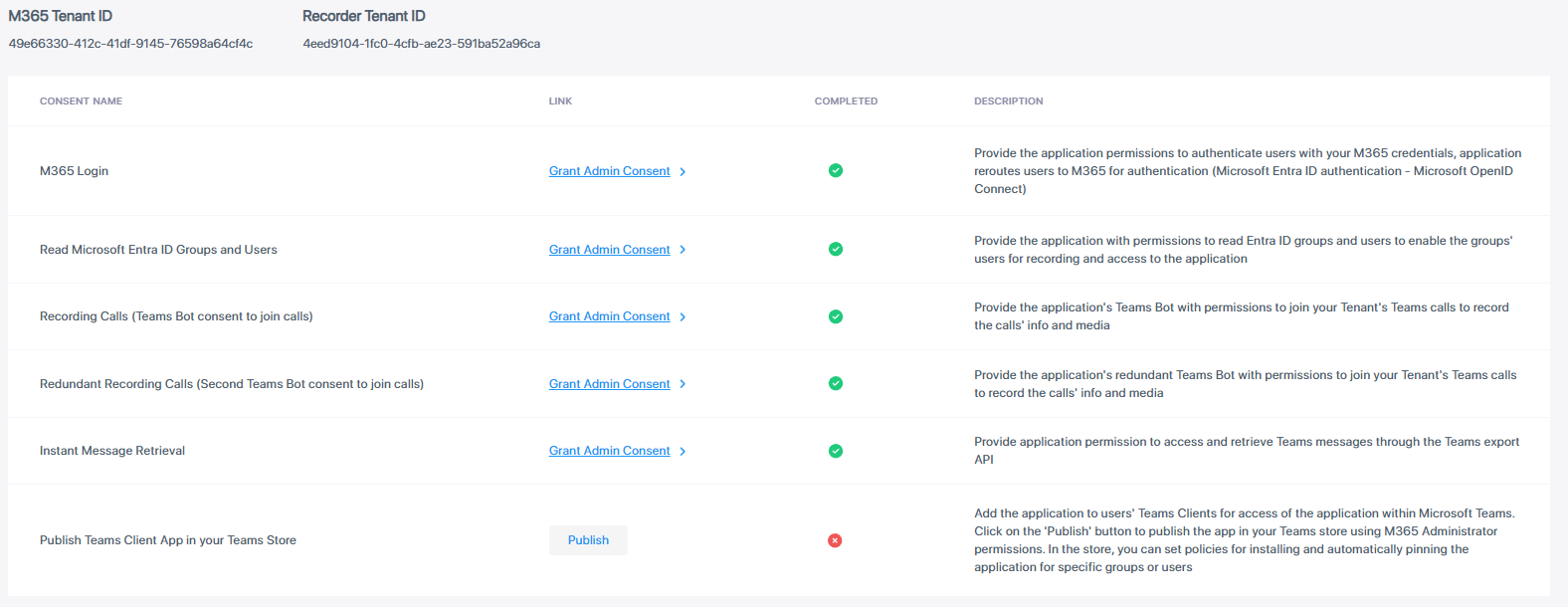
If the Consents page is not already displayed, access it by navigating to Settings > System Settings > Connect to your M365. |
|
2.
|
Click the Publish button next to the 'Publish Teams client App in your Teams Store' consent; you are prompted to log in to your Microsoft 365 account. |
|
3.
|
Log in to the Global admin account of your Live Platform tenant; a permissions dialog appears. |
|
4.
|
Click Accept to accept the requested permissions. The consent is marked with the  icon, indicating that you have successfully granted 'Publish Teams client App in your Teams Store' consent. icon, indicating that you have successfully granted 'Publish Teams client App in your Teams Store' consent. |