View or Download System Activity Logs
You can view Meeting Insights activity logs of a customer's tenants. You can also download the logs of a tenant.
Meeting Insights keeps system activity logs for two years and automatically deletes them when the retention period ends.
| ➢ | To view and download activity logs: |
| 1. | Open the Meeting Insights service's Tenant Management portal. |
| 2. | In the navigation pane, select System Activity Log; the System Activity Log table appears: |
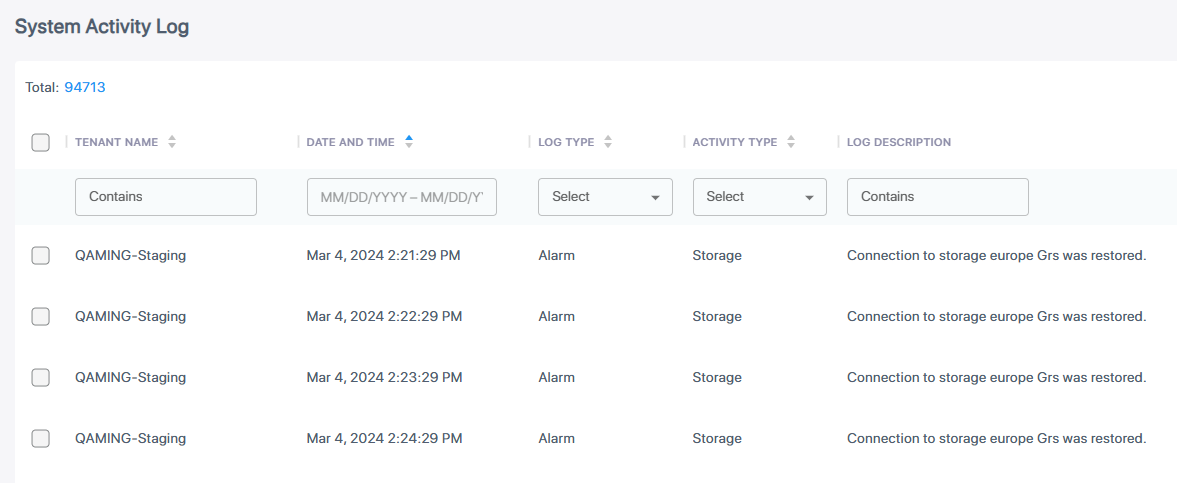
The information displayed in the table is described below:
|
Column |
Decsription |
|---|---|
|
Tenant Name |
Name of tenant. |
|
Date and Time |
Date and time of generated log. |
|
Log Type |
Alarm severity level. |
|
Activity Type |
Type of activity, for example, alarm related to licensing or storage. |
|
Log Description |
Description of the alarm. |
| 3. | To download the logs of a tenant to your PC as a .csv file: |
| a. | Select the check box of the tenant. |
| b. | Click the Export button. |