Operator Connect Phone Numbers Management
The Phone Numbers Management page lets you monitor and manage Operator Connect numbers in Live Platform. A Dashboard summary provides a quick glance snapshot of key indicators including:
| ■ | Total number of uploaded DIDs |
| ■ | Active DIDs that are assigned to customer tenant users |
| ■ | DIDs that are pending release (waiting for Customer approval) |
| ■ | DIDs that have been deleted by the customer on their Teams admin center and admin approval is required for deletion. |
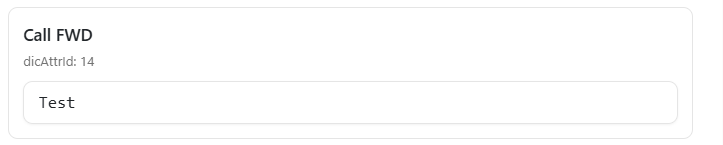
Number configuration such as Call Forwarding and Clip No Screening must be performed directly in ARM.
| ➢ | Do the following: |
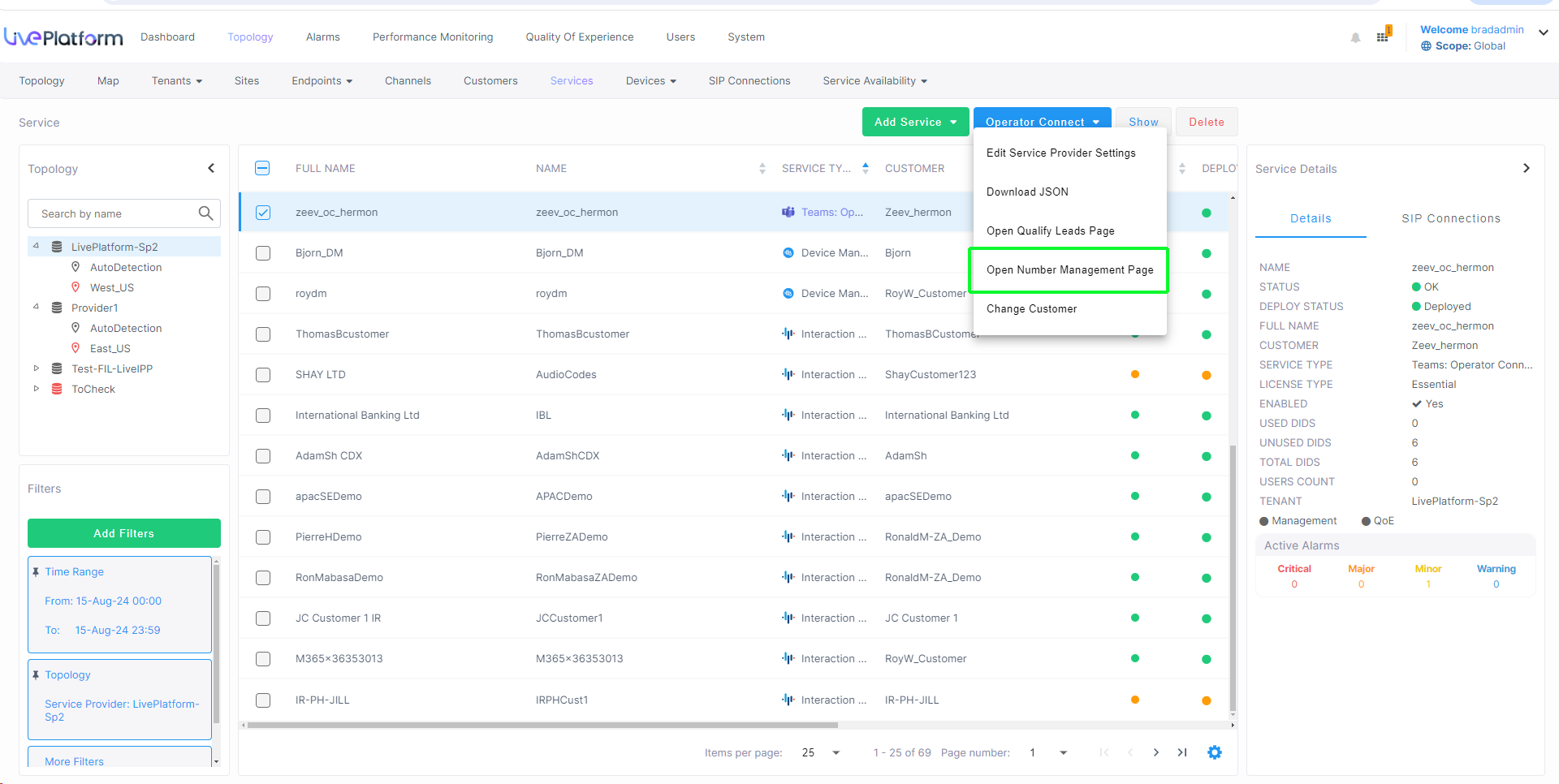
| 1. | In the Services page, select the check box adjacent to an Operator Connect service, and then from the Operator Connect drop-down, select , select Open Number Management page. |

| 2. | In the Multitenant navigation pane open the Number Management page (Service > All Services > OC Number Management) or from the Live Platform Operation Center portal In the Services page, from the Operator Connect drop-down, choose Open Number Management Page. |
| 3. | Select the Service Provider operator. |
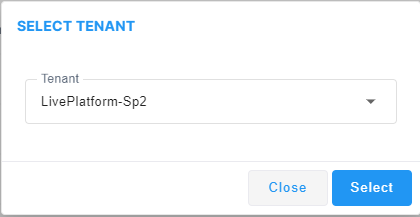
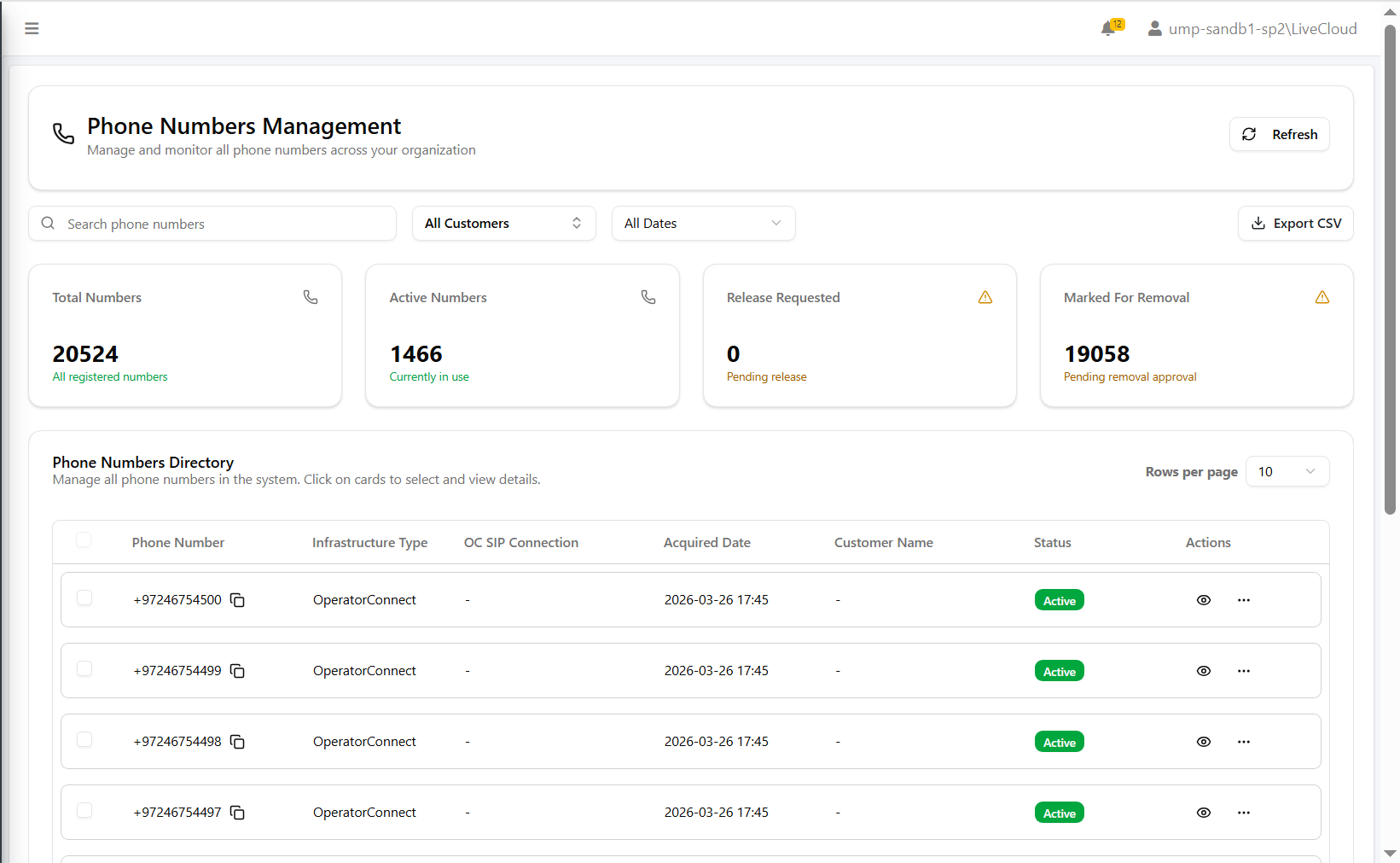
| 4. | In the Search field, enter the number to search; both the Summary pane and the Phone Numbers Directly are context updated according to the entered search string. |
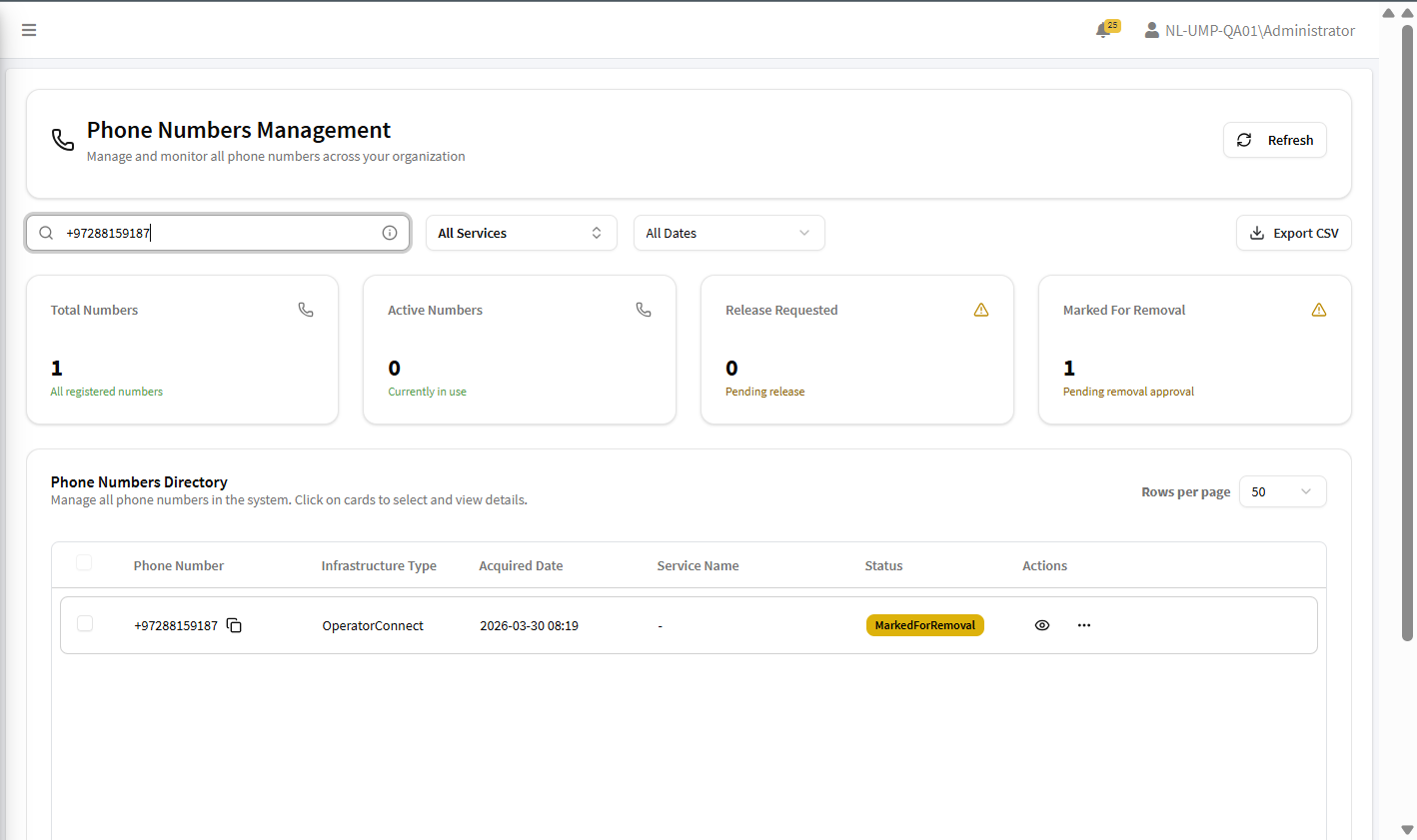
The table below describes the parameters in this page.
|
Element or Parameter |
Description |
|||||||||||||||||||||
|---|---|---|---|---|---|---|---|---|---|---|---|---|---|---|---|---|---|---|---|---|---|---|
|
Refresh |
Click the Refresh button to refresh the screen after updating data. |
|||||||||||||||||||||
|
Search box |
Enter phone number in text search field. You can search by entering text for the following fields:
|
|||||||||||||||||||||
|
Customers filter |
From the drop-down, select the relevant customers to search. |
|||||||||||||||||||||
|
Dates filter |
From the drop-down, select the relevant Date range to search. |
|||||||||||||||||||||
|
Export CSV |
Click this button to export all call records to a CSV file. |
|||||||||||||||||||||
|
Total Numbers |
The total DIDs that are loaded to the Operator Connect module. |
|||||||||||||||||||||
|
Active Numbers |
The total DIDs that are assigned to users on Operator Connect. |
|||||||||||||||||||||
|
Release Requested |
The total DIDs that are pending release (waiting for Customer approval). These DIDs have been deleted directly in this interface and require customer approval to release. |
|||||||||||||||||||||
|
Marked for Removal |
The total DIDs that are pending removal approval. These DIDs that have been deleted by the customer on their Teams admin center and admin approval is required for deletion. |
|||||||||||||||||||||
|
Phone Numbers Directory |
||||||||||||||||||||||
|
Phone Number |
The uploaded DID entry. |
|||||||||||||||||||||
|
Infrastructure Type |
The source platform of the number: Operator Connect. |
|||||||||||||||||||||
|
OC SIP Connection |
This value is not applicable. |
|||||||||||||||||||||
|
Acquired Date |
The time stamp when the DID was loaded to Live Platform Operator Connect. |
|||||||||||||||||||||
|
Customer Name |
The name of the customer of the uploaded DID. |
|||||||||||||||||||||
|
Status |
|
|||||||||||||||||||||
|
Right-click Actions |
||||||||||||||||||||||
|
Release/Delete Selected |
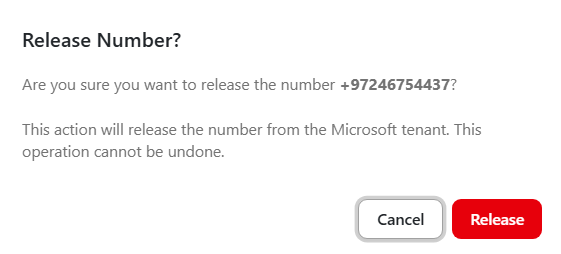
Lets you release a number from Live Platform. Once the number is released, no further action is required by the customer and the number is moved to the Released Numbers table (see Number Metadataand Release Numbers). You can either select multiple entries and then click the Release/Delete Selected button or select an individual entry from the right-click menu.
|
|||||||||||||||||||||
|
Reactivate Selected |
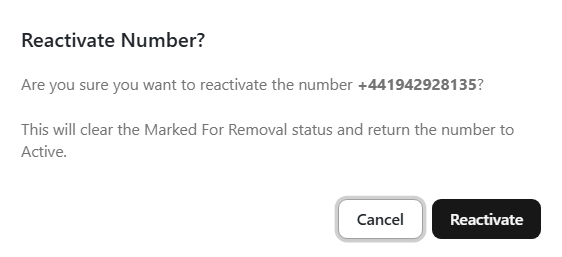
Lets you clear the "Marked for Removal" status of a number and return it to "Active" status. You can either select multiple entries and then click theReactivate Selected button or select an individual entry from the right-click menu. See Reactivate Numbers.
|
|||||||||||||||||||||
|
Approve Remove Selected Numbers |
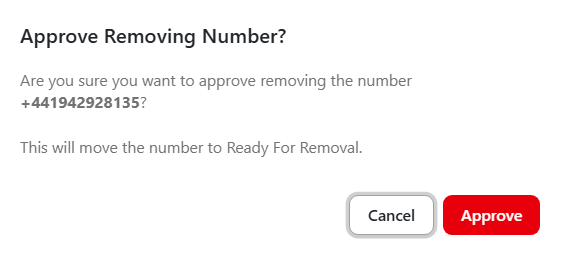
Lets you approve removal of a number and move it to "Ready for Removal". You can either select multiple entries and then select the Approve Remove Selected Numbers button or approve an individual entry from the right-click menu.
|
|||||||||||||||||||||
|
Export to CSV |
Lets you export all phone entries to a CSV file. You can either export all of the entries in the table or select an individual entry and then in the right-click menu, select Export to CSV.
|
|||||||||||||||||||||
|
View Lead History |
Displays a history of the lead conversions to OC Essential license for the Microsoft tenant ID of the selected tenant. |
|||||||||||||||||||||
|
View Details |
||||||||||||||||||||||
|
|
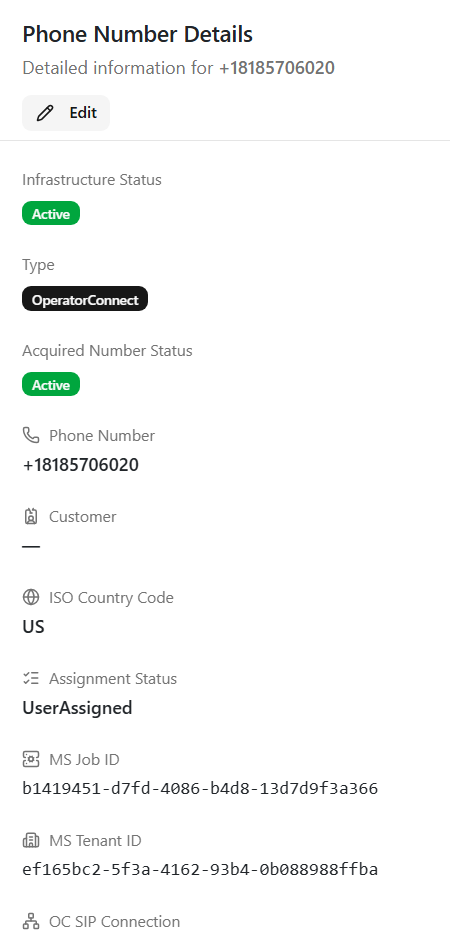
Click the eye adjacent to the phone number entry to view the number details.
|
|||||||||||||||||||||
|
Infrastructure Status |
Status of the connection with the ARM server. |
|||||||||||||||||||||
|
Type |
Type of Live Platform service: Operator Connect |
|||||||||||||||||||||
|
Acquired Number Status |
Indicates the Microsoft status of the number. |
|||||||||||||||||||||
|
Phone Number |
The phone number loaded to the tenant. |
|||||||||||||||||||||
|
Customer |
Name of the customer attached to the service. |
|||||||||||||||||||||
|
ISO Country Code |
Country Calling code of the number. |
|||||||||||||||||||||
|
Assignment Status |
Indicates whether the number is assigned to a user in the customer's Teams Admin Center. |
|||||||||||||||||||||
|
MS Job ID |
The Job Id for the number synchronization task on Microsoft Operator Connect. |
|||||||||||||||||||||
|
OC SIP Connection |
This value is not applicable. |
|||||||||||||||||||||
|
Location ID |
If the customer tenant has Emergency Locations defined, the Location ID value is displayed. |
|||||||||||||||||||||
|
Capabilities |
The Number capabilities:
|
|||||||||||||||||||||
|
ARM Infrastructure |
||||||||||||||||||||||
|
File Repository Name |
Name of the file repository that is generated for the customer. |
|||||||||||||||||||||
|
Other ARM Attributes |
This feature will be implemented in a future release.
|
|||||||||||||||||||||