Viewing and Naming Custom Templates for AI-Powered Summaries
You can view a list of all the available Custom templates that can be used for AI-powered summaries. You can also rename the templates to control how they appear to users.
Custom templates are designed to meet your organization’s specific requirements. They’re especially useful when meeting summaries must follow a standard format. For example, you may want the summary to include sections such as 'Meeting Agenda', 'Main Concerns', and 'Wishful Goal'.
Templates are typically assigned to sectors (e.g., "Sales" and "HR"), which are logical groups to help you find and select the appropriate template(s) for users of a specific User Profile. To enable AI-powered summaries and to select templates for a User Profile, see Enabling Template-based AI-Powered Summaries.
|
●
|
The template 'Name' is only for the administrator, but it's displayed to end users if you don't configure a 'Custom Name'. |
|
●
|
The 'Custom Name' must be unique. |
|
➢
|
To view templates or change custom name: |
|
1.
|
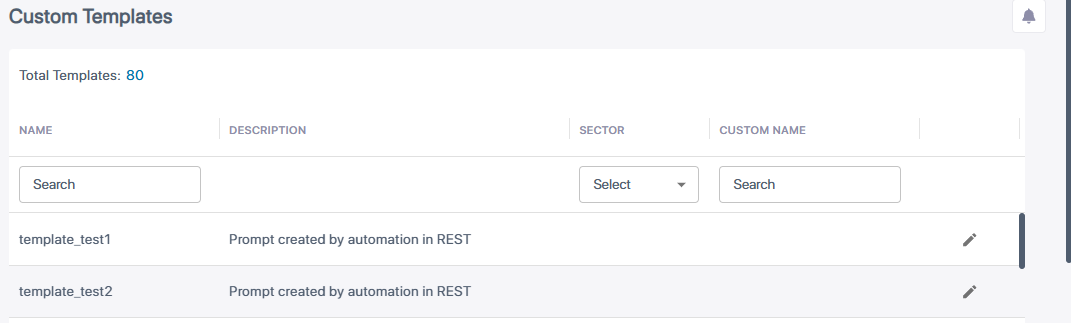
In the Admin Settings menu pane, expand AI Settings, and then click Custom Templates; a list displays all the custom templates: |
|
2.
|
To configure a name for the template: |
|
a.
|
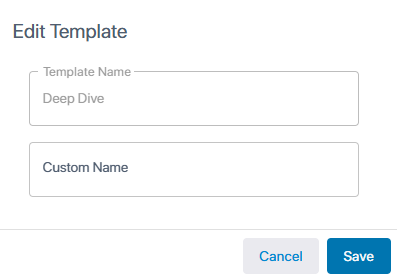
Click the  icon corresponding to the required template; the following dialog box appears: icon corresponding to the required template; the following dialog box appears: |
|
b.
|
In the 'Custom Name' field, type a name for the template. |