Sharing Meeting Recordings within Organization
By default, when you publish a meeting recording, Meeting Insights automatically shares it only with participants within the organization. However, you can also share your meeting recording with other people within your organization that weren't invited:
|
■
|
Share it with only specific people in your organization. |
|
■
|
Share it with everyone in your organization. |
|
●
|
You can share only meeting recordings that have been published. |
|
●
|
Only the Owner, Co-owner, or users assigned editing privileges of the meeting recording can share meeting recordings. |
|
➢
|
To share a meeting recording within your organization: |
|
1.
|
In the Navigation pane, click  All meetings. All meetings. |
|
2.
|
Click the name of the meeting recording that you want; the Player page opens. |
|
3.
|
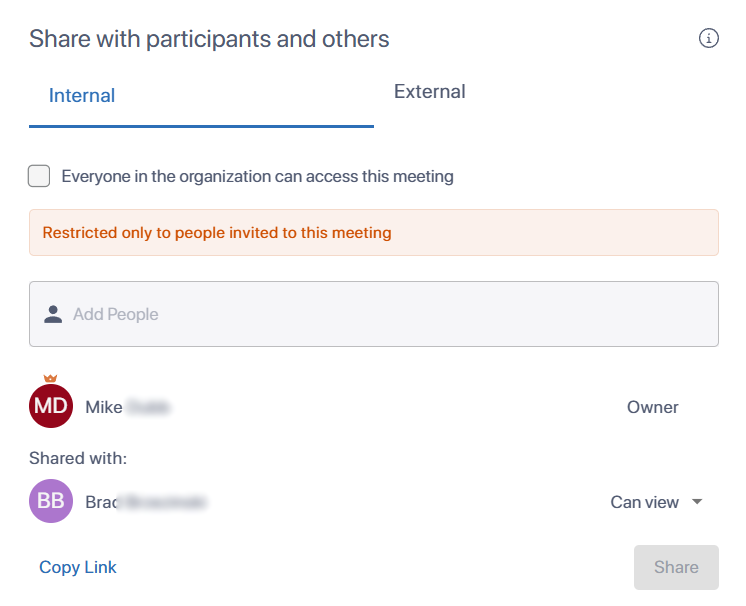
On the toolbar, click Share; the following dialog box appears with the Internal tab selected by default and the list of participants with whom the meeting recording is currently shared: |
|
4.
|
To share with everyone in your organization:
|
|
a.
|
Select the Everyone in the organization can access this meeting check box; a confirmation message box appears. |
|
5.
|
To share with specific people in your organization:
|
|
a.
|
Make sure that the Everyone in the organization can access this meeting check box is cleared. |
|
b.
|
In the 'Add People' text box, start typing the person's name and then select it from the offered list. You can add multiple people. |
|
c.
|
Click Updated; the selected people are added to the Shared with list. |
|
d.
|
Define the privileges for each participant (or remove a participant), by clicking the  icon corresponding to the person's name, and then choosing one of the following options: icon corresponding to the person's name, and then choosing one of the following options: |
|
◆
|
Can view: Participant can only view (read-only) the meeting recording - video and recap. |
|
◆
|
Can edit: Participant can view and edit (read-write) the meeting recording - video and recap. |
|
◆
|
Remove: Removes the participant from the meeting recording. |