Record an Invited Google Meet Meeting
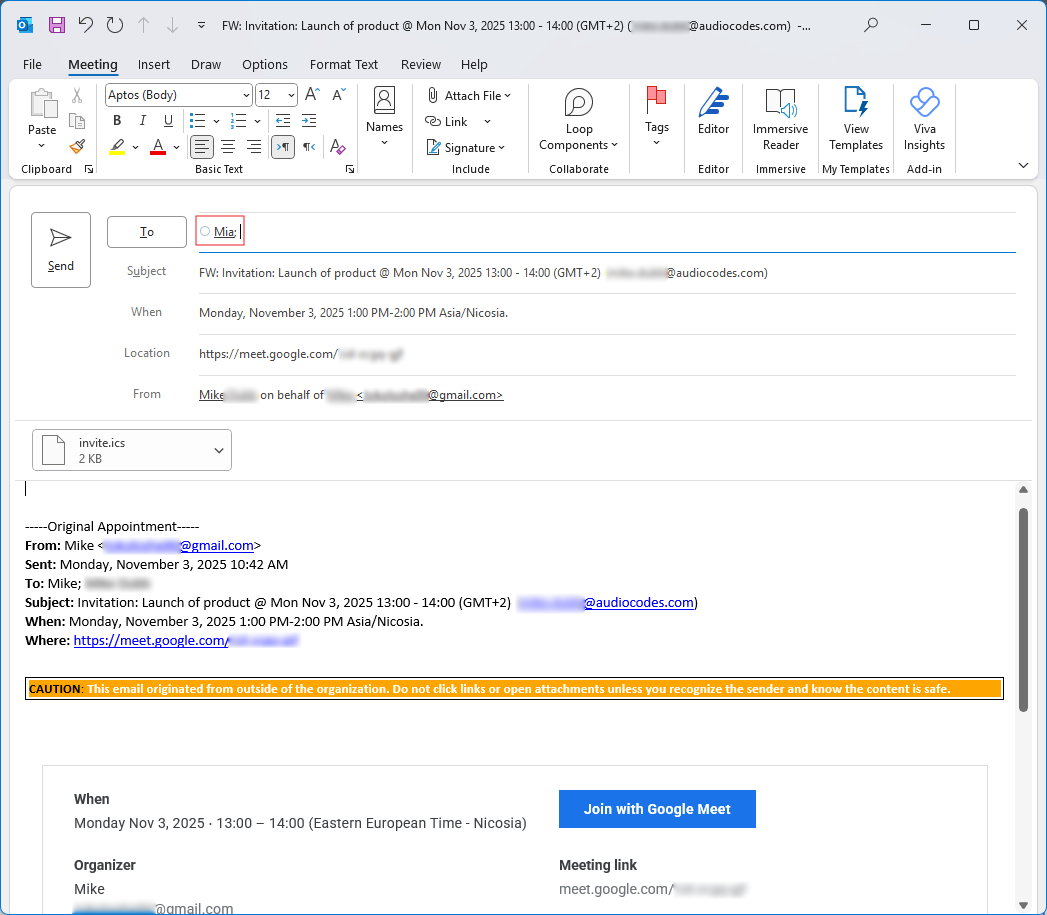
If you've received a Google Meet meeting invitation, you can get Meeting Insights to record it by forwarding the meeting to Meeting Insights bot Mia. When the meeting starts, Mia joins automatically.
| ● | For Google Meet meetings that are initiated by a person in your organization (i.e., internal meeting): |
| ✔ | The meeting is recorded (invitation accepted by Mia) only if the organizer of the meeting has permission to record Google Meet meetings (enabled by your Administrator), regardless of who sent the invitation. |
| ✔ | The organizer of the meeting is the Owner. |
| ✔ | All invitees in your organization have access to the recorded meeting. |
| ✔ | Participants not originally invited to the meeting can access the recorded meeting only if it's shared with them by the organizer. |
| ● | For Google Meet meetings that are initiated by someone outside of your organization (i.e., external meeting): |
| ✔ | The meeting is recorded (invitation accepted by Mia) only if at least one of the invitees in your organization is a Meeting Insights user that has permission to record Google Meet meetings (enabled by your Administrator). |
| ✔ | All invitees in your organization that have permission to record Google Meet meetings can forward the invitation and have Owner permission; the remaining invitees have view permission only. |
| ➢ | To add Meeting Insights Mia to a scheduled Google Meet meeting invitation: |
| 1. | In your Outlook Calendar, open the invitation, and then click Forward. |
| 2. | In the To field, add the Meeting Insights "Mia" contact, and then click Send. |