Schedule a Google Meet with Recording
You can get Meeting Insights to record a scheduled Google Meet meeting. This is done by adding the scheduled Google Meet meeting to your Microsoft Outlook Calendar, and then forwarding it to all the participants you want to invite, including Meeting Insights Mia.
Participants not originally invited to the Google Meet meeting can access the recorded meeting only if it's shared with them by the organizer.
|
●
|
The Meeting Insights bot automatically joins the meeting 1 to 2 minutes before the meeting is scheduled to start. |
|
●
|
The Meeting Insights bot automatically leaves the meeting upon any of the following conditions: |
|
✔
|
If there are no participants in the meeting at the scheduled end time. |
|
✔
|
If no participants joined the meeting within 90 minutes of the scheduled start time. |
|
✔
|
If there are still participants in the meeting after the scheduled end time and no one has spoken (i.e., silence) for 30 minutes. |
|
➢
|
To record a scheduled Google Meet meeting: |
|
2.
|
From the + Create drop-down list, choose Event. |
|
3.
|
Enter the necessary information for your meeting such as a title for the meeting, date and time, and guests you want to invite. |
|
4.
|
Click Save; Google Meet displays the details of your scheduled meeting and offers you various calendar services to which you can add the scheduled meeting and with which you can invite participants. |
|
5.
|
Select the Outlook Calendar (.ics) option, and then click the ICS filename displayed in the pop-up box in the top-right corner of the window: |
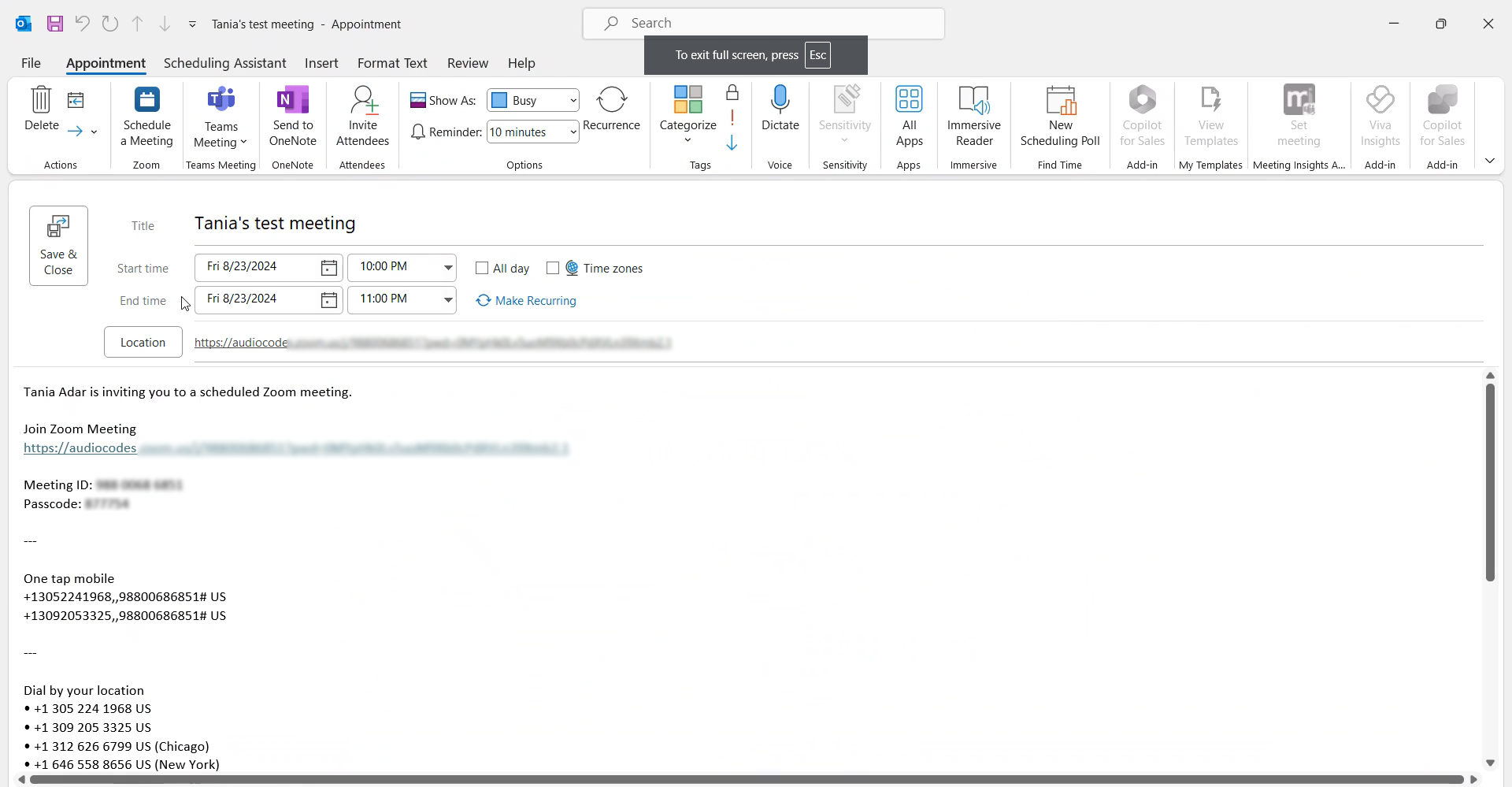
Your Microsoft Outlook Calendar opens and an appointment for the Google Meet meeting is automatically created:
|
7.
|
In your Outlook Calendar, right-click the saved appointment, and then from the shortcut menu, choose Forward. |
|
8.
|
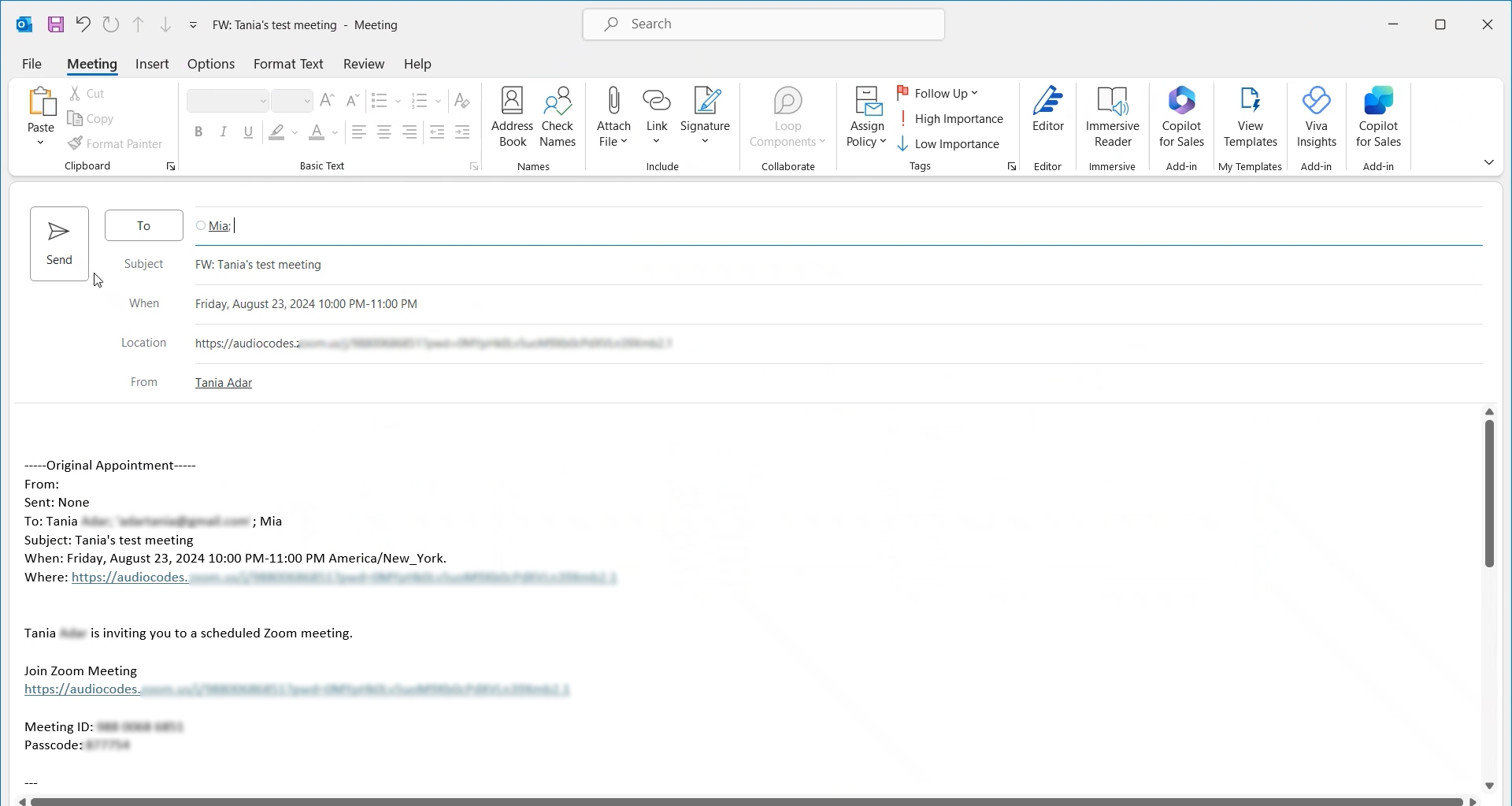
In the To field, add Meeting Insights "Mia" and all the participants that you want to invite to the Google Meet meeting: |
|
9.
|
Click Send to send your scheduled Google Meet meeting invitation. |