Paste the Webex Meeting URL into Meeting Insights
Once you have obtained the Webex meeting URL (see Obtain the Webex Meeting URL), you need to paste it into Meeting Insights.
| ➢ | To paste Webex meeting URL into Meeting Insights: |
| ■ | Meeting Insights Web Interface and Teams Desktop Client: |
| a. | Log in to the Meeting Insights Web interface. |
| b. | In the 'Paste a Meeting URL' field, located in the top-right corner of the window, paste the Webex meeting link from your clipboard. |
| c. | Click the  icon to submit the URL; a message appears informing you that Meeting Insights has sent a request to join the Webex meeting. icon to submit the URL; a message appears informing you that Meeting Insights has sent a request to join the Webex meeting. |

In the meeting recording list, the meeting displays the following status:
 "Connecting" - Meeting Insights is attempting to join the Webex meeting (may take several minutes).
 "Pending Admission" - Meeting Insights has connected to the Webex meeting and is waiting in the lobby to be admitted.
 Meeting Insights was denied access to join the meeting.
 "Failed" - Meeting Insights failed to join the meeting.
Once joined, Meeting Insights displays the external Webex meeting in the meeting recording list with the label "Webex Meeting" and the Webex  icon:
icon:

| ■ | Meeting Insights for Mobile Devices: |
| a. | Open the Meeting Insights mobile app on your mobile device; the meetings list page appears. |
| b. | Tap the Join button, located in the top-right corner of the screen; the Join meeting by Invitation dialog box appears: |
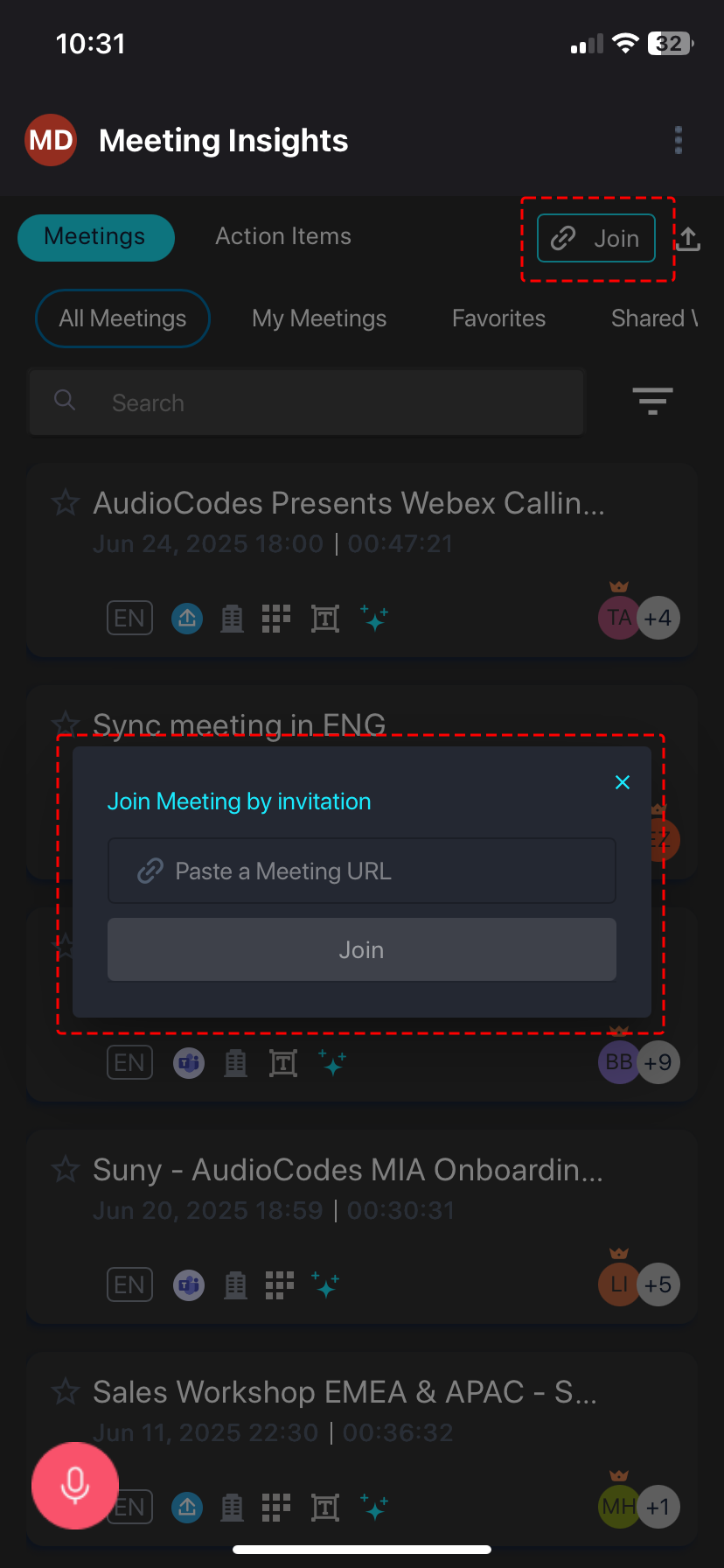
| c. | In the 'Paste a Meeting URL' field, paste the Webex meeting URL from your clipboard. |
| d. | Click Join. |
When Meeting Insights joins the meeting, it's added in the Webex meeting window as an additional participant. The bot name is defined by your Administrator (e.g., "Bob's Meeting Assistant").