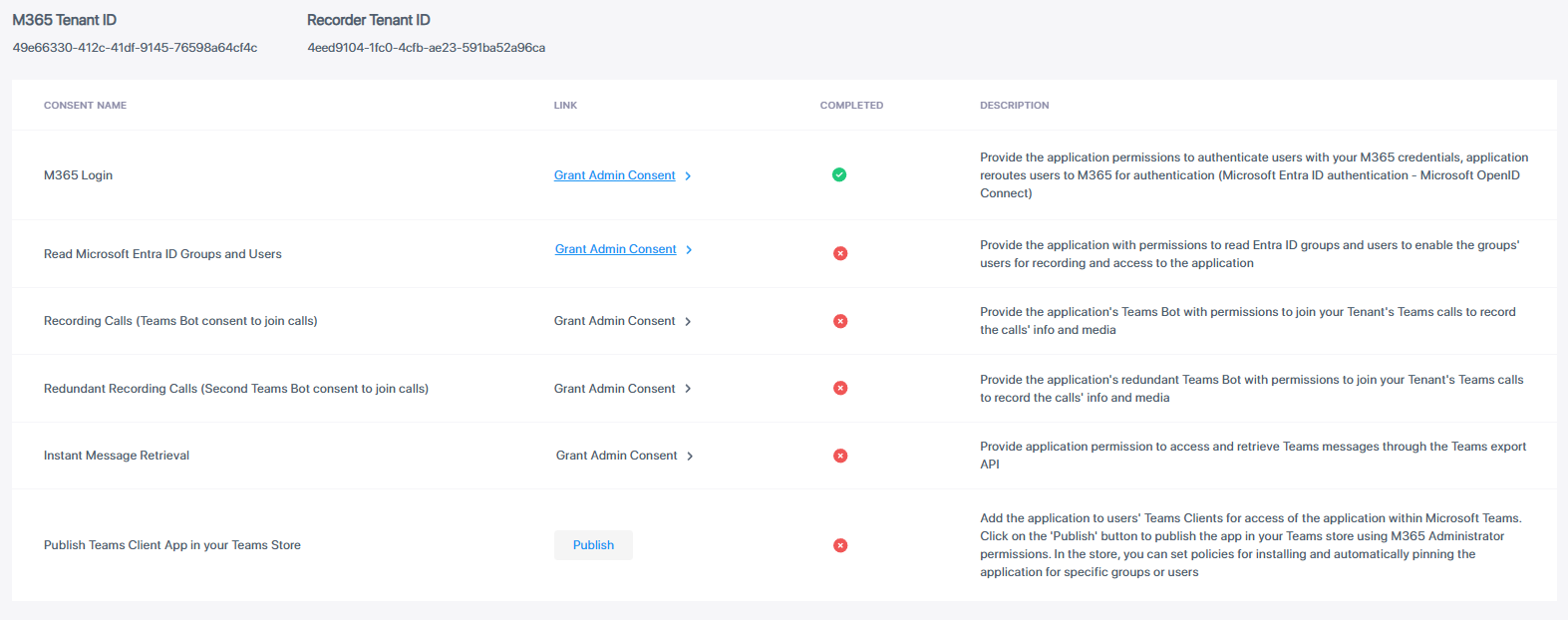
M365 Login Consent
Granting the M365 Login consent provides the application permissions to authenticate users with your M365 tenant credentials. The application reroutes users to M365 for authentication (Azure Active Directory authentication-Microsoft OpenID Connect-Oauth 2).
The permissions are required for the Interaction Insights application to authenticate users utilizing your tenant Entra AD authentication, and Microsoft Open ID Connect (Oauth 2) authentication. The permissions enable Live Platform to reroute users accessing the Live Platform application either from a browser or from the Live Platform Teams application to be authenticated according to your organizational M365 policy. The deployment generates the Enterprise application Interaction-Insights Auth (<Storage Location>).
You consent to the following Microsoft Graph permissions:
|
■
|
email – view users; email address (Delegated). |
|
■
|
offline_access – maintain access to data you have given it access to (Delegated). |
|
■
|
openid – sign users in (Delegated). |
|
■
|
profile – view users’ basic profile (Delegated). |
|
■
|
User.Read – sign in and read user profile (Delegated). |
|
✔
|
AppCatalog.Submit – submit application packages to the catalog and cancel pending submissions. |
|
✔
|
AppCatalog.ReadWrite.All
– read and write to all app catalogs. |
|
●
|
You must grant M365 Login consent before you can grant the other consents or publish the app in your Teams store. |
|
●
|
The screen captures in this section are from a tenant with a Pro license. (In tenants with an Essential license, the Redundant Recording Calls consent is missing.) |
|
➢
|
To grant consent to M365 login: |
|
1.
|
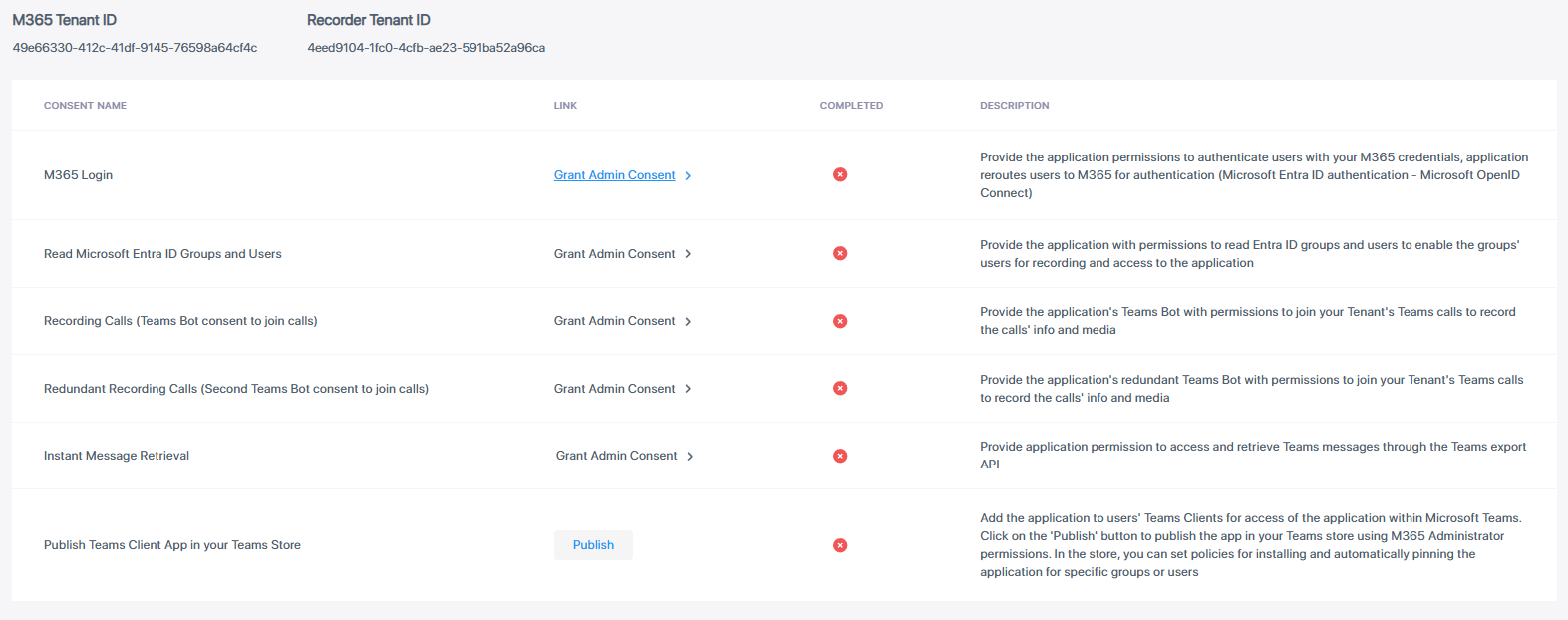
The Consents page is displayed when onboarding to the Interaction Insights system, by clicking the 'Connect M365' link provided in the Welcome email (see Complete the Quick Start Wizard). Alternatively, you can access it in the Interaction Insights GUI, by navigating to Settings > System Settings > Connect to your M365. |
|
2.
|
Click the Grant Admin Consent link next to the 'M365 Login' consent; you are prompted to log in to your Microsoft 365 account. |
|
3.
|
Log in to the Global admin account of your Live Platform tenant; a permissions dialog appears. |
|
4.
|
Click Accept to accept the requested permissions. The consent is marked with the  icon, indicating that you have successfully granted 'M365 Login' consent. icon, indicating that you have successfully granted 'M365 Login' consent. |