Disable or Re-enable Applications
If you disable an application, you temporarily block all API requests using it until it is re-enabled. The application's credentials and permissions remain unchanged; there is no need to regenerate the secret after re-enabling.
Disabling applications may be useful when working on an API maintenance task or security concern.
You can:
|
■
|
Disable all applications |
|
■
|
Disable a specific application |
|
■
|
Re-enable a disabled application |
|
➢
|
To disable all applications: |
|
1.
|
Open the API Configuration page: In the Icon pane, click  , and then in the Navigation pane, select Integration> API Configuration. , and then in the Navigation pane, select Integration> API Configuration. |
|
2.
|
Turn off the Enable API access switch. In the Status column, the status of all listed applications changes from 'Enabled' to 'Disabled'. |
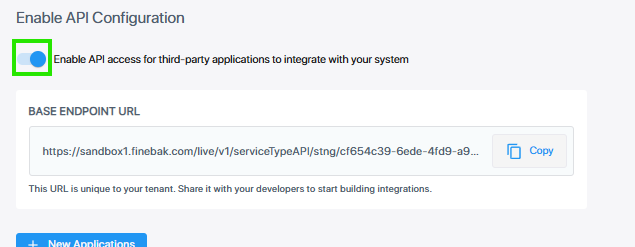
When you turn the Enable API access switch back on, the applications remain disabled until they are manually re-enabled (see below).
|
➢
|
To disable a single application: |
|
1.
|
Open the API Configuration page: In the Icon pane, click , and then in the Navigation pane, select Integration> API Configuration. |
|
2.
|
In the API Configuration table, click the dots adjacent to the application that you wish to disable, then click Disable Application and confirm. The application is immediately disabled. |
|
➢
|
To re-enable an application: |
|
■
|
In the API Configuration table, click the dots adjacent to the application that you wish to enable, then click Enable Application. The application is immediately enabled. |