Enabling AI-Powered Insights
You can enable the AI Insights feature to allow users to generate AI-powered insights (recap) for meeting recordings.
|
●
|
AI Insights is enabled by default. |
|
●
|
When you disable AI Insights: |
|
✔
|
Users can still view AI-powered insights that were generated for past meeting recordings. |
|
✔
|
Users can’t generate new AI-powered insights for meeting recordings. |
You can configure who can trigger AI-powered insights for meeting recordings:
|
■
|
Any user who has access to the meeting recording. |
|
■
|
Only the owner of the meeting recording (or a user with edit permissions). |
When AI Insights is enabled, Meeting Insights displays a disclaimer wherever a user can generate an AI-powered insight, as shown in the following example for the template recap:
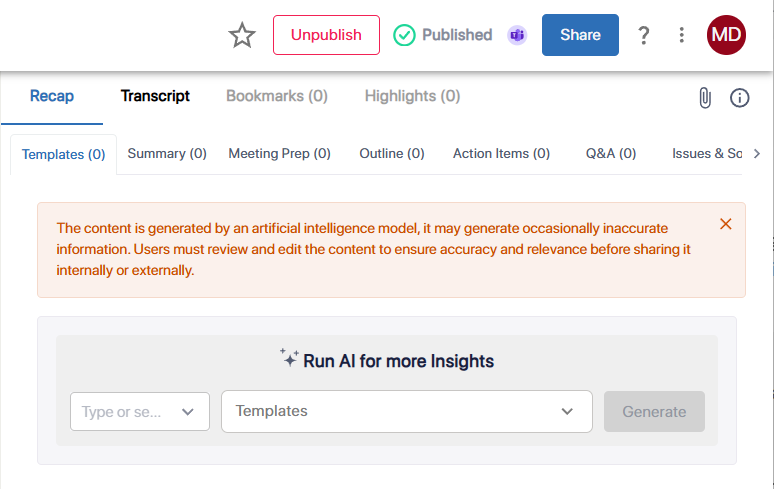
Meeting Insights includes a default disclaimer for AI-generated content in English (US). You can add custom disclaimers in other languages. When Meeting Insights generates a recap for a meeting recording in a language that has a matching custom disclaimer, it displays that disclaimer. If no disclaimer exists for that language, Meeting Insights displays the default English (US) disclaimer.
Default disclaimer English (US):
|
●
|
You can't delete the default disclaimer. |
|
●
|
You can't change the first part of the default disclaimer. |
|
●
|
You can add your own text after the default disclaimer text. |
|
●
|
Use the Full Disclaimer Preview to view the locked default text and how your added text appears (described later in this section). |
|
1.
|
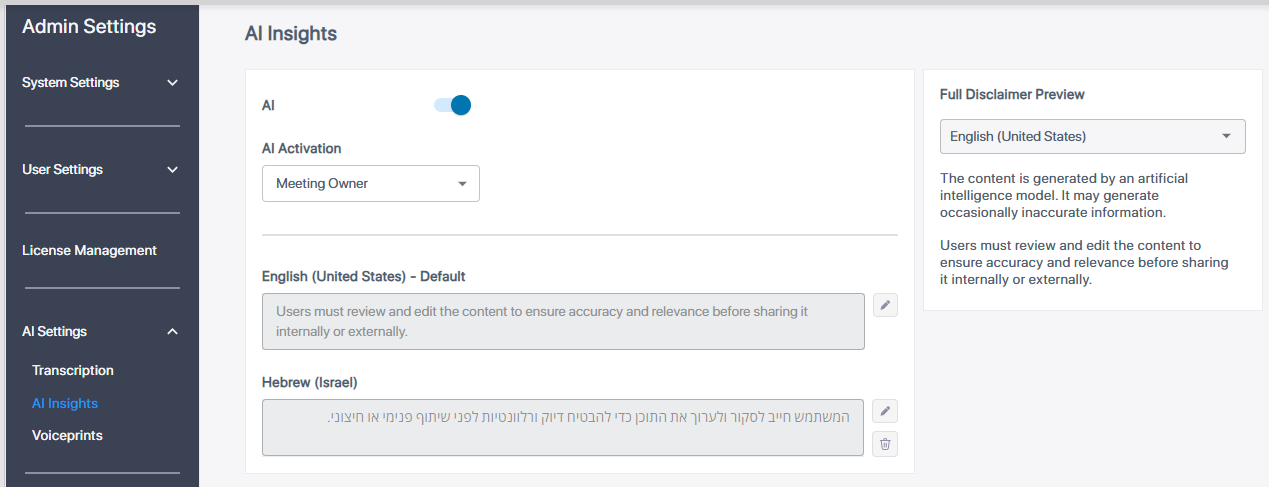
In the Admin Settings menu pane, expand AI Settings, and then click AI Insights; the AI Insights page appears: |
|
2.
|
To enable the AI-powered Insights feature, click the AI toggle button to turn it on. |
|
3.
|
From the ‘AI Activation’ drop-down list, select who can trigger AI-powered insights of meeting recordings: |
|
●
|
Anyone - anyone with access to the meeting recording (default). |
|
●
|
Meeting Owner - only the owner of the meeting recording (or a user with edit permissions). |
|
4.
|
Configure disclaimers:
|
|
i.
|
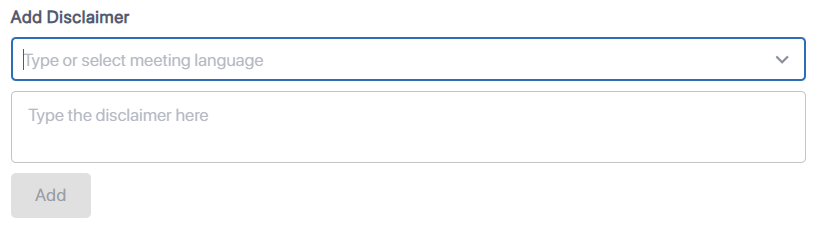
Under the Add Disclaimer group, click the Add button; the following fields appear: |
|
ii.
|
In the 'Type or select a language' drop-down list, select the disclaimer language. |
|
iii.
|
In the 'Type the disclaimer here' field, enter the disclaimer text. |
|
iv.
|
Click the Add button to save the disclaimer; the new disclaimer is added to the list of disclaimers. |
|
●
|
Edit an existing disclaimer:
|
|
i.
|
Click the pencil  icon of the disclaimer; the field becomes editable. icon of the disclaimer; the field becomes editable. |
|
ii.
|
Update the disclaimer text. |
|
iii.
|
Click the tick  icon to save your changes. icon to save your changes. |
|
i.
|
Click the delete  icon of the disclaimer; a confirmation message appears. icon of the disclaimer; a confirmation message appears. |
|
ii.
|
Click the Delete button; the disclaimer is removed from the list. |
You can't delete the default disclaimer (English US).
|
●
|
Preview the full disclaimer text: |
The disclaimer fields show only a limited number of characters. To view the full text:
|
i.
|
Under the Full Disclaimer Preview group (located on the right side of the page), open the language drop-down list. |
The preview shows:
|
❖
|
The default disclaimer text (English US) first, and then |
|
❖
|
The disclaimer for the selected language. |
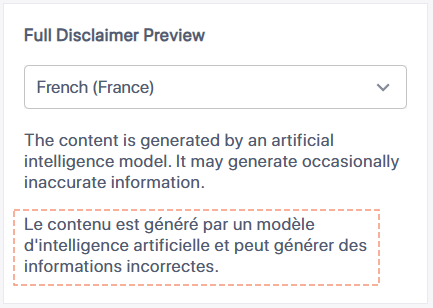
The following example shows the preview of an added disclaimer in French, which appears after the default English disclaimer: