Ask Mia Anything About Your Meetings
Ask Mia is an AI-powered assistant for meetings. Instead of searching through meeting recordings, transcripts, or notes, ask Mia a question in natural language like you would ask a colleague.
For example, you can ask:
|
■
|
What did I commit to in yesterday's meeting? |
|
■
|
Summarize my last meeting with HR. |
|
■
|
What action items are still open for Project SBC? |
Ask Mia searches your meeting recordings and those shared with you. It then gives you clear, relevant answers based on actual meeting conversations. Use it to catch up on a meeting you missed, find action items assigned to you, review decisions and commitments, or pull insights across multiple meetings at once.
You can ask Mia a question:
|
■
|
Type your question: Enter a text-based question in the chatbot box. |
Ask Mia searches your meeting recordings and returns the meetings that are most relevant to your question. It also provides any requested information, such as summaries, decisions, and action items. You can then open each of the listed meetings for more detail.
If you want more control over the search scope, use Workflow to select specific meeting recordings. Ask Mia then applies your question only to those meeting recordings instead of searching across all available recordings.
Ask Mia keeps a history of your past conversations so that you can review previous questions and answers. If you no longer need a conversation, you can delete it from your chat history.
|
●
|
Ask Mia is an optional feature. If it's not available, contact your Meeting Insights administrator. |
|
●
|
Ask Mia only searches meeting recordings that have an AI-generated summary or transcript. If a meeting recording doesn't have one of these, Ask Mia won't include it in search results. |
|
●
|
You can ask Mia questions in any language, regardless of the language spoken during the meeting.
Mia always responds in the same language as your question. For example, if a meeting was conducted in Japanese and you ask a question in English, Mia responds in English. |
|
1.
|
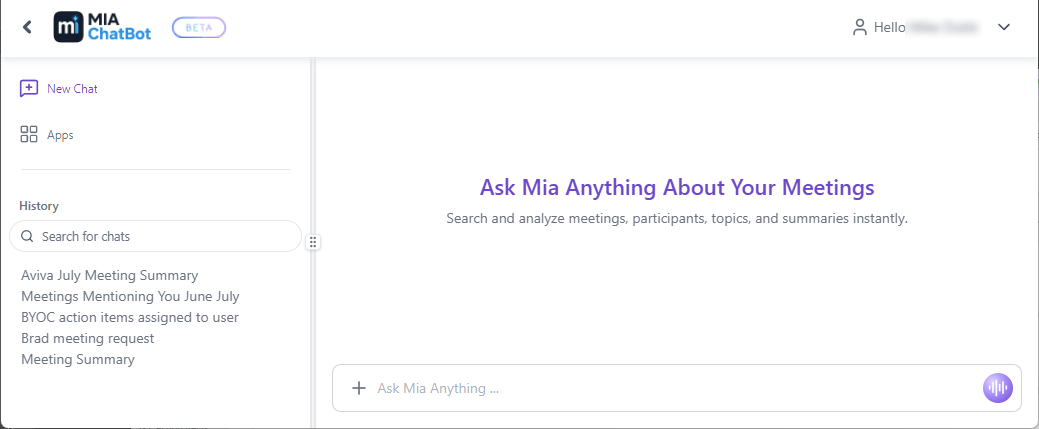
In the left navigation menu, click the Ask MIA button to open the Mia ChatBot page: |

|
●
|
Type your question: In the 'Ask Mia Anything' prompt box, type your question, and then press Enter. |
Depending on your question, Mia's answer can include a list of relevant meeting recordings, details about the meeting (date and time, organizer, participants, and duration), meeting highlights, action items, and meeting slides.
|
3.
|
To open a listed meeting recording:
|
|
a.
|
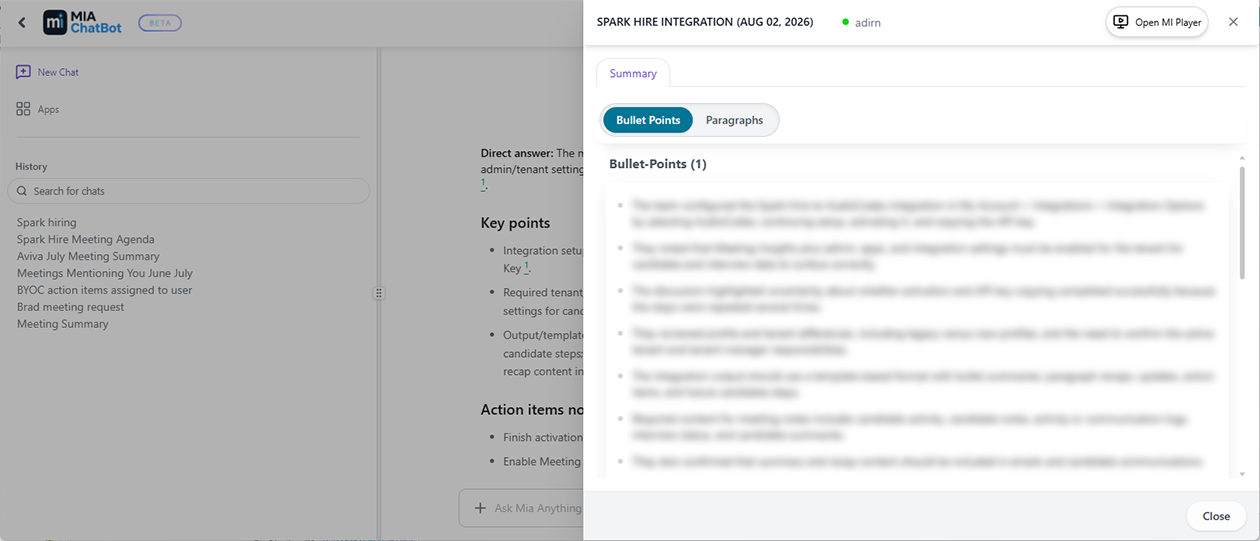
Scroll down to the Citation section. |
|
b.
|
Click the meeting recording you want; the Citation pane opens on the right and shows the insights from the meeting recording such as the summary or action items: |
|
c.
|
To open the Player page of the meeting recording where you can view the video, slides, and all other generated insights and content, in the Citation pane, click Open MI Player. |
|
d.
|
To return to your conversation with Mia, click Close to close the citation pane. |
|
4.
|
To ask Mia a follow-up question, type your next question in the prompt box, and then press Enter. |
|
5.
|
View a specific question and answer in a chat:
|
|
a.
|
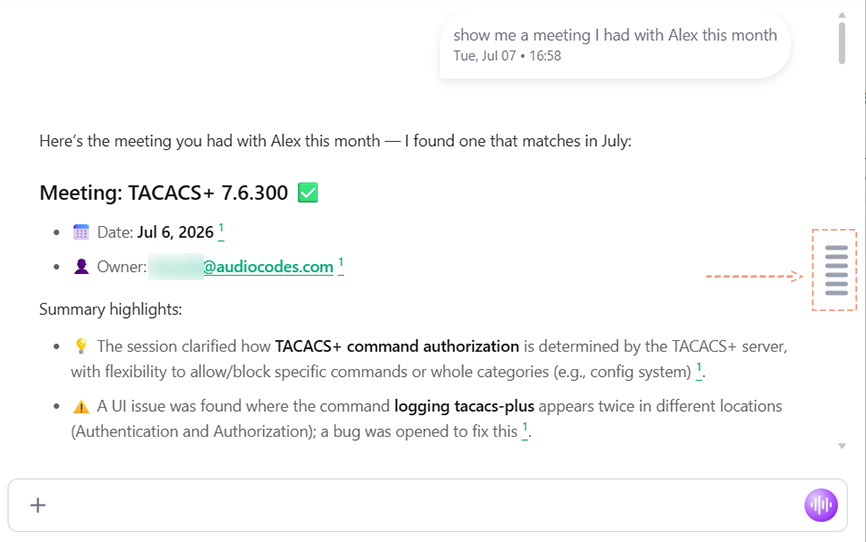
Select the conversation timeline (stacked horizontal lines - see following figure) on the right side of the chat window to display all questions in the conversation. |
|
b.
|
Select the question you want; the chat window scrolls automatically to the corresponding answer. |
In the left pane, click New Chat; the previous chat moves to the History list, and a new chat window opens.
|
a.
|
In the left pane, locate the History list. |
|
b.
|
In the 'Search for chats' field, type a search string for the chat you want. |
|
c.
|
Select the chat to open it. |
|
8.
|
Delete a chat from history:
|
|
a.
|
In the left pane, locate the History list. |
|
b.
|
Point to the chat you want to delete. |
|
c.
|
Click the delete  icon; a confirmation message appears. |
|
d.
|
Click Delete to confirm. |