View Meeting Recordings List
When you access Meeting Insights, the  All meetings page is displayed, which is a dashboard of all the meeting recordings where you're the Owner or a participant, as well as meeting recordings that were shared with you even if you were not a participant.
You can also view pages of pre-filtered meeting recordings, by clicking any of the following icons in the left navigation pane:
| ■ |
 My Meetings: Displays meeting recordings where you're the Owner or a participant. My Meetings: Displays meeting recordings where you're the Owner or a participant. |
| ■ |
 Shared with Me: Displays meeting recordings that you were not invited to, but that were shared with you.
 |
| ■ |
 Events: Displays meeting recordings that were shared with everyone in your organization. Events: Displays meeting recordings that were shared with everyone in your organization. |
| ■ |
 Favorites: Displays meeting recordings that you have tagged as favorites. Favorites: Displays meeting recordings that you have tagged as favorites. |
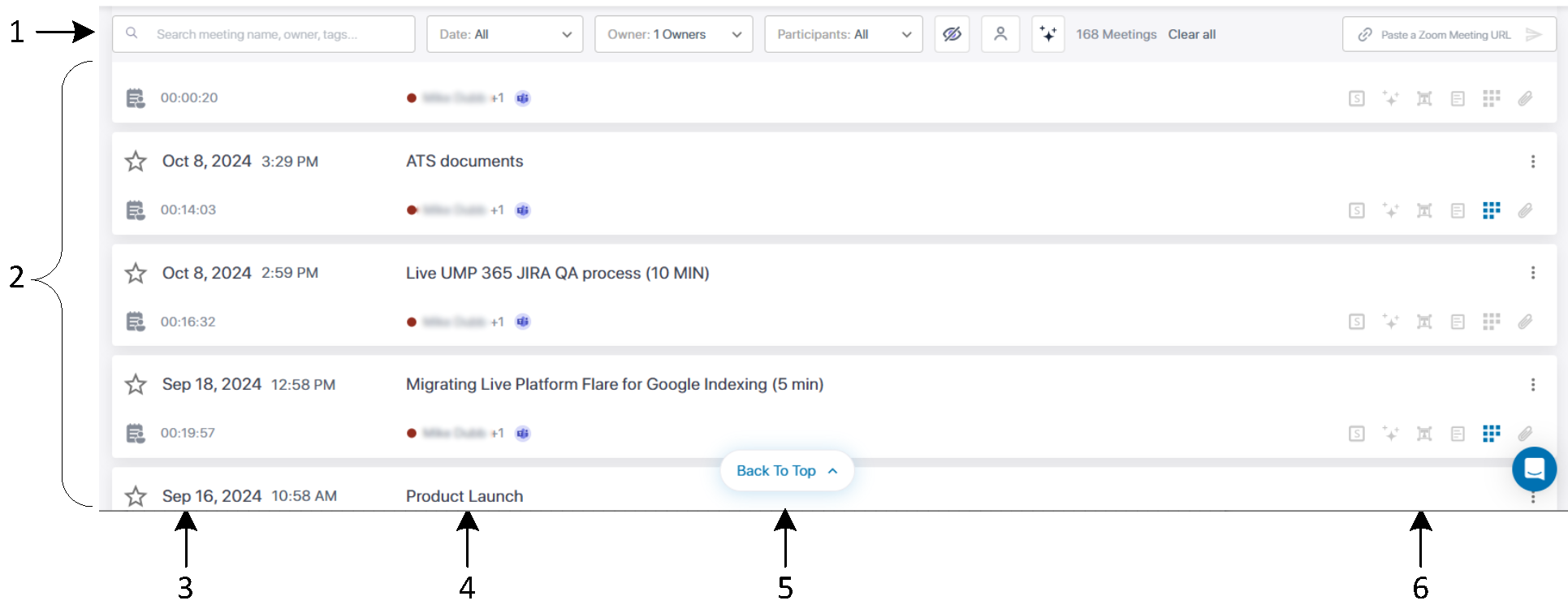
The following figure and subsequent table describes the meeting recording list functionality:
|
Item # |
Description |
|||||||||||||||||||||||||||
|---|---|---|---|---|---|---|---|---|---|---|---|---|---|---|---|---|---|---|---|---|---|---|---|---|---|---|---|---|
|
1 |
Search meeting recordings functionality. For more information, see Search Meeting Recordings. |
|||||||||||||||||||||||||||
|
2 |
List of meeting recordings. |
|||||||||||||||||||||||||||
|
3 |
||||||||||||||||||||||||||||
|
|
Indicates if you have marked the meeting recording as a favorite. To mark it as a favorite, click the icon. |
|||||||||||||||||||||||||||
|
|
Indicates if you added a memo (brief note) to the meeting recording. For more information, see Add a Memo to a Meeting Recording. |
|||||||||||||||||||||||||||
|
<Date> |
Displays the starting date and time of the meeting recording. |
|||||||||||||||||||||||||||
|
<Duration or Status> |
Displays the duration of the meeting recording if it's published. If the meeting recording isn't published, one of the following status icons is displayed instead of the duration:
|
|||||||||||||||||||||||||||
|
4 |
||||||||||||||||||||||||||||
|
|
Indicates that the meeting recording is a recurring meeting, scheduled in Microsoft Outlook or Teams Calendar. This icon is displayed next to the meeting recording name. To view recurring meetings, see View Meeting Recordings of Recurring Meetings. |
|||||||||||||||||||||||||||
|
<meeting name> |
Displays the meeting recording name. If you click the name, the Player page opens, providing you with advanced management capabilities over the meeting recording, for example, playing the presentation of the meeting recording, managing the meeting recap (see Recap), managing highlights (see Highlights), enabling transcription of speech (see Create a Transcription), and managing participants (see Participants of a Meeting Recording). |
|||||||||||||||||||||||||||
|
<participants> |
Displays the participants of the meeting recording. The first name is the owner, followed by the number of additional participants. To view the additional participants, click the number. |
|||||||||||||||||||||||||||
|
|
Indicates that the recorded meeting was an internal Microsoft Teams meeting. For more information, see Teams Meetings in your Organization. |
|||||||||||||||||||||||||||
|
|
Indicates that the recorded meeting was an external (outside your organization) Microsoft Teams meeting. For more information, see External Teams Meetings. |
|||||||||||||||||||||||||||
|
|
Indicates that the recorded meeting was an internal Zoom meeting. For more information, see Zoom Meetings. |
|||||||||||||||||||||||||||
|
|
Indicates that the recorded meeting was an external (outside your organization) Zoom meeting. For more information, see Zoom Meetings. |
|||||||||||||||||||||||||||
|
|
Indicates that the recorded meeting was an internal Google Meet meeting. For more information, see Google Meet Meetings. |
|||||||||||||||||||||||||||
|
|
Indicates that the recorded meeting was an external Google Meet meeting. For more information, see Google Meet Meetings. |
|||||||||||||||||||||||||||
|
|
Indicates that the recorded meeting was an internal Webex meeting. For more information, see Webex Meetings. |
|||||||||||||||||||||||||||
|
|
Indicates that the recorded meeting was an external Webex meeting. For more information, see Webex Meetings. |
|||||||||||||||||||||||||||
|
|
Indicates that the meeting recording was created by a third-party recording tool and imported into Meeting Insights. For more information, see Import a Recording Created by a Third-Party App. |
|||||||||||||||||||||||||||
|
|
Indicates that the meeting recording was created by a third-party recording tool and imported into Meeting Insights through Meeting Insights standalone mobile app. For more information, see Upload a Recording by a Third-Party Tool. |
|||||||||||||||||||||||||||
|
|
Indicates that the meeting recording was an ad hoc recording by a mobile phone's microphone, using Meeting Insights standalone mobile app. For more information, see Ad Hoc Record with Meeting Insights Standalone Mobile App. |
|||||||||||||||||||||||||||
|
|
Indicates the tags that were added to the meeting recording. If you hover your mouse over the tag, a pop-up displays the names of each tag. For more information on tags, see Tags. |
|||||||||||||||||||||||||||
|
|
Indicates the language that was selected for the meeting recording (e.g., "EN" for English or "DE" for German). |
|||||||||||||||||||||||||||
|
|
Indicates that the meeting recording has been shared with everyone in your organization. For more information, see Make a Meeting Recording Public. |
|||||||||||||||||||||||||||
|
|
Indicates that the meeting recording has also been shared with people outside of your organization (external). For more information, see Share a Meeting Recording Outside of Your Organization. |
|||||||||||||||||||||||||||
|
5 |
||||||||||||||||||||||||||||
|
Back To Top |
When you scroll down the list, you can always go back to the top of the list by clicking the Back To Top button that appears at the bottom-center of the page. |
|||||||||||||||||||||||||||
|
6 |
||||||||||||||||||||||||||||
|
|
Indicates how many hours remaining until Meeting Insights automatically publishes the meeting recording. This is applicable only if delayed automatic publishing is enabled (see Configure Publishing Time of Meeting Recordings). |
|||||||||||||||||||||||||||
|
|
Indicates that Meeting Insights is integrated with your organization's Microsoft Planner. If integrated, you can a meeting recording's Action Items to Planner by clicking the icon. For more information, see Integrate with Microsoft Planner for Actions Items. |
|||||||||||||||||||||||||||
|
|
Indicates if the meeting has a summary. If yes, the icon appears blue To view the summary, click
|
|||||||||||||||||||||||||||
|
|
Indicates if AI was triggered to create a summary, an outline, and suggested action items for the meeting recording. If yes, the icon appears blue If a AI was run to create a summary, an outline, and suggested action items, click |
|||||||||||||||||||||||||||
|
|
Indicates if a transcription (speech to text) was created for the meeting recording. If yes, the icon appears blue To view the transcript, click the icon. For more information, see Create a Transcription. |
|||||||||||||||||||||||||||
|
|
Indicates if the meeting recording has any meeting recap items (bookmarks, highlights, notes, action items, or decisions). If yes, the icon appears blue To view recap items, click For more information on meeting recap, see Recap. |
|||||||||||||||||||||||||||
|
|
Indicates if Meeting Insights created slides out of the meeting recording from the presented media. If yes, the icon appears blue To view the slides, click For more information on slides, see Video Slides. |
|||||||||||||||||||||||||||
|
|
Indicates if the meeting recording has an attached file(s). If yes, the icon appears blue To download the attached file or attach more files, click |
|||||||||||||||||||||||||||
|
|
When clicked, a drop-down menu with the following commands is displayed:
|
|||||||||||||||||||||||||||


 The meeting recording is currently in progress and being recorded by Meeting Insights.
 The meeting recording has ended and is currently being compiled (processing state).
 The meeting recording has been processed, but not published.
 No one attended the meeting recording.
 The meeting recording failed (for whatever reason). Only the Administrator or the meeting owner can delete it.
Contact your Administrator if necessary. A participant cannot interact with a failed meeting.
The Administrator or the meeting owner can access the meeting but no video will be displayed in the player page; a message 'No compatible source was found for this media' will be displayed.
The meeting recording failed (for whatever reason). Only the Administrator or the meeting owner can delete it.
Contact your Administrator if necessary. A participant cannot interact with a failed meeting.
The Administrator or the meeting owner can access the meeting but no video will be displayed in the player page; a message 'No compatible source was found for this media' will be displayed.
 Meeting Insights bot is currently connecting (joining) to the external meeting (may take some time).
 Meeting Insights bot has connected (joined) to the external meeting and is waiting to be admitted.
 Meeting Insights bot has been rejected by the external meeting to join.





 . If you hover over the icon, a pop-up displays the number of summaries.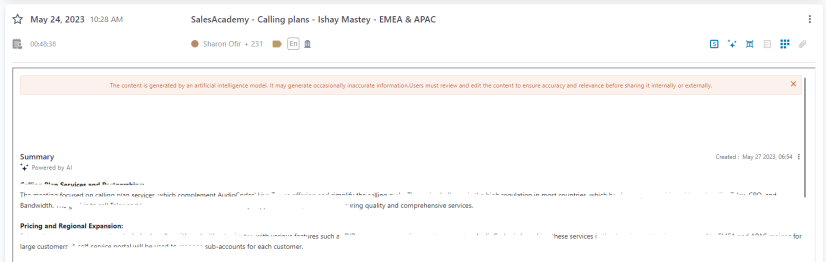

 .
. 
 .
. 
 . If you hover over the icon, a pop-up displays the number of each recap item.
 . If you hover over the icon, a pop-up displays the number of slides.
 . If you hover your mouse over the icon, a pop-up displays the number of attached files.