Import a Recording Created by a Third-Party App
You can import meeting recordings (audio or video) that were created by third‑party recording apps, such as webinar tools, into Meeting Insights.
After you upload a recording:
|
■
|
The recording appears in the meeting recordings list together with recordings created directly in Meeting Insights. |
|
■
|
The recording is marked with the import  icon. icon. |
|
■
|
You can manage the recording in the same way as any other Meeting Insights recording. |
|
●
|
You can import meeting recordings only if your Meeting Insights administrator has enabled this feature for you. To verify that the feature is enabled, check the 'Meeting Import' field in your account information (see View Account Information). |
|
●
|
Meeting Insights supports importing recordings in the following formats: |
|
✔
|
Video: .avi, .mp4, .wmv, .mpeg, .mov, .flv, .mpg, .webm |
|
✔
|
Audio: .wav, .aac, .flac, .wma, .mp3, .m4a |
|
➢
|
To import a recorded meeting by third-party app: |
|
1.
|
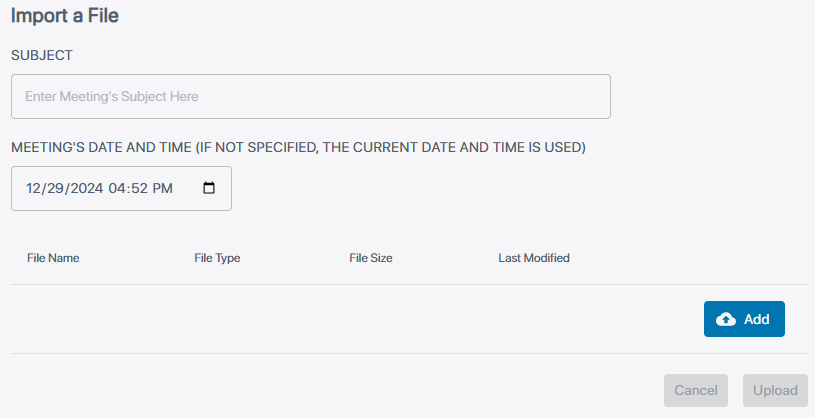
In the top-right corner of the Meeting Insights window, near your profile picture, click the Import Meeting  icon; the Import a File page appears: icon; the Import a File page appears: |
|
2.
|
In the 'Subject' field, type a name for the meeting recording. |
|
3.
|
In the 'Meeting's Date and Time' field, select the date and time of the meeting: |
|
a.
|
Click the calendar icon; the calendar dialog box appears. |
|
b.
|
On the left pane, select the date. |
|
c.
|
On the right pane, select the time in 12-hour format, using the AM or PM buttons to denote morning or afternoon, respectively. |
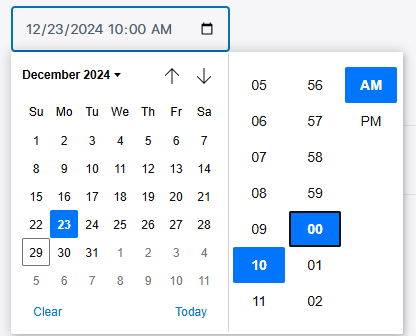
If you don't specify a date and time, Meeting Insights uses the current date and time.
|
4.
|
From the 'Meeting's language' drop-down list, select the language of the meeting recording. |
|
5.
|
Choose the recording file by doing one of the following: |
|
●
|
Drag and drop the file into the upload box. |
|
●
|
Click the upload box, browse to the file on your computer, and then select it. |
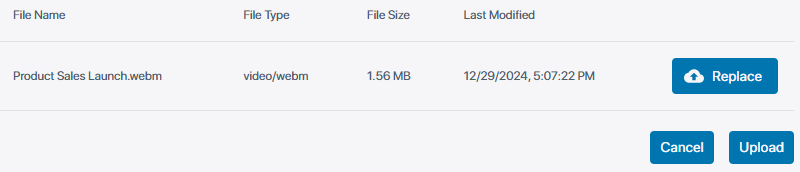
After you select the file, Meeting Insights displays the file name, type, size, and last modified date, for example:
|
6.
|
(Optional) To upload a different file, click Replace, and then select another file. |
|
7.
|
Click the Upload button; Meeting Insights uploads the file and processes the recording. You are automatically redirected to the  All meetings page. The uploaded recording appears in the list with the upload icon. All meetings page. The uploaded recording appears in the list with the upload icon. |