Tags
Tags are useful for identifying and searching for meeting recordings. For example, you may want to tag all meeting recordings that concern employee salaries with a tag named "SBC". Once tagged, you can easily search for these meeting recordings in the list of meeting recordings, by using the tag name "SBC" as the search filter ("tag: SBC"). you can also assign multiple tags to a meeting recording.
The meeting recordings list displays the tag's color-coded icon. If you hover over the tag, the name of the tag is shown.
To tag meeting recordings, you can use your own user-defined tags (see Defining a Tag) or Meeting Insights default tags.
|
➢
|
To add or remove a tag to / from a meeting recording: |
|
1.
|
In the Navigation pane, go to any meeting recording list view that contains the recording you want. |
|
2.
|
Click the meeting recording name; the Player page appears. |
|
3.
|
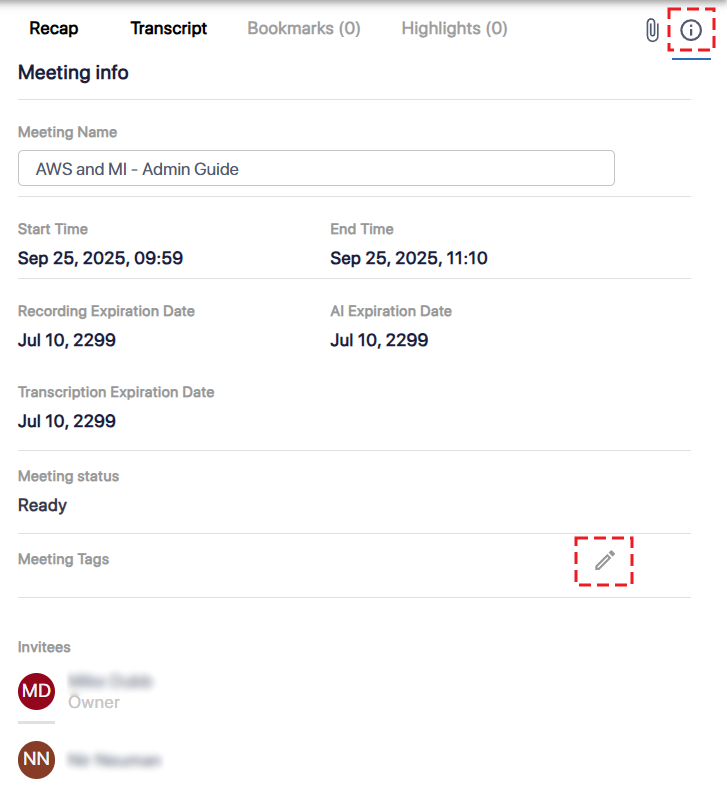
Click the  icon; the Meeting info pane is displayed: icon; the Meeting info pane is displayed: |
|
4.
|
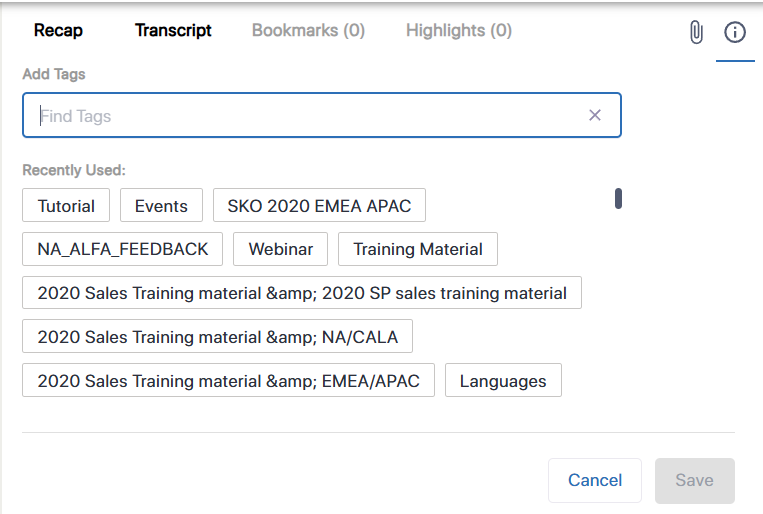
Under the Meeting Tags group, click  ; the following appears: ; the following appears: |
|
5.
|
In the 'Add Tags' field, type the name of the tag and then choose the tag from the offered list of matching tags. You can also select a tag under the Recently Used group. |
|
6.
|
To remove an assigned tag, click the X corresponding to the tag. |
|
7.
|
Click Save; the tag is added to the meeting recording and displayed under Meeting Tags. |