Publish a Meeting Recording
Only when you publish a meeting recording can its participants view it in their Meeting Insights account.
When you publish a meeting recording, Meeting Insights notifies the participants by email. The email also includes the meeting recap (meeting summary, decisions, action items, notes, and tags).
|
●
|
By default, Meeting Insights automatically publishes your meeting recording when it ends. You can change this to manually publish meeting recordings or to have Meeting Insights automatically publish your meeting recordings after three days (see Configure Publishing Time of Meeting Recordings). |
|
●
|
You can configure Meeting Insights to send you a weekly email listing all your meeting recordings that you haven't published (see Subscribe to Email Notifications). |
|
●
|
The procedure below is applicable only if your account profile is "Meeting Insights". If your account profile is "Insights", publishing a meeting recording is done through the Meeting Recap page. |
|
●
|
When you publish a meeting recording, Meeting Insights notifies via email only internal participants (i.e., members of your organization). |
|
➢
|
To manually publish a meeting recording: |
|
1.
|
In the Navigation pane, click  All meetings, and then Click the meeting recording name; the Player page appears. All meetings, and then Click the meeting recording name; the Player page appears. |
|
2.
|
On the toolbar, click the Publish button: |

Instead of the Publish button, the Unpublish button, "Published" message, and Share button are displayed:

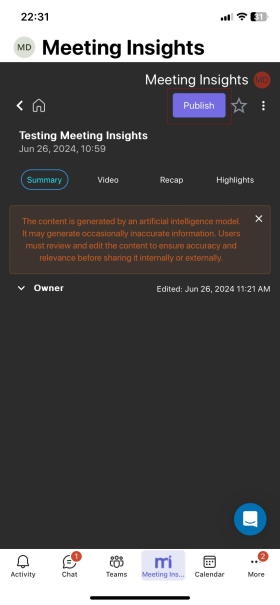
If you're using Meeting Insights on your mobile phone, do the following to publish a meeting recording:
|
1.
|
On the home screen, tap the meeting recording that you want. |
|
2.
|
Tap the Publish button: |