Paste the Google Meet URL into Meeting Insights
Once you have obtained the Google Meet meeting's URL (see Obtain the Google Meet URL), you need to paste it into Meeting Insights so that it can record the meeting.
|
●
|
The Meeting Insights bot's admission to the Google Meet meeting depends on the meeting type:
|
|
✔
|
External Google Meet sessions: When joining a meeting hosted outside your organization, the bot enters the lobby and waits up to 10 minutes to be admitted. If not admitted within this timeout, it automatically leaves the meeting. |
|
✔
|
Internal Google Meet sessions: For meetings hosted in your organization, the bot joins automatically without requiring admission from the lobby. |
|
●
|
When the Google Meet meeting ends, the Meeting Insights bot leaves the meeting upon any of the following scenarios: |
|
✔
|
All participants have left the meeting. |
|
✔
|
Participants are still in the meeting and no one has spoken (i.e., silence) for 30 minutes. |
|
➢
|
To paste Google Meet meeting URL into Meeting Insights: |
|
■
|
Meeting Insights Web Interface and Teams Desktop Client:
|
|
a.
|
Log in to the Meeting Insights Web interface. |
|
b.
|
In the 'Paste a Meeting URL' field located in the top-right corner of the window, paste the Google Meet meeting URL from your clipboard: |

|
c.
|
Click the  icon to submit the URL; a message appears informing you that Meeting Insights has sent a request to join the Google Meet meeting. icon to submit the URL; a message appears informing you that Meeting Insights has sent a request to join the Google Meet meeting. |
A meeting recording row is automatically added in the Meeting Insights meeting recording list to reflect this new meeting, and the following status icons are displayed, one after the other:
|
◆
|
 "Connecting" - Meeting Insights bot is attempting to join the Google Meet meeting (may take some minutes). "Connecting" - Meeting Insights bot is attempting to join the Google Meet meeting (may take some minutes). |
|
◆
|
 "Awaiting" - Meeting Insights bot has connected to the Google Meet meeting and is waiting in the lobby to be admitted by the host. "Awaiting" - Meeting Insights bot has connected to the Google Meet meeting and is waiting in the lobby to be admitted by the host. |
|
◆
|
 "Recording" - Meeting Insights bot has been admitted by the host to the meeting and starts recording it. "Recording" - Meeting Insights bot has been admitted by the host to the meeting and starts recording it. |
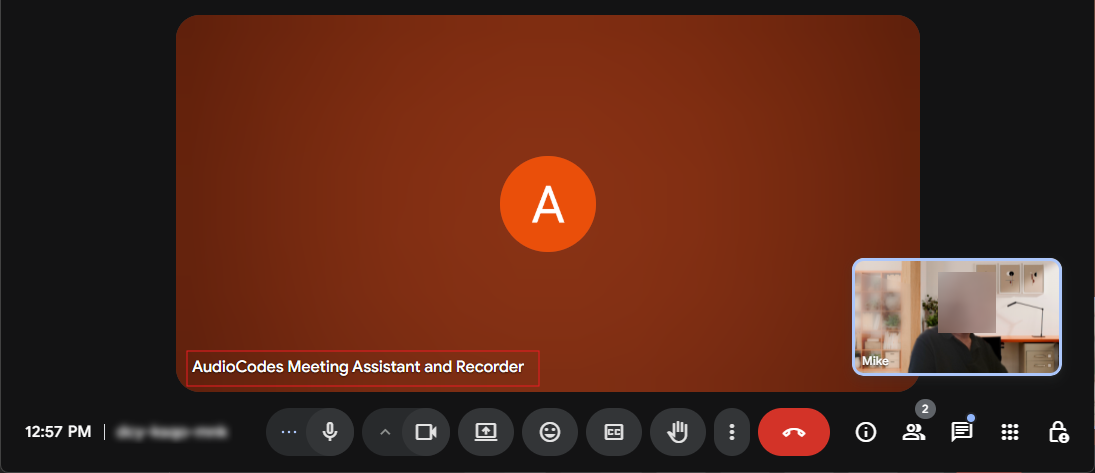
By default, the guest name of Meeting Insights in the Google Meet meeting is "AudioCodes Meeting Assistant and Recorder", as shown in the following example. This bot name is defined by your Meeting Insights Administrator.
When joined, Meeting Insights displays the Google Meet meeting in the meeting recording list with the name "Meet - <meeting URL>" and the Google Meet  icon:
icon:

If the host of the meeting denies Meeting Insights from joining, the meeting is displayed with the  status icon in the meeting recording list.
|
■
|
Meeting Insights for Mobile Devices:
|
|
a.
|
Open the Meeting Insights mobile app on your mobile device; the meetings list page appears. |
|
b.
|
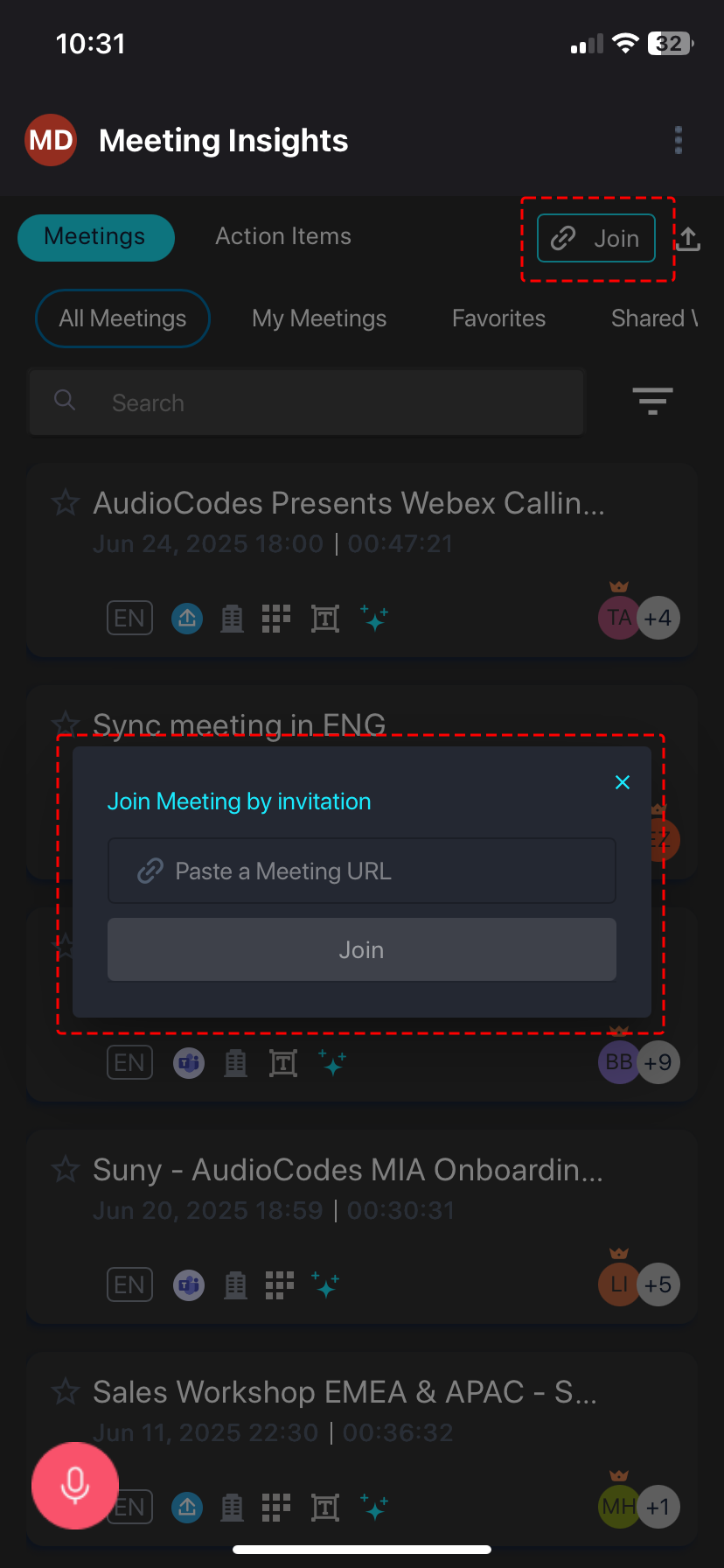
Tap the Join button, located in the top-right corner of the screen; the Join meeting by Invitation dialog box appears: |
|
c.
|
In the 'Paste a Meeting URL' field, paste the Google Meet meeting URL (invite link) from your clipboard. |