View Slides
You can view slides created from the meeting recording's video. The slides are displayed in the slide gallery, which can be accessed from various areas in Meeting Insights, as described below.
You can only view slides of published meeting recordings.
| ➢ | To view slides of a meeting recording: |
| 1. | In the Navigation pane, go to any meeting recording list view that contains the recording you want. |
| 2. | Access the slide gallery: |
| ● | Meeting Recording List View: Click the  icon of the meeting recording; the slide gallery appears in a pop-up window. icon of the meeting recording; the slide gallery appears in a pop-up window. |
When you hover over the icon, the tooltip shows the number of visible slides and the number of hidden slides (in parentheses). For example, “7 (52) Slides” indicates that 7 slides are visible and 52 slides are hidden.
| ● | Player page: |
| i. | Click the meeting recording name; the Player page appears. The slide navigation pane is displayed below the video, as shown in the following example: |
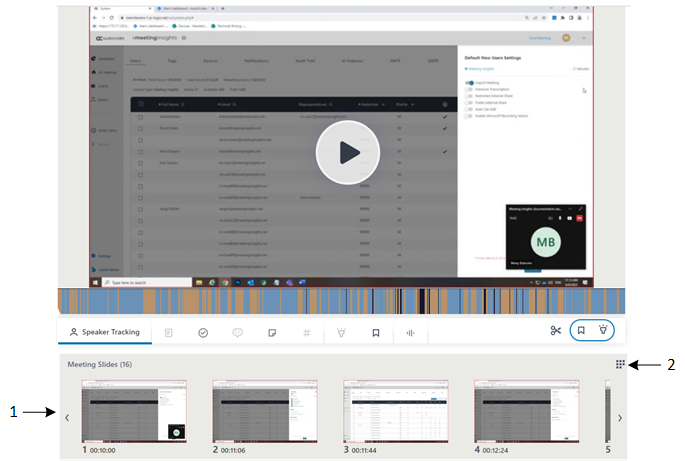
Legend:
1 = Slide navigator with slide thumbnails
2 = Icon  to open the slide gallery
| ● | You can perform similar actions (i.e., hide and download) on slides in the slide navigator as you can in the slide gallery. Simply hover your mouse over a slide, and then click the pop-up action icon that you want. |
| ● | When you play the video of a meeting recording, thumbnails of the slides are displayed in the slide navigator. You can also use the slide navigator to easily locate a specific place in the video that you want to listen to, by navigating through the slide thumbnails, and then clicking the required slide to play the video from it. |
| ii. | Click (#2 in previous figure); the slide gallery page appears: |
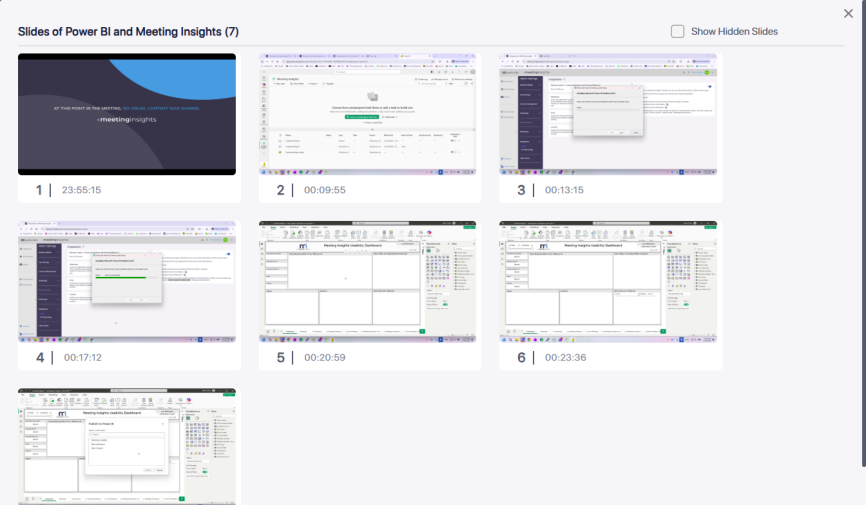
| 3. | To show hidden slides, select the Show Hidden Slides check box. (For hiding slides, see Hide or Restore Slides.) |
| 4. | To play the meeting recording video from a specific slide, hover your mouse over the slide, and then click  . . |
| 5. | To view or play a slide in a pop-out window, hover your mouse over the slide, and then click  ; the following pop-out window appears: ; the following pop-out window appears: |
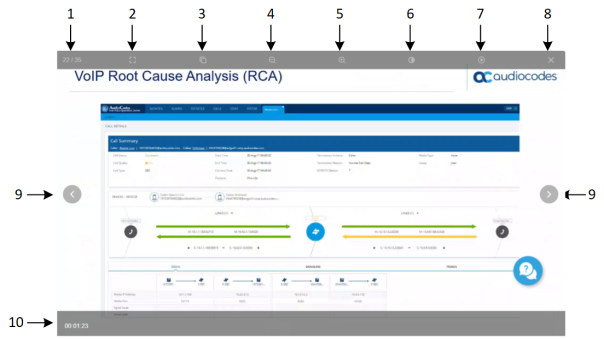
1 = Slide number out of total slides
2 = Displays the slide in full screen mode
3 = Zooms in and zooms out to 100%
4 = Zooms in
5 = Zooms out
6 = Background color scheme for slide control
7 = Plays (or pauses) video
8 = Closes pop-out slide window
9 = Left and right slide navigation buttons
10 = Time in meeting recording of transition to slide