Edit the Default Settings of a License Type
As AudioCodes system administrator, you can edit the default settings of a Meeting Insights license type. You can:
|
■
|
Change the license name. |
|
■
|
Change the license description. |
|
■
|
Editing features, including turning them on or off and configuring maximum values. |
When you change the default settings of a feature, you can choose to apply the change to all Meeting Insights tenants using the same license type, or apply the change only to new Meeting Insights tenants.
|
➢
|
To edit a license type: |
|
1.
|
Open the Tenant Management portal for the Meeting Insights service. |
|
2.
|
In the navigation pane, select License Profiles; a page appears listing the Meeting Insights license types. |
|
3.
|
Click the ellipsis  menu of the license type, and then from the drop-down menu, choose Edit; the Edit License Profile page appears. menu of the license type, and then from the drop-down menu, choose Edit; the Edit License Profile page appears. |
|
4.
|
Make your changes to a feature. |
|
●
|
To turn a feature on or off:
|
|
i.
|
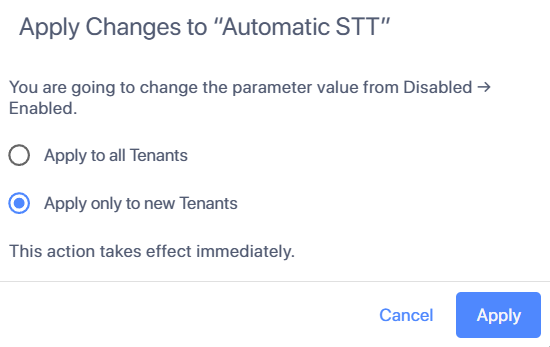
Click the toggle button (or Enabled or Disabled option) to turn it on or off; a message asks how to apply your change, for example: |
|
ii.
|
Choose one of the following options: |
Apply to all tenants: Applies your change to all Meeting Insights tenants with this license type.
Apply only to new tenants: Applies your change only to new Meeting Insights tenants with this license type.
|
iii.
|
Click Apply to save your changes. |
|
●
|
To define a value for a feature: |
|
i.
|
In the field, enter a new value; a Save button appears next to the field. |