Reassigning Speakers in Summary
If you’ve generated an AI-powered summary of your meeting recording (see Generating AI-Powered Summary), you can modify the individuals associated with the summary under the Speakers section. You have the option to assign a specific summary to one of the following:
|
■
|
A different meeting invitee |
|
■
|
A user who was not invited to the meeting |
|
➢
|
To reassign speakers in summary: |
|
1.
|
In the Navigation pane, click  All meetings. All meetings. |
|
2.
|
Click the name of the meeting recording that you want; the Player page appears. |
|
3.
|
Select the Recap tab, and then click Summary (default); the AI-generated summary is displayed. |
|
4.
|
Click the Speakers button to navigate to the Speakers section in the summary. |
|
5.
|
Click the Edit  icon under the Internal Speakers or External Speakers group; the speakers summary becomes editable. icon under the Internal Speakers or External Speakers group; the speakers summary becomes editable. |
|
6.
|
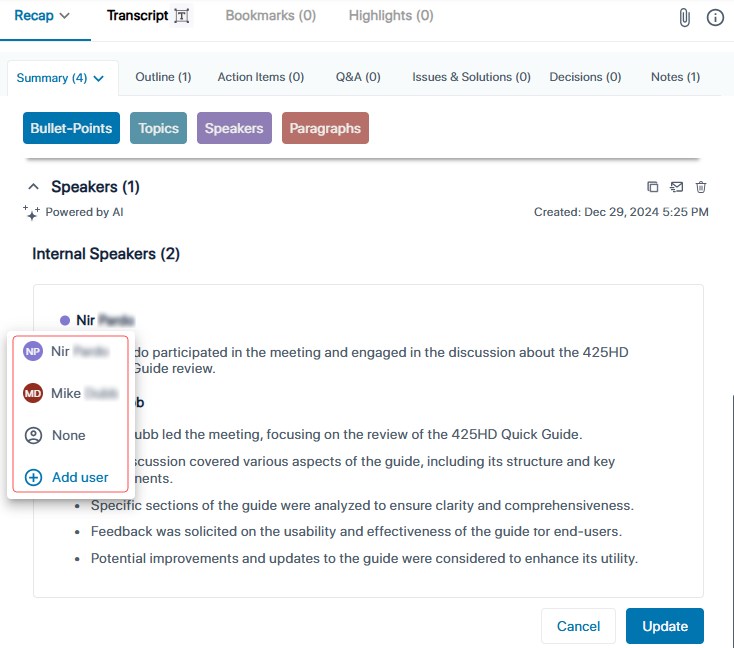
Click the speakers name that you want to replace; a drop-down list appears, as shown below: |
|
7.
|
From the drop-down list, do one of the following: |
|
●
|
To assign the specific summary to a different invitee: Click the desired person; the name of the selected invitee is displayed next to the specific summary. |
|
●
|
To assign the specific summary to nobody: Click None; "Assign to" is displayed next to the specific summary. |
|
●
|
To assign the specific summary to a user that wasn't invited to the meeting:
|
|
i.
|
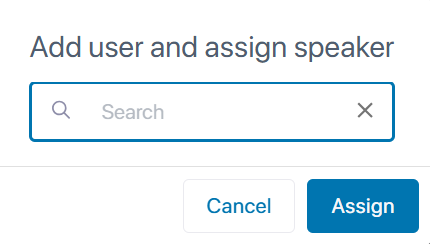
Click Add user; the following appears: |
|
ii.
|
Use the 'Search' field to find and select the user, and then click Assign; a confirmation message box appears. |
|
iii.
|
Click Continue; the name of the user is displayed next to the specific summary. |
|
8.
|
Click Update to apply your settings. |