Add and View Bookmarks
Bookmarks are used to tag important parts (locations) of the meeting recording. You can add bookmarks and view them on the video player's Speakers & Recap bar.
To add bookmarks during a meeting recording using Meeting Insights' app for Teams, see Add Highlights in Teams Meeting Window.
| ➢ | To add and view bookmarks on video player: |
| 1. | In the Navigation pane, go to any meeting recording list view that contains the recording you want. |
| 2. | Click the meeting recording name; the Player page appears. |
| 3. | Pause the video at the location where you want to add the bookmark. |
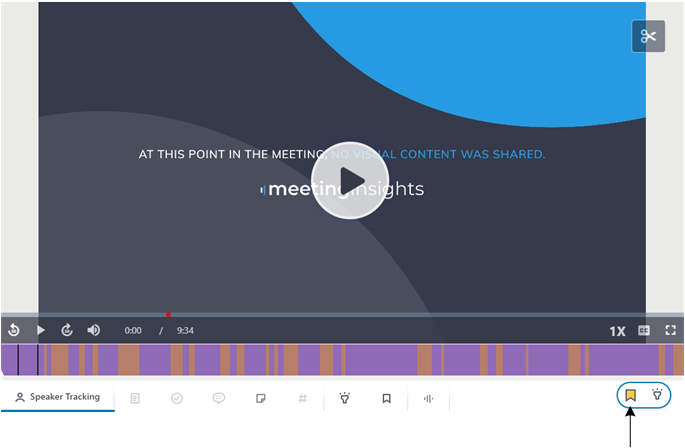
| 4. | On the Speakers & Recap bar, click  , as shown below: , as shown below: |
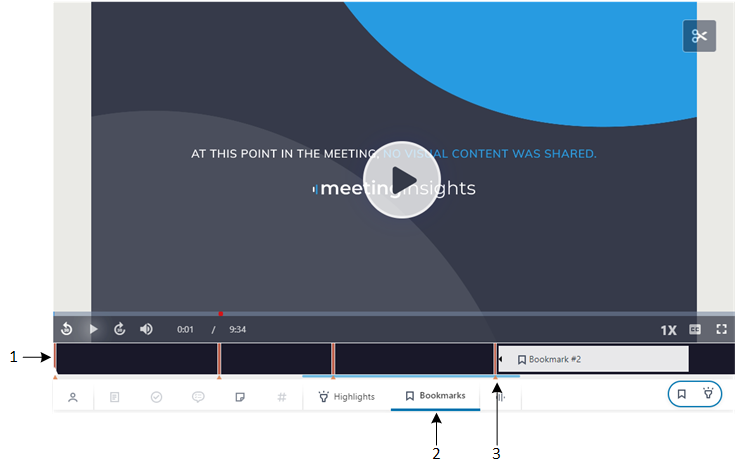
To view your bookmarks on the Speakers & Recap bar, click (#2 in figure). To view the bookmark name, hover over the bookmark's line (#3 in figure). To play the video from a bookmark, click the bookmark's line.