Filter Video Speakers and Recap Bar by Speakers
You can filter the video player's Speakers & Recap bar to display tracked speakers and recap items of specific participants (speakers) only. This is useful, for example, if you want to listen to what a specific participant said during the meeting or you want to locate the notes that you added.
|
➢
|
To filter tracked speakers and recap by speaker: |
|
1.
|
In the Navigation pane, go to any meeting recording list view that contains the recording you want. |
|
2.
|
Click the meeting recording name; the Player page appears. |
|
3.
|
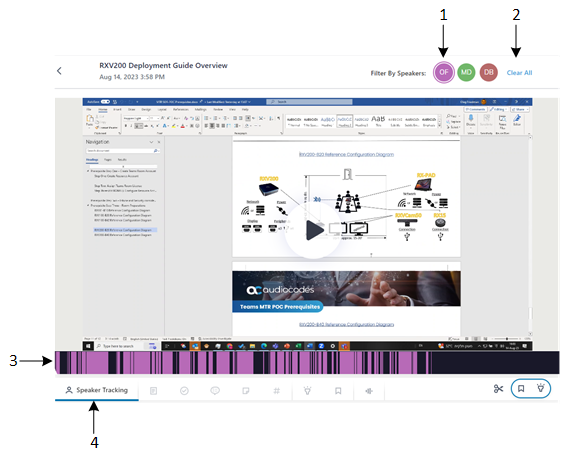
In the 'Filter by Speakers' area (#1 in figure), located above the video player, click the profile icons of participants for which you want to filter tracked speakers and recap. |
|
●
|
Selected profile icons are displayed with an outer ring, as shown in the following example: |

|
●
|
To deselect a filtered participant, click its profile icon again (outer ring is removed). |
|
●
|
To clear the filter, click the Clear All button (#2 in figure below). |
The Speakers & Recap bar (#3 in figure) now only displays tracked speakers and recap items of your filtered participants (e.g., of participant "OF", who is indicated in purple):
 Related Topics