Create an AI-generated Summary and Action Items from List View
In the List View, you can trigger Meeting Insights to use artificial intelligence (AI) to create a summary, an outline and suggested action items.
|
●
|
The AI module may sometimes generate inaccurate information. Therefore, it's recommended that you review the AI-generated recap and edit it if required to ensure accuracy and relevance before sharing it with others. |
|
●
|
If you're the owner of the meeting recording, you can always trigger AI. However, participants of the meeting recording can also trigger AI if your organization's administrator has enabled such functionality. |
|
●
|
It may take some minutes to generate the AI-generated recap. |
|
●
|
When you activate AI, it always generates a summary, an outline, Q&A, Issues and Solutions, action items, and a transcription. |
|
●
|
When the AI-generated recap is successfully generated, Meeting Insights sends you an email containing the recap. |
|
●
|
You can also run AI from the Player page. For more information, see: |
|
➢
|
To run AI to create summary and action items from List View: |
|
1.
|
In the Navigation pane, click  All meetings. |
|
2.
|
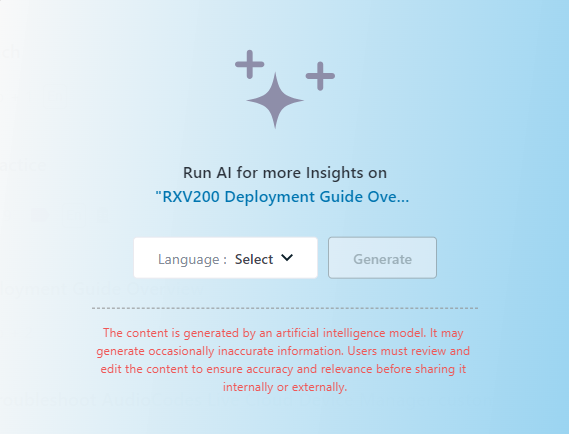
For the meeting recording that you want, click the corresponding AI not active  icon, or click the ellipsis  icon, and then from the drop-down menu, choose Run AI; the following dialog box appears: |
|
3.
|
From the 'Language' drop-down list, select the language of your meeting recording. |
|
4.
|
Click Generate; the AI processes begins, indicated by the rotating  icon, which displays "Processing" when you hover your mouse over it. When the process completes, the icon displays "AI active" when you hover your mouse over it. |