Create AI-Powered Action Items
Meeting Insights offers you a quick and effective method for automatically creating action items from your meeting recordings, using artificial intelligence (AI). AI-powered action items include the action to be taken, the speaker who requested it, the person assigned to it, and its due date.
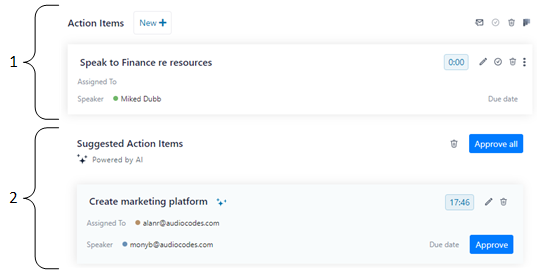
By default, Meeting Insights handles AI-generated action items like regular action items that are added manually. However, if your Meeting Insights administrator has disabled the Auto-Approve Action Items feature, AI-generated items appear as suggested action items that you must either approve or delete. If you don't approve a suggested action item (and don't delete it), it remains under the Suggested Action Items group and only the owner (or representative) of the meeting recording can view it. Participants can view only approved action items. The following figure displays AI-generated action items. Action items pending approval appear under the Suggested Action Items group (#2), while approved (or manually created) items appear under the Action Items group (#1).
When the AI-powered action items are successfully generated, Meeting Insights sends you an email containing the actions items.
|
●
|
The action items are generated by an AI model, which may sometimes generate unnecessary action items. Therefore, it's strongly recommended that you review the action items and edit them if required before sharing with others. |
|
●
|
If you're the owner of the meeting recording, you can always trigger AI to generate action items. However, participants of the meeting recording can also trigger AI if your organization's administrator has enabled such functionality. |
|
●
|
It may take several minutes to generate the AI-powered action items. |
|
●
|
You can also use activate AI to generate action items during a meeting recording. |
|
●
|
When you run AI, it always generates a transcription. |
|
●
|
In addition to generating suggested action items using AI, you can manually add action items, as described in Add an Action Item Manually. |
|
➢
|
To run AI for action items: |
|
1.
|
In the Navigation pane, click  All meetings, and then Click the meeting recording name; the Player page appears. All meetings, and then Click the meeting recording name; the Player page appears. |
|
2.
|
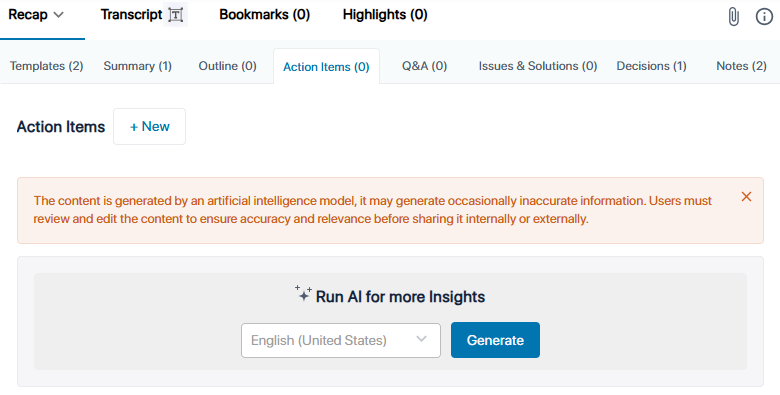
Select the Recap tab, and then click Action Items: |
|
3.
|
From the drop-down list, select the language of your meeting recording. |
|
4.
|
Click Generate; Meeting Insights begins the AI process to generate action items. If you want to cancel the process (for whatever reason), click Stop. |