Upload a File
You can upload and attach multiple files to your meeting recording.
|
●
|
Supported file types: .doc, .docx, .rtf, .txt, .pdf, .gif, .jpg, .jpeg, .png, .svg, .tiff, ppt, xls, and xlsx |
|
●
|
You can attach up to five files to a meeting recording. |
|
●
|
Each attached file can have a maximum size of up to 28 MB. |
|
●
|
You can only select and upload one file at a time. |
|
●
|
Only the Owner, Co-owner, or users assigned editing privileges of the meeting recording can attach files to the meeting recording. |
|
1.
|
In the Navigation pane, go to any meeting recording list view that contains the recording you want. |
|
2.
|
Click the meeting recording name; the Player page appears. |
|
3.
|
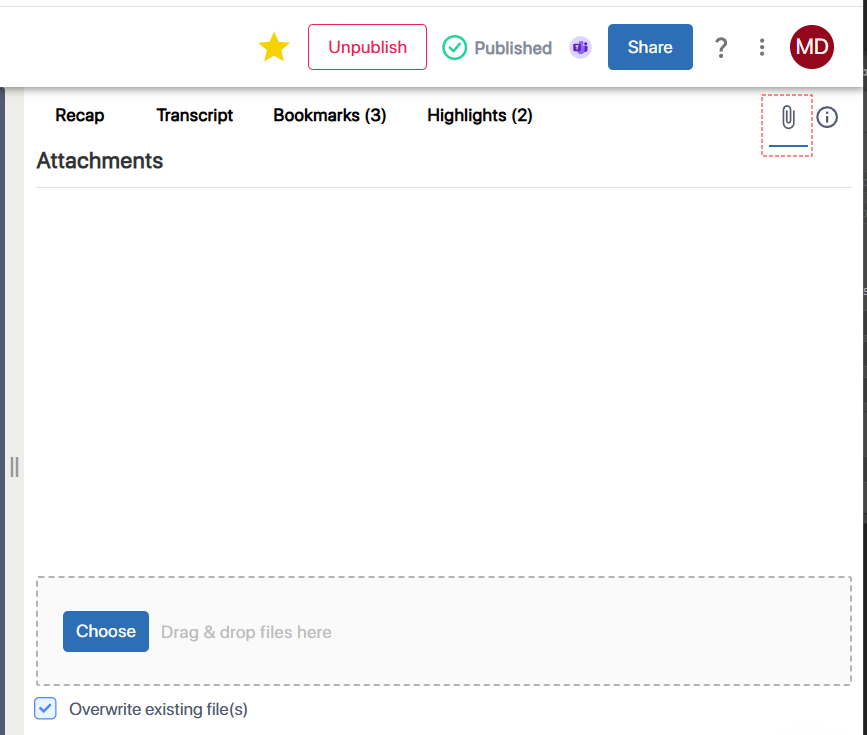
Click  ; the Attachments pane appears: ; the Attachments pane appears: |
|
4.
|
Click Choose, and then browse to and select the file on your computer; the selected file appears listed. |
|
5.
|
If you want to remove any previously attached files with the same name as the file you're currently attaching, select the Overwrite existing file(s) check box. |
|
6.
|
Click Upload; Meeting Insights starts uploading the file and when complete, a notification message box appears indicating that the file was uploaded successfully. |
|
7.
|
Click OK to close the message box. |
 Related Topics