Search Meeting Recordings with Smart Search
Smart Search is an AI-powered feature that lets you find meeting recordings based on any meeting content. It uses natural language queries and semantic understanding (large language models / LLMs) to understand the intent and meaning of your query. Smart Search searches across all meeting recording content, including metadata, transcriptions, slides, and recaps (such as summaries, decisions, notes, and action items).
Your query can include multiple criteria, such as time ranges, participants, topics, and action items. You can write a short phrase or a sentence, for example:
|
■
|
meetings in the last month where Bob and Alice discussed Copilot integration with product ABCD
|
|
■
|
meetings where product ABCD was discussed in the last 60 days
|
|
■
|
meetings discussing recording retention in meeting insights
|
|
■
|
discussions about customer feedback for product ABCD in the last week
|
|
■
|
last quarter's sales results for product ABCD
|
|
■
|
meetings where Bob was assigned action items for product ABCD
|
Smart Search translates your search intent to find matches across all meetings, no matter which language was spoken. For example, an English search query will automatically produce results from meetings held in Japanese.
Search results are sorted by relevance. Each result shows the same information as the standard list view (i.e., subject, date, participants , owner and metadata) plus the following:
|
■
|
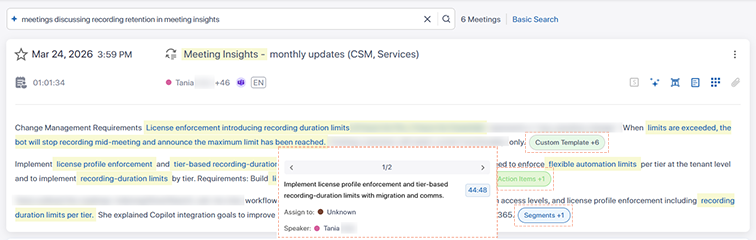
Text snippets: Highlighted excerpts showing where your query matches the content. |
|
■
|
Source buttons: Buttons that open pop-up windows to show where the match was found, such as in Action Items, Segments, Custom Templates, or Summary Bullets. |
|
■
|
Timestamps: Displayed in the pop-up windows. To play the meeting recording from that specific match, click the timestamp. |
The following figure shows an example Smart Search result. Matched text is highlighted, and buttons indicate the content source. The example also shows the pop-up window of the Summary Bullets button.
|
●
|
Smart Search supports natural language queries of up to 500 characters. |
|
●
|
Meeting Insights saves your last 10 Smart Search queries. To re-run a previous query, select it from the drop‑down list in the search field. |
|
●
|
To return to Basic Search, click Basic Search. |
|
➢
|
To search meeting recordings with Smart Search: |
|
2.
|
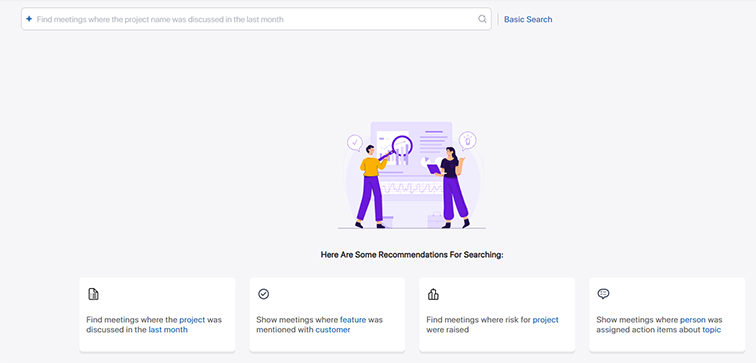
Click  Smart Search; the list view page is replaced with the Smart Search page: Smart Search; the list view page is replaced with the Smart Search page: |
|
3.
|
In the search field, enter your search query, and then press Enter or click  . . |
|
4.
|
(Optional) Use the query templates at the bottom of the page to help you write a query. Select a template and then modify the text to suit your needs. |
|
5.
|
To clear your results and start a new search, click the  icon in the search field. icon in the search field. |