Download Recap in PDF, CSV, or DOCX Format
You can download a meeting recording’s recap to your computer in PDF (.pdf), CSV (.csv), or Word (.docx) format. You can also choose which recap types to include, for example, only the AI-powered bullet‑point summary, the notes, and the action items.
|
1.
|
In the Navigation pane, go to any meeting recording list view that contains the recording you want. |
|
2.
|
Click the meeting recording name; the Player page appears. |
|
3.
|
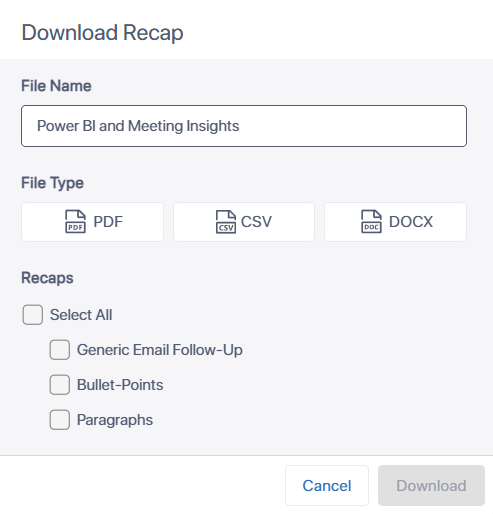
On the Recap tab, click the arrow, and then from the drop-down menu, choose  Download; the following dialog box appears: Download; the following dialog box appears: |
|
4.
|
In the 'File Name' field, type a new name for the file or keep the default name, which matches the meeting recording name. |
|
5.
|
Under the File Type group, select the format you want to download the recap in: |
|
●
|
PDF - Downloads the recap as a .pdf file (Adobe PDF) |
|
●
|
CSV - Downloads the recap as a .csv file (Comma-Separated Values) |
|
●
|
DOCX - Downloads the recap as a .docx file (Microsoft Word) |
|
6.
|
Under the Recaps group, select the recap types to include in the downloaded file: |
|
●
|
To include all recap types, select the Select All check box.
|
|
●
|
To include specific recap types, select each recap’s check box. |
|
●
|
Template-based recap summaries can be downloaded only in .pdf or .docx file formats. |
|
●
|
If you include notes, only the public notes are downloaded. |
|
7.
|
Click Download; the recap file is downloaded to your computer. |