Send All Recaps by Email
You can send all the recap types by email to all participants of the meeting recording.
|
●
|
Meeting Insights sends the recap via email only to internal participants (i.e., members of your organization). |
|
●
|
Only the Owner, Co-owner, or users with edit permissions for the meeting recording can send the recap by email. |
|
●
|
For the Summary recap, you can send an email with only the 'Owner Summary', or 'Bullet-Point Summary' done by AI, or 'Summary' done by AI (see procedure at end of section). |
|
➢
|
To send recap by email: |
|
1.
|
In the Navigation pane, click  All meetings, and then Click the meeting recording name; the Player page appears. |
|
2.
|
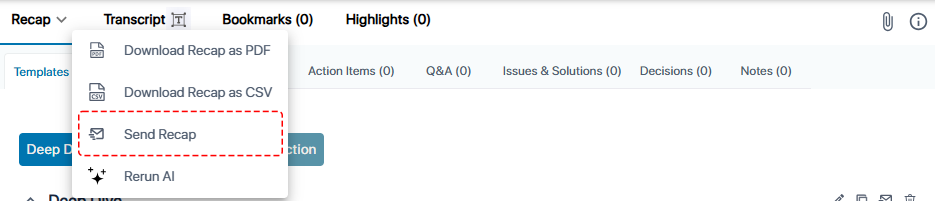
Click the arrow on the Recap tab (#1 in figure), and then from the drop-down menu, choose Send Recap (#2 in figure): |
If you want to send an email for a specific summary item under the Summary tab:
|
1.
|
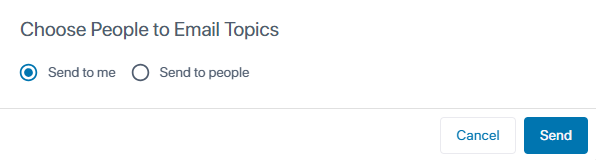
Click the corresponding  icon; the following dialog box appears: |
|
2.
|
Choose one of the following options: |
|
●
|
Send to me: Sends the recap to your email. |
|
●
|
Send to people: If you want to send the email to all participants, click Add All Participants. If you want to specify the people (participants or non-participants), then in the 'Add People' field, start typing the names of the people and then select their full names from the offered drop-down list. |