Add a Note
You can add notes to your meeting recording. Notes can be either private (default)—visible only to you—or public, where everyone with access to the meeting recording can view them.
|
●
|
Everyone with access to the meeting recording can add notes. |
|
●
|
By default, your notes are private. You can make a note public so that its visible to everyone that has access to the meeting recording. |
|
1.
|
In the Navigation pane, click  All meetings, and then Click the meeting recording name; the Player page appears. All meetings, and then Click the meeting recording name; the Player page appears. |
|
2.
|
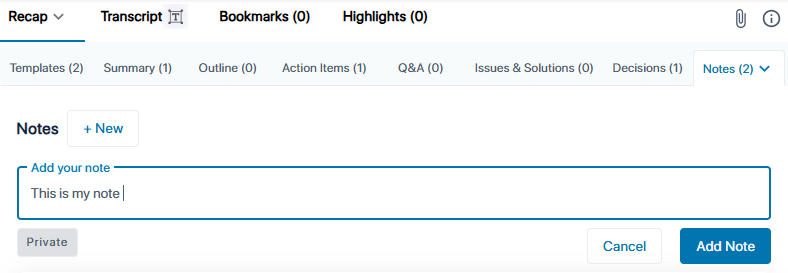
Select the Recap tab, and then click Notes. |
|
3.
|
Click the New button, and then in the text box, type the note: |
|
4.
|
If you want to make the note public, click the Private button to change it to Public (toggles between Private and Public). |