Send an AI-Powered Summary to Salesforce
Meeting Insights allows you to send a meeting recording's AI-powered summary to your organization's Salesforce platform. This ensures key discussion points from your sales meetings are readily accessible in Salesforce, and opportunities or leads are kept up-to-date. You can select the Salesforce objects and corresponding fields that you want updated with the summary.
|
●
|
This feature is available only if your Meeting Insights administrator has enabled it. |
|
●
|
You can only send the following AI-powered summary types to Salesforce: |
|
✔
|
Summary-based templates |
|
●
|
The available Salesforce objects and object fields are determined by your Meeting Insights administrator. The following Salesforce objects might be available: |
|
●
|
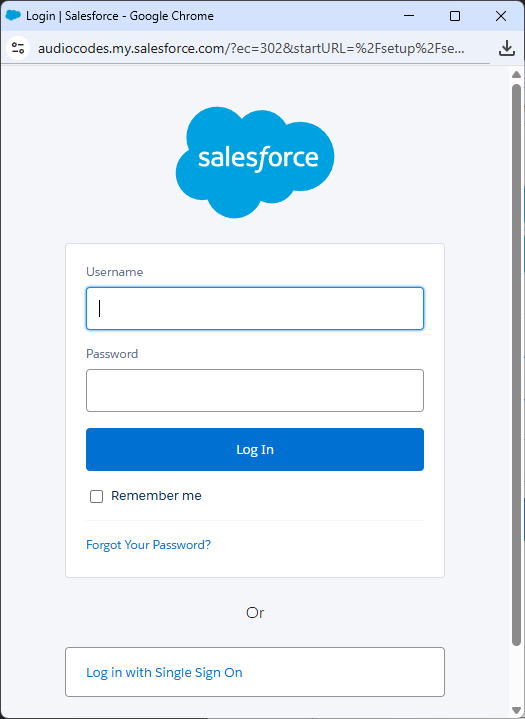
The procedure for sending the summary to Salesforce includes logging in to your organization's Salesforce. This connection remains active for 24 hours. Therefore, you're not prompted to log in for all subsequent meeting recordings' summaries that you want to send to Salesforce within this period. |
|
●
|
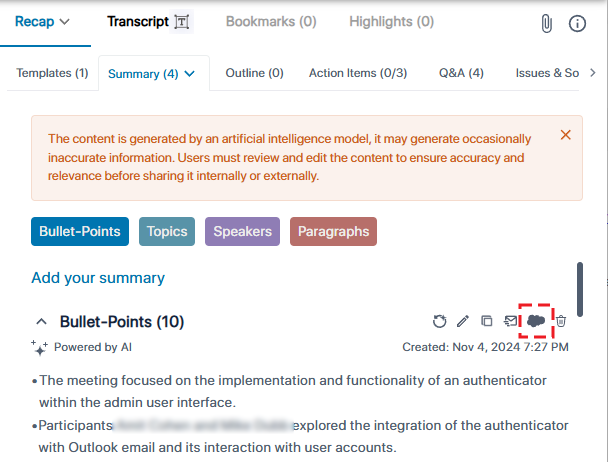
The presence of the Salesforce icon next to the summary indicates that Meeting Insights is integrated with your organization's Salesforce. The icon shows the following status: |
 Meeting Insights is integrated with Salesforce.
 An AI-powered summary has been generated for the meeting recording and you can send it to Salesforce.
 The AI-powered summary has been sent to Salesforce.
|
●
|
Only the Owner, Co-owner, or users assigned editing privileges to the meeting recording can send the summary to Salesforce. |
|
➢
|
To send AI-powered summary to Salesforce: |
|
2.
|
In the Navigation pane, click  All meetings, and then click the meeting recording you want; the Player page opens. All meetings, and then click the meeting recording you want; the Player page opens. |
|
3.
|
Select the Recap tab, and then click Templates or Summary, depending on whether you want to send the summary-based template or the "regular" summary to Salesforce, respectively. |
|
4.
|
Click the Salesforce icon, located with the other editing icons: |
The following Salesforce login screen appears:
|
5.
|
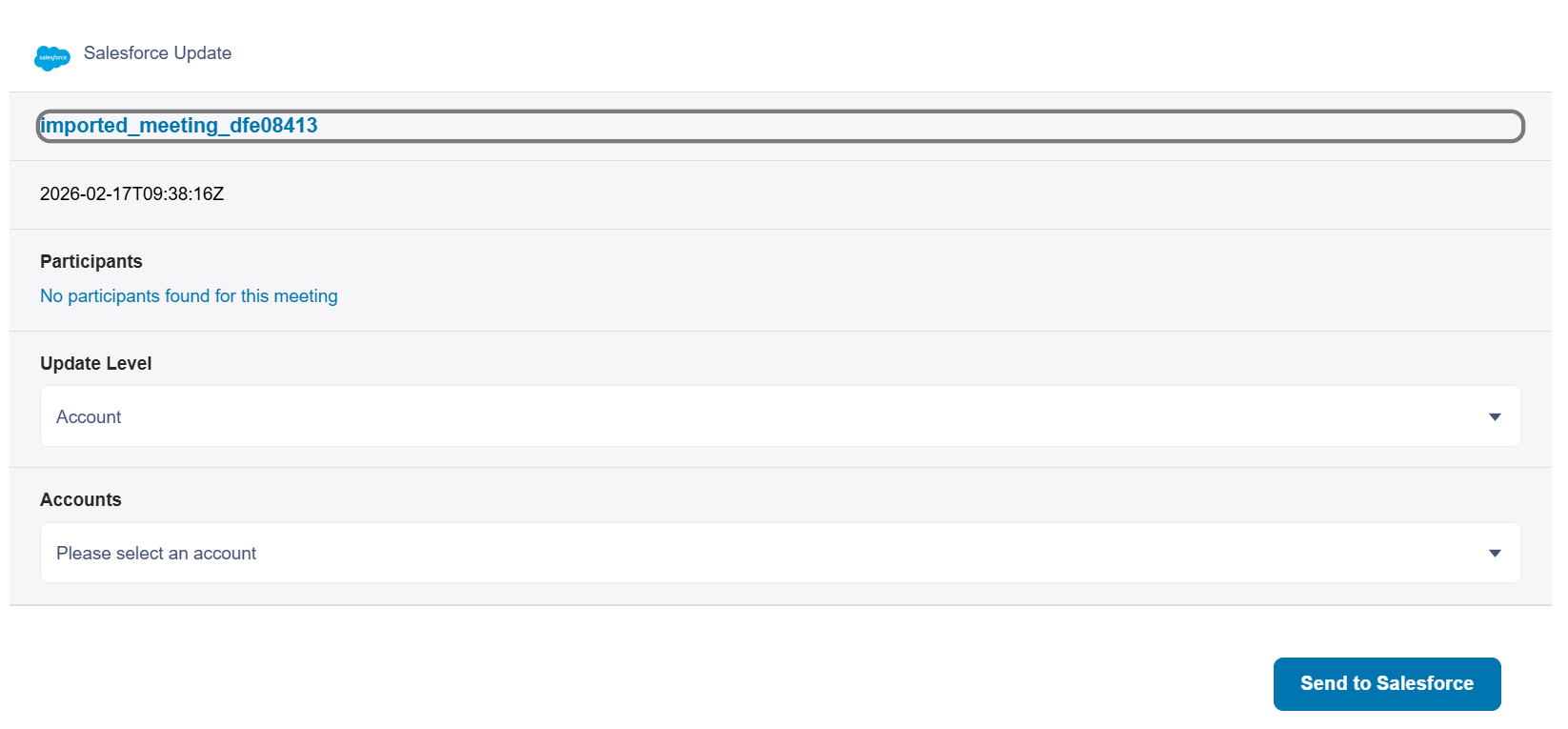
In the 'Username' and 'Password' fields, enter your Salesforce credentials, and then click Log In; when connected to Salesforce, Meeting Insights displays the following dialog box: |
|
6.
|
From the 'Update Level' drop-down list, select the Salesforce object(s) that you want to update (e.g., Account and Opportunity). |
|
7.
|
From the drop-down list for any Salesforce object you need (e.g., 'Account'), select the field you want to update with the summary. |
|
8.
|
Click Send to Salesforce; the summary is sent to Salesforce and added to the selected object fields. The Salesforce icon next to the summary you sent is now displayed as . |